


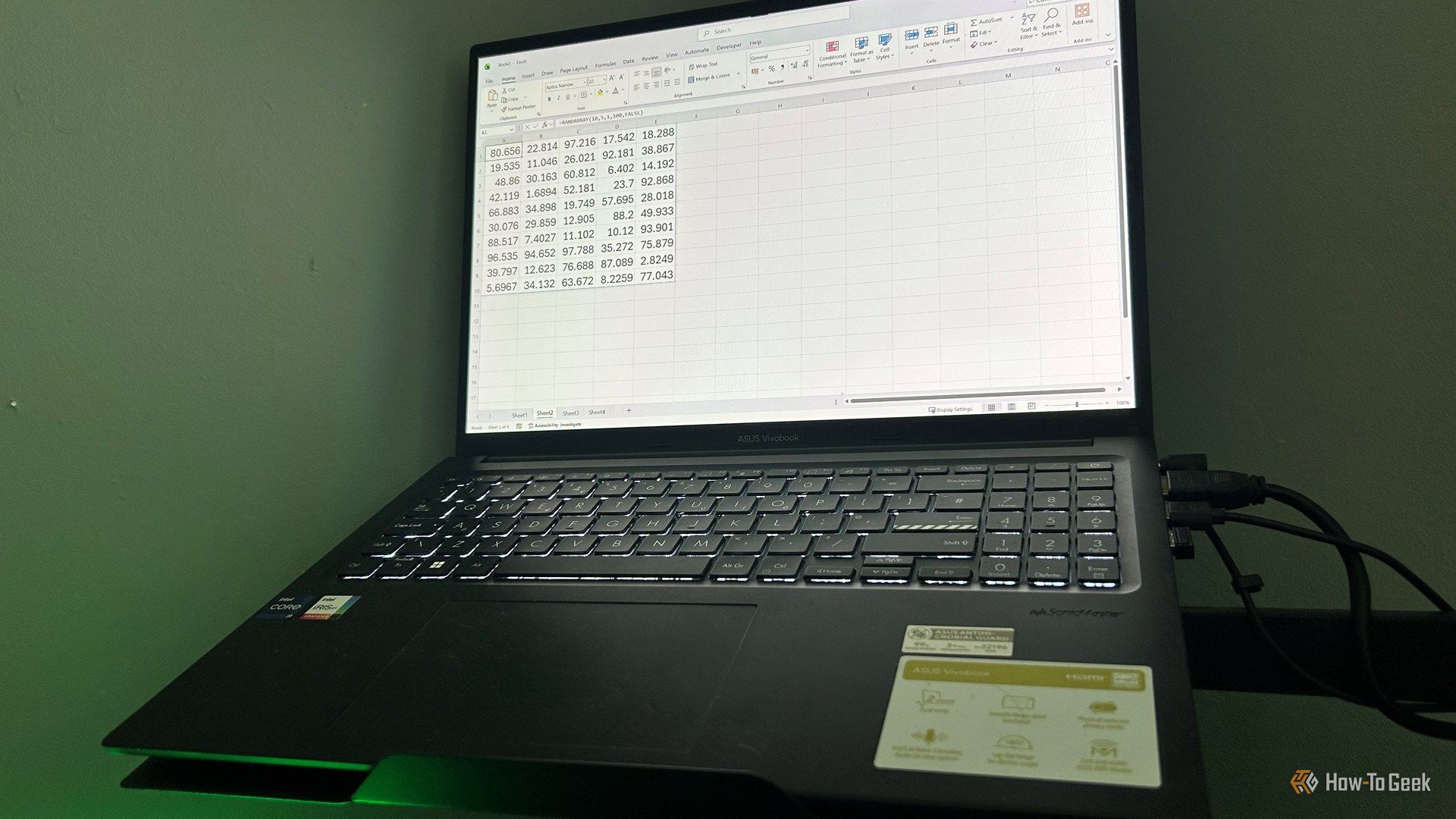
Excel and other spreadsheets are the workhorses of modern business. You’ve probably used the regression function to find a trend line or other linear relationship in your data. Here’s why using Python on your data can turbocharge your regression analysis.
Python separates code from data
No more accidentally messing up your spreadsheet!
While spreadsheets like Excel are useful and popular, using them for actual data analysis sometimes can feel like using the wrong tool for the wrong job. The main problem is that the data and the operations on the data are intertwined in an Excel workbook.
If you want to run a regression, you’ll have to look for a free spot in your spreadsheet, click and drag through your columns, and then have your results right in the spreadsheet. This looks messy and it’s possible to mess up your data if you’re not careful.
Using Python, you can keep your data separate from your analysis. You can slurp up your spreadsheet data into pandas, then use Pingouin or statsmodels for the data. There’s less risk of you messing up your data or your analysis this way.
Jupyter notebooks are reproducible
Others can do what you did (and you can remember)
Another problem with commingling your spreadsheet data and your regression analysis is that it can be difficult for colleagues to figure out what you’re trying to do or what you actually ran on your data. And that includes yourself when you come back to a spreadsheet days, weeks, or even months later and find yourself scratching your head to remember what you did with your data.
Jupyter notebooks solve this problem. You can load in your data and run some analyses, because they’re separate from each other. You can run your regressions and generate the plots, and you can see the exact code you run. Not only can you run Python code in a Jupyter notebook, you can create Markdown cells with all of the usual formatting to explain your analysis. You can even export your notebooks into other formats like PDFs.
This gives Jupyter a transparency that spreadsheets by themselves can lack. This is why Jupyter notebooks are so popular in scientific computing as well as in data science.
You can run more advanced models if you need to
Why stop at simple linear regression?
While simple linear regression, with a standard independent or x variable and a dependent or y variable, is easy enough for Excel, if you want to get into more advanced regression methods, Python makes a lot more sense.
You can have multiple regression, such as more than one independent variable, in Excel and other spreadsheets, but you’ll have to click and drag multiple columns. While you may have to know enough Python to do this in a library call to statsmodels, for example, I find this easier than clicking and dragging.
For example, if I want to see if the size of the party and the total bill have any bearing on the tip in a restaurant from a dataset of restaurant customers, I can run this code in Python:
results = smf.ols(‘tip ~ total_bill + size’,data=tips).fit()
results.summary()
This code uses a formula style that was popularized by R.
You can even run sophisticated machine learning routines such as those used in scikit-learn if you need to.
Publication-quality visualizations
Make your work stand out
Lots of people are familiar with the standard scatterplot with a regression line drawn over it. These are easy to generate in spreadsheet programs like Excel or LibreOffice. They’re ubiquituous, but I think they have a characteristic look. It’s not necessarily a good one to me.
Fortunately, it’s easy to generate plots that are almost publication quality, which can help make your next report or presentation stand out.
Let’s go back to our restaurant tips example. I want to show the relationship between the total bill and the tip. This code will plot the regression with Seaborn and adjust the titles to make them more readable:
import seaborn as sns
sns.set_theme()
sns.regplot(x=’total_bill’,y=’tip’,data=tips)
plt.title(“Tip vs. total bill in a New York City restaurant”)
plt.xlabel(“Total bill (USD)”)
plt.ylabel(“Tip (USD)”)
plt.show()
This will show the scatterplot with the regression line drawn over it, but in a nice default theme that I think looks better than most spreadsheet programs.
Better yet, this will be more transparent then just clicking and dragging in the chart wizard. If you put this code in a Jupyter notebook, not only will you be able to show your colleagues how you did it, but you’ll also be able to remember when you want to run a similar regression later.
You can exchange data between the two
Use the right tool for the job
One reason that it makes sense to use Python to run regression on spreadsheet data is that it’s easy to exchange data between Python and spreadsheets.
The pandas library can handle Excel files using the read_excel() function:
import pandas as pd
pd.read_excel(‘very_important_data.xls’)
It will also read the very common csv format:
pd.read_csv(‘data.csv’)
These commands will import the data into a “DataFrame” where you’ll do your work with Python, including running the regressions. You can also save DataFrames back into other formats. This is useful if you use pandas to “clean” your data to remove duplicates or missing values:
pd.to_csv(‘cleaned_data.xls’)
This lets you use the strengths of both Excel and Python. You can use Excel for entering and formatting data, and Python for creating the regression analysis.
Excel is useful, but when you need more advanced regression analysis, Python will be the tool you need.
OS
Windows, macOS, iPhone, iPad, Android
Brand
Microsoft
Price
$100/year
Developer(s)
Microsoft
Free trial
1 month
Microsoft 365 includes access to Office apps like Word, Excel, and PowerPoint on up to five devices, 1 TB of OneDrive storage, and more.
