


It really matters to me the way my lock screen looks. It is the first thing I see when I wake up and the last thing I look at before putting my phone aside for the night. That alone makes it worth getting it right. A good lock screen doesn’t just look nice; it enhances the overall experience. Plus, adding the right widgets makes it surprisingly useful too. In fact, you can get so much done from the lock screen itself that you barely need to unlock your phone at all.
And that’s perfectly fine, as long as it does not turn into a security nightmare. The lock screen should actually help you stay productive. But if your setup feels too open or risky, that’s a clear sign something needs fixing, and the settings should be changed immediately.
My phones are already set up exactly the way I like my lock screens to look, but my Windows laptop was a different story. It felt overdue for a refresh. So I decided to give it a proper makeover, and now my Windows lock screen is easily 10 times better than before.
The basics to get started
A fresh coat of paint for your lock screen
My Windows laptop’s lock screen looked terrible. It was extremely plain and boring to begin with, and definitely not something I enjoyed seeing every time I opened my laptop. So the very first thing I decided to fix was the theme. It’s a small change, but it makes a huge difference. After all, the lock screen should feel welcoming and delightful to look at.
So, if your lock screen feels the same way, starting with the basics is the best move. Setting a theme gives you a polished and personal look. Here’s how you can do it:
- Click on the Start menu on your Windows laptop.
- Open Settings, then select Personalization from the left-hand menu.
- The first thing you’ll see is Themes.
- Choose any theme listed there to apply it instantly.
- Scroll down slightly, then click Themes again to explore more options.
- From here, you can browse additional themes, adjust desktop icon settings, switch contrast themes, or download new themes directly from the Microsoft Store.
Once you find a theme that you like, apply it. You’ll immediately notice how much better your lock screen looks. It’s a simple tweak, but it gives your laptop a much-needed visual refresh.
Go all out with the look
A little motion goes a long way
If the default Windows themes feel a bit too safe, you can take desktop customization much further and give your laptop a whole new look. Instead of sticking to static wallpapers, try Lively Wallpaper to add motion to your setup.
Lively Wallpaper is a free, open-source app that lets you use animated videos, GIFs, and interactive wallpapers as your desktop background. It also extends to the lock screen, giving Windows a far more polished, eye-catching look that feels almost unrecognizable compared to the default experience. With the right setup, it can completely change how your laptop feels every time you unlock it.
OS
Windows
Developer
rocksdanister
Lively Wallpaper is a free and open-source Windows app that transforms your desktop with animated and interactive wallpapers, including videos, GIFs, and web pages. It supports multi-monitor setups, performance optimization, and extensive customization for a personalized experience.
A lock screen that’s actually useful
Thankfully, Windows gives you plenty of control over widgets. With Windows 11, lock screen widgets now appear by default even if you never asked for them. The good news is that you can turn them off entirely or customize them to match your preferences. If you want to tweak or add more widgets on your lock screen, here’s how you can do it:
- Start by pressing Windows Key + W to open the Widgets panel on your Windows laptop. At the top, you’ll notice two main sections called Missed Insights and Widgets.
- Switch to the Widgets tab. From here, locate the widget you want to customize, such as the Weather widget, and click the three-dot menu. This opens the customization options, allowing you to adjust the layout, change settings, or switch between Celsius and Fahrenheit.
- You can follow the same steps for other widgets to fine-tune them exactly how you like. If certain widgets feel unnecessary or cluttered, simply open the three–dot menu again and select Hide widget to remove them.
Widgets are especially useful because they put quick information and controls right on your lock screen. They are interactive, easy to glance at, and really helpful once set up properly. If you want to explore even more widget options, click the Settings icon in the top right corner of the Widgets panel and select Discover new widgets. You will find additional widgets that you can pin and customize, helping you create a lock screen that feels practical as well as personalized.
Related
I built my own desktop dashboard with Rainmeter and now everything I need is at a glance
I created a custom Rainmeter dashboard and now my desktop feels like a command center.
Go all in on customization
Build a desktop that actually reflects you
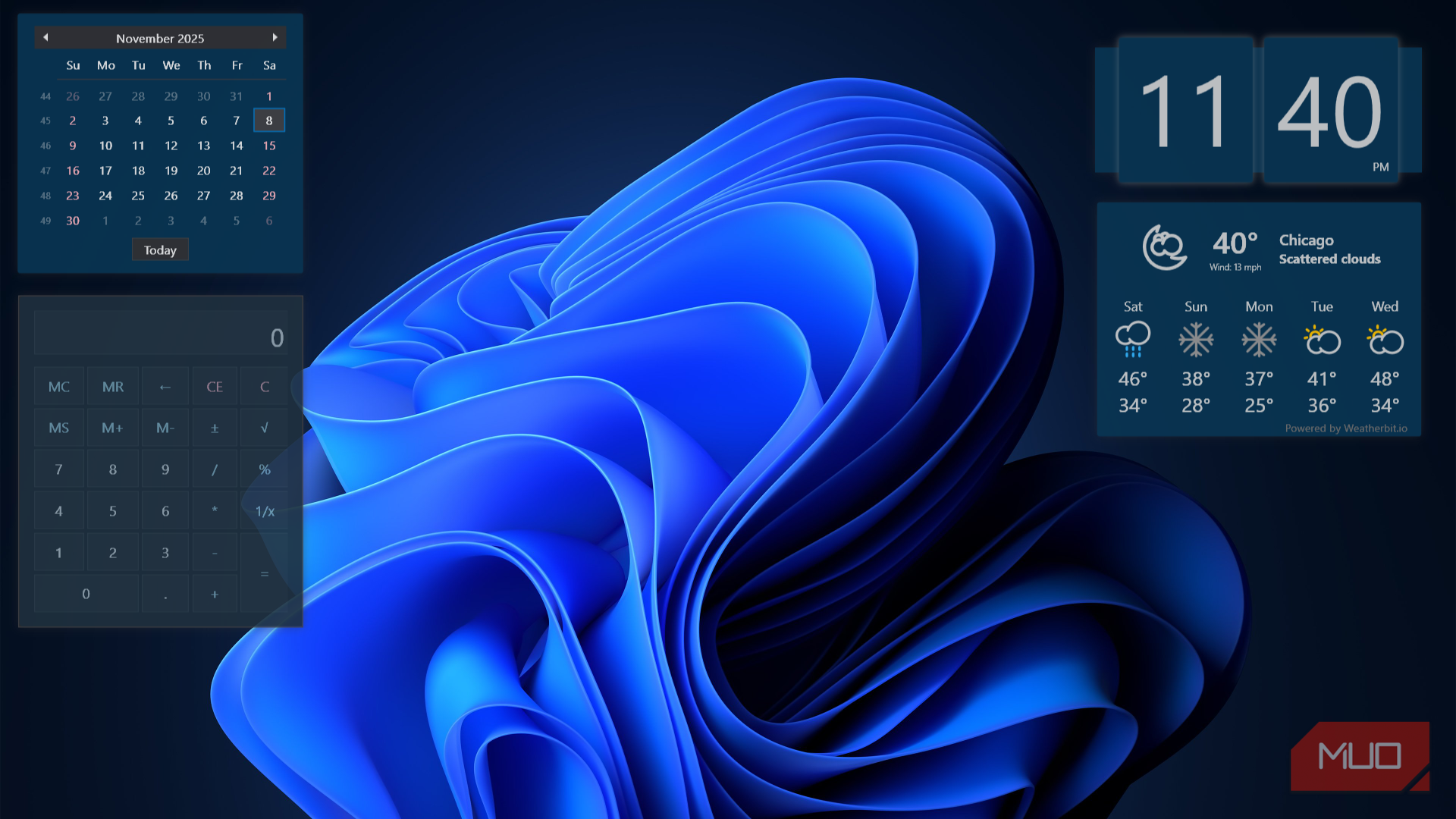
You can truly go all in when it comes to customizing your Windows laptop. One of the best tools for this is Rainmeter, a free, open-source Windows app that lets you add widgets, known as skins, directly to your desktop. These skins can display useful system information such as RAM usage, CPU performance, battery status, and other key system resources at a glance.
Beyond system stats, Rainmeter also lets you add weather panels, clocks, app launchers, and a wide range of visual elements that give you control of deep-level personalization. You can mix and match skins, tweak their appearance, and position them exactly where you want, turning your desktop into something that feels uniquely yours.
Fully customizing your Windows laptop not only improves usability but also gives it a look that reflects your personal style. So, if you enjoy fine-tuning details and shaping exactly the way you like it, do not hesitate to go all in on customization.
Turning a boring lock screen into something you’ll actually enjoy
Your lock screen is the very first interaction you have with any device, and it should do more than just look good. It needs to be useful in everyday use. A few thoughtful changes can completely transform how it looks and feels, and once you personalize it, it becomes quite enjoyable to interact with.
A well-customized lock screen keeps important information within easy reach while adding a sense of familiarity and personal comfort. And once you’ve set it up the way you like, going back to the default lock screen feels oddly out of place.
