




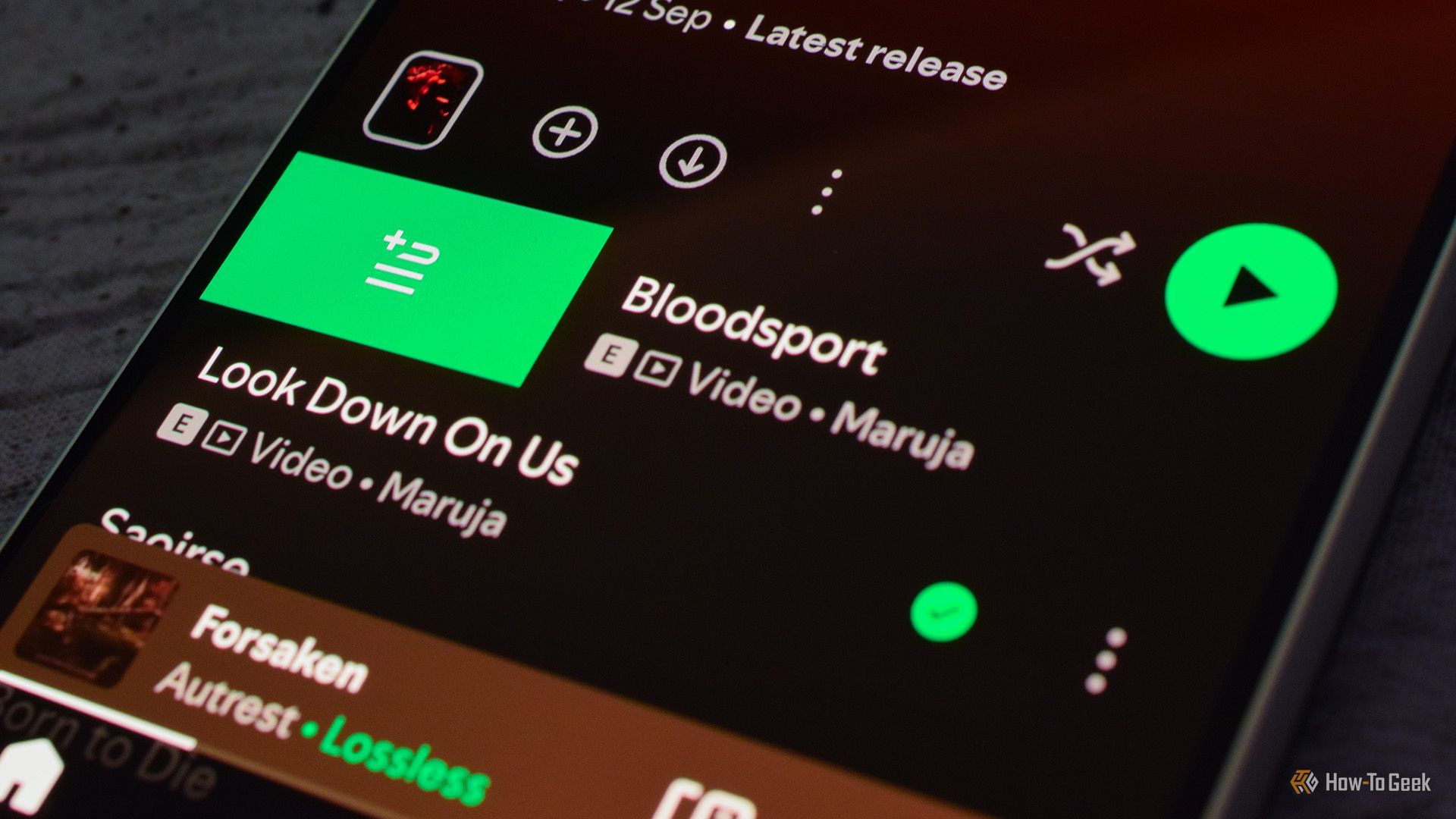

You probably have used Spotify’s “Add to Queue” feature countless times. While a bit clumsy, it gets the job done. But did you know that the app also supports a much faster queue feature, allowing you to add songs to the queue with just one swipe? Here’s how it works and why you should start using it.
How Spotify’s Swipe to Queue Feature Works
The Swipe to Queue feature has been a staple feature of Spotify’s mobile apps for a while now. It works rather straightforwardly; much faster and more elegantly than the regular “Add to Queue” feature you can access by tapping the three-dot menu.
Instead of performing two steps (tapping the three-dot menu and then adding a song or album to the queue), you only need to swipe right on the song you want to add to your queue. That’s it. You can do this from almost anywhere in the app, including artist and album pages, playlists, and more.
You can even add songs to your current play queue directly from the queue. Just open your queue and swipe left on a song you’d like to add. The only songs you can’t add include the song that’s currently playing and the songs you’ve already added to the queue, which are marked with the green “Add to Queue” icon, like in the screenshot below.
While swiping right adds a song to the queue, swiping a song left has two different actions depending on the context. When you’re on the queue screen, swiping left removes the song from the queue. When on the album, single, or EP page, swiping left adds the song to your “Liked Songs” playlist.
Unfortunately, the left-swipe gesture isn’t available everywhere. From what I’ve noticed, you can’t swipe songs left on artist pages or within playlists—both the ones you’ve created and added to your library.
I Use Swipe to Queue All the Time Because it Rocks
I’ve been using the Swipe to Queue gesture all the time since discovering it because, honestly, it’s one of the best Spotify features out there.
I find it especially handy when I want to add double albums to the queue. Spotify counts double LPs as a single album and always adds both “discs” to the queue when you use the “Add to Queue” option in the three-dot menu. This is less than ideal, as most of the time the second CD contains instrumentals or live songs, which I usually am not interested in.
Case in point is Mastodon’s Crack the Skye, a double album where the second disc includes instrumental versions of the album songs. Instead of adding both discs using the “Add to Queue” feature, I simply swipe right on the songs from the first disc to add them to the queue, which ultimately takes me less time than adding the entire album and then manually removing the songs from the second disc.
It’s the same story with special edition albums, remasters, and so on, which often come with a bunch of bonus songs. Instead of adding the entire album and then manually removing the songs I don’t want to listen to, I just swipe on the songs I want to listen to.
Swipe to Queue is also great when I listen to an artist’s radio, or a playlist, and stumble upon a great song from a band I haven’t listened to before. I can just visit their artist page, swipe a few popular songs found atop their artist page, add them to my library if I like what I’ve heard, and continue to listen to the playlist.
Swipe to Queue Is Especially Handy for Spotify’s Jam Feature
There’s another situation where Swipe to Queue is handy to have. You’ve probably heard about (and used) Spotify’s “Jam” feature. I use the feature almost daily with my partner when we’re cooking, and Swipe to Queue is a perfect tool for it.
I usually create a Jam and invite her (auto-invite over Wi-Fi and Bluetooth is flaky, so I share a link with her instead), and then we add songs to the shared queue while we cook. We usually add songs in turn, so the queue plays my song, then hers, and so on. However, you can add multiple songs one after another, and then the other person can add multiple songs if you prefer that way.
Thanks to Swipe to Queue, we can add songs in a jiff, populating the shared queue in just a few seconds with enough songs to last us until we finish making the dish.
The “Jam” feature, in combination with the Swipe to Queue gesture, is also great for parties because you can create and share a Jam with everyone present, and then everyone can contribute to the shared queue by swiping on songs they’d like to add. Jamming together allows everyone participating to add songs, but also to remove them; removing songs isn’t limited to the person who created the Jam.
The good news is that you aren’t limited to using the “Jam” feature with people who are in the same room with you. You can invite your friends, family, or partner regardless of their location, allowing you to share the music listening experience no matter how physically distant you are.
The Swipe to Queue gesture has become the single action I use the most in Spotify. It’s straightforward to use and handy no matter whether you’re an album, playlist, or song-oriented listener. Plus, Swipe to Queue and the “Jam” feature make for a perfect combo when you want to enjoy a shared listening experience, both with loved ones who are right next to you and those who are far away.


