

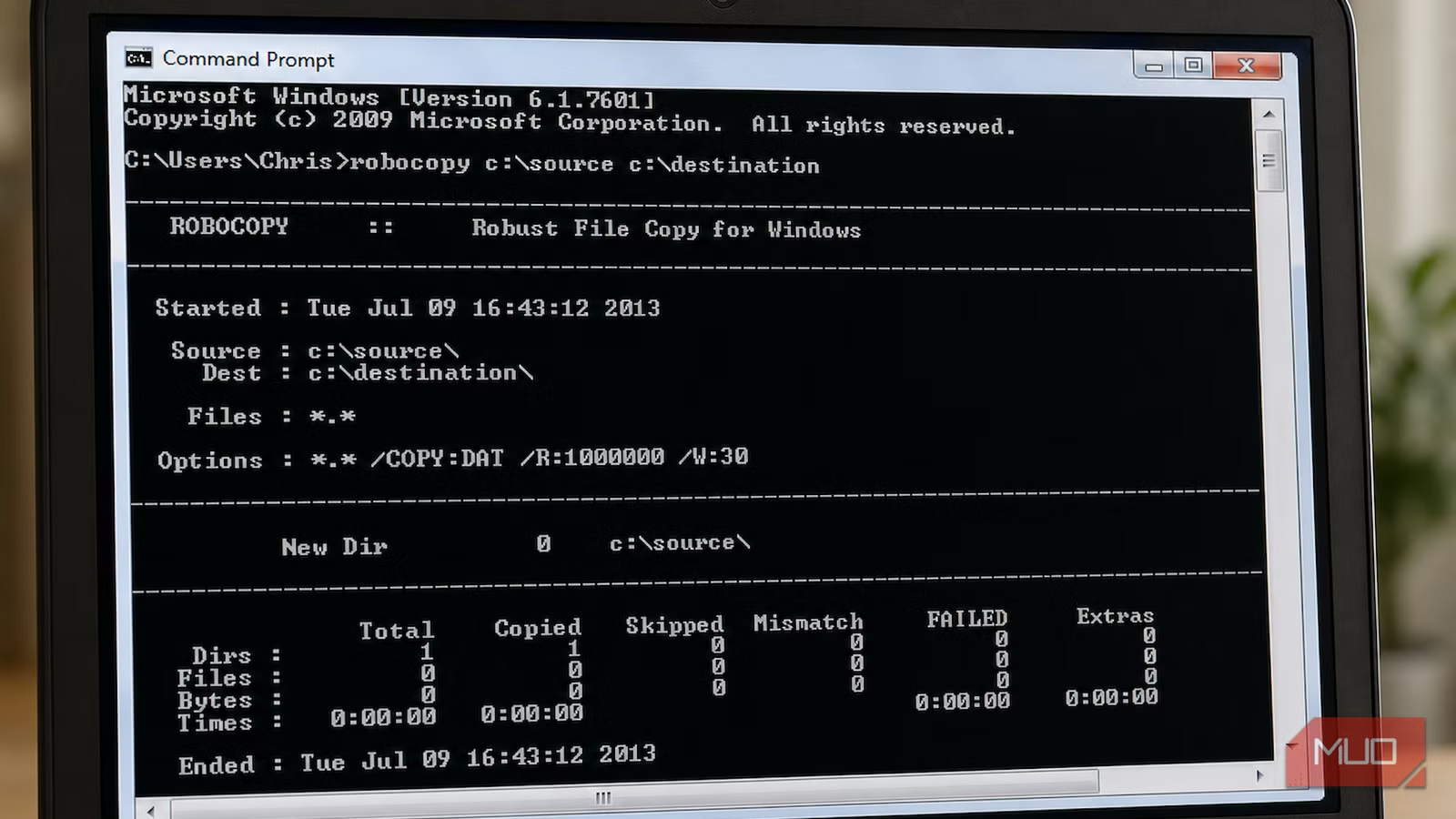
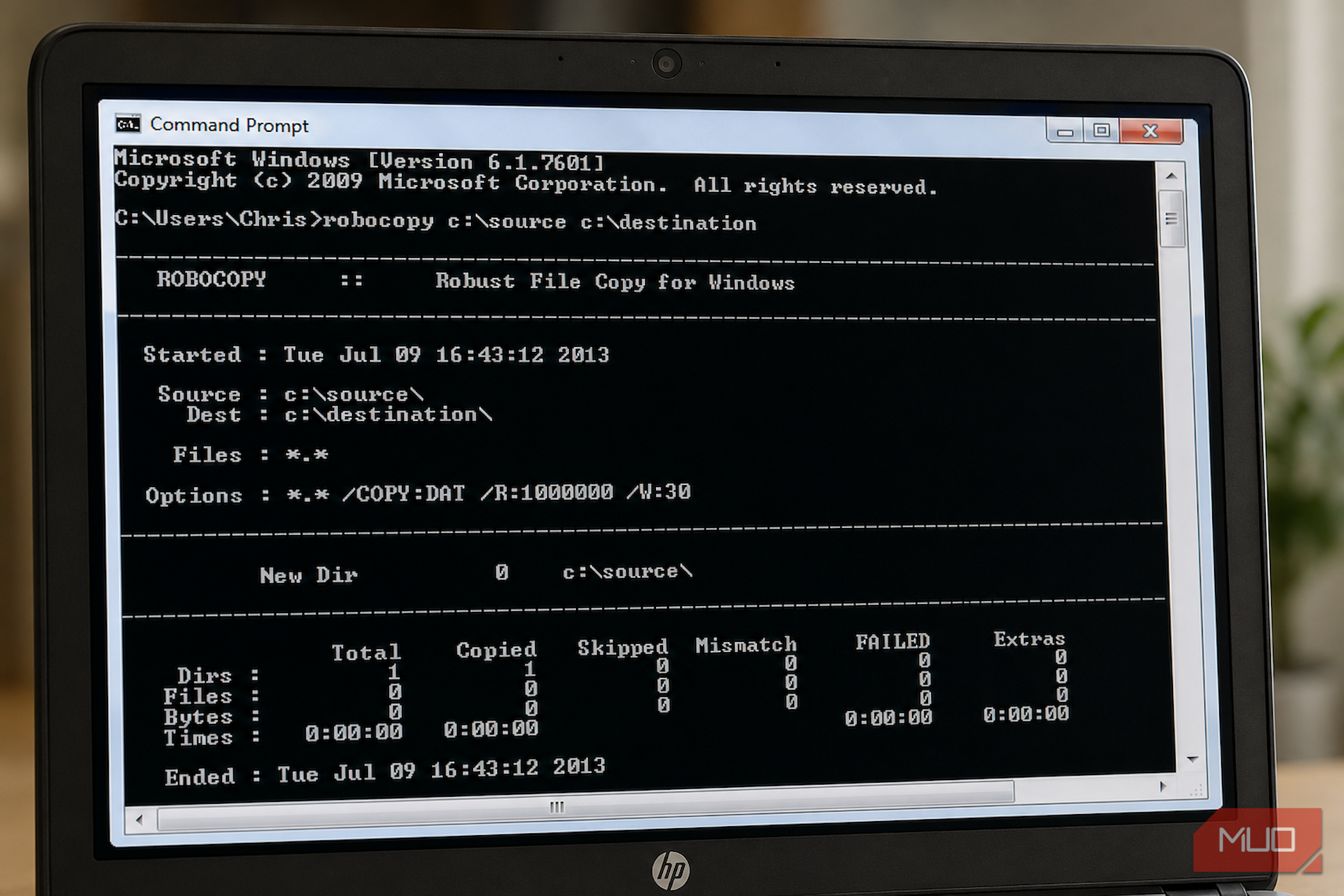
File Explorer gives you a progress bar, a folder animation, and the reassuring sense that copying files is a polite, supervised process — though that initial delay is exactly why File Explorer takes forever to start copying. Robocopy hands you a black command window that fills with scrolling text and assumes you already know what you’re doing.
Robocopy dates back to the Windows NT Resource Kit era, with late-’90s builds circulating long before it became a built-in Windows tool. Decades later, it’s still the program I reach for when File Explorer is likely not to handle a copy job well.
Robocopy looks ancient because it is
And that is why it works
Screenshot by Yasir Mahmood
Kevin Allen created Robocopy and first released it as part of the Windows NT 4.0 Resource Kit, and it has been a standard feature of Windows since Windows Vista and Windows Server 2008. For almost a decade, it remained a Resource Kit extra, something only IT admins bothered to install separately, with early version numbers like 1.70 and 1.71 dating back to the original 1997 Windows NT Resource Kit release. Then Microsoft folded it directly into the operating system, and it’s stayed there through every release since, including Windows 10 and 11.
What never changed is the interface, because there basically isn’t one. Robocopy still runs from a command prompt — or whichever Command Prompt alternative you prefer — without buttons, without drag-and-drop, and without anything resembling a friendly summary screen beyond a wall of text. For moving a handful of documents, that level of detail is overkill. File Explorer handles casual jobs perfectly fine. But once a copy job needs to survive a dropped Wi-Fi connection, log exactly what happened, skip files that already match, or run unattended overnight, the friendly window becomes a disadvantage. It starts being the thing in the way.
File Explorer copies files; Robocopy survives copy jobs
It’s built for bad days
The difference becomes obvious as soon as something goes wrong, which is always a possibility during a large transfer. File Explorer’s copy dialog is fine for simple jobs, but it is not built around gracefully resuming a 40GB folder copy after a dropped connection. Robocopy is. With restartable mode (the /Z switch), it can resume a transfer from where it stalled instead of starting from scratch.
Multithreading is a big advantage of using Robocopy. The /MT switch lets Robocopy copy multiple files in parallel, using 8 threads by default and up to 128 if you specify more. On folders packed with thousands of small files, especially over a network share, that parallelism can move things along much faster than Explorer’s more linear copy process.
Then there is logging, which File Explorer does not offer in any serious way. With /LOG, Robocopy can write the job details to a file, including every directory touched, every file copied or skipped, and a final summary. This is a big deal when you are running unattended backups, troubleshooting a failed transfer, or need a reliable paper trail afterward.
For a routine photo backup, Robocopy can be as simple as this:
robocopy “D:\Photos” “E:\PhotosBackup” /E /MT:16 /R:2 /W:5 /LOG:copylog.txt
That command copies the full folder structure, including empty folders, with /E. It uses 16 threads via /MT:16, retries locked or unavailable files twice with /R:2, waits 5 seconds between those retries with /W:5, and writes the entire run to copylog.txt. It is not glamorous, which is exactly the point. I can launch it, leave it alone, and come back to a copy job with a record of what happened.
For large video files, /J is the switch worth keeping in your pocket. It enables unbuffered I/O, which skips the filesystem cache. Buffered copying makes sense when Windows is handling smaller files you may reopen soon, but it adds needless churn when you are moving a 50GB video file once and then forgetting about it. Microsoft specifically recommends /J for large files because bypassing the cache avoids that overhead.
robocopy “D:\Videos” “E:\Videos” /E /J /MT:8
That gives you a straightforward library move with full directory copying, multithreading, and unbuffered transfers for the big stuff, without turning the command into a wall of switches.
I would not say Robocopy wins every speed contest in every possible setup. Throughput still depends on the drives involved, the network path, antivirus scanning, SMB configuration, file sizes, and the switches you choose. In reality, though, for large, repeatable, or unattended transfers, Robocopy is often faster and steadier than File Explorer because it gives you control over the job instead of hiding every useful dial behind a cheerful progress bar.
If you absolutely need a graphical interface but still want the underlying power, tools like ChoEazyCopy offer a faster alternative to file copying by wrapping Robocopy entirely in a GUI.
To make Robocopy a little less intimidating, I built a simple Robocopy Command Builder at https://robocopycommand.netlify.app. It lets you enter your source and destination paths, pick common options like /E, /Z, /MT, /R, /W, /LOG, /J, and /MIR, then generates the command with a plain-English summary. It is not a replacement for understanding what the switches do, especially with /MIR, but it should make the first command much easier to build without digging through documentation.
The delete button has shoes
image credit – self captured (Tashreef Shareef) – No Attribution Required
The switch that deserves real caution is /MIR. Mirror mode keeps two directory trees synchronized by deleting from the destination anything that no longer exists in the source. Used correctly, it is perfect for a clean backup sync. Used carelessly, it is also a spectacular way to wipe the wrong folder because you swapped the source and destination paths.
robocopy “D:\Projects” “\\NAS\Backups\Projects” /MIR /Z /MT:8 /R:3 /W:10 /LOG:backup.txt
That command mirrors my project folder to a NAS share, keeps the transfer restartable with /Z, runs it across 8 threads with /MT:8, retries problematic files 3 times with a 10-second wait, and writes the entire session to backup.txt. The log matters because I want to know exactly what was copied, skipped, or purged afterward.
Robocopy is not a full backup app and will not provide version history, cloud rollback, or a friendly restore wizard. It is a very good way to move and mirror files when you understand exactly what the command will do.
Before I let /MIR touch anything important, I run the same command with /L first. That lists what Robocopy would do without copying, deleting, or modifying a single file, which is about as close as this tool gets to a friendly confirmation dialog. It has saved me from at least one mistake I would not have enjoyed having to explain. I also test risky commands in a throwaway folder, double-check the source and destination paths like they owe me money, and never run a destructive sync without logging the output somewhere I can review it.
The command line wins
Whether you are using the classic command prompt or exploring the even more powerful PowerShell version, some Windows utilities age poorly because they were designed for a specific moment in time. Robocopy aged well because copying files is still copying files, and big, messy folders still punish tools that treat the job casually. It has no window, no glossy interface, and no patience for hand-holding, but when I need a copy job to finish instead of merely begin, that is exactly why I use it.
