


Even if you’ve been coasting through Excel without fully understanding what’s happening on every sheet you open, you’ve probably noticed curly brackets appearing in some formulas — even though you never typed them yourself. If you don’t feel like a spreadsheet wizard, it’s easy to ignore them, especially when all your formulas are working as expected.
However, if you’re anything like me and tend to question things that show up without a clear explanation, those brackets are hard to overlook. You’ll be wondering why they’re in your formulas and whether they signal something important. Do they point to a useful feature working behind the scenes, or are they a warning that something unusual is going on?
Legacy array formulas
The curly brackets you can’t type yourself
Screenshot by Ada
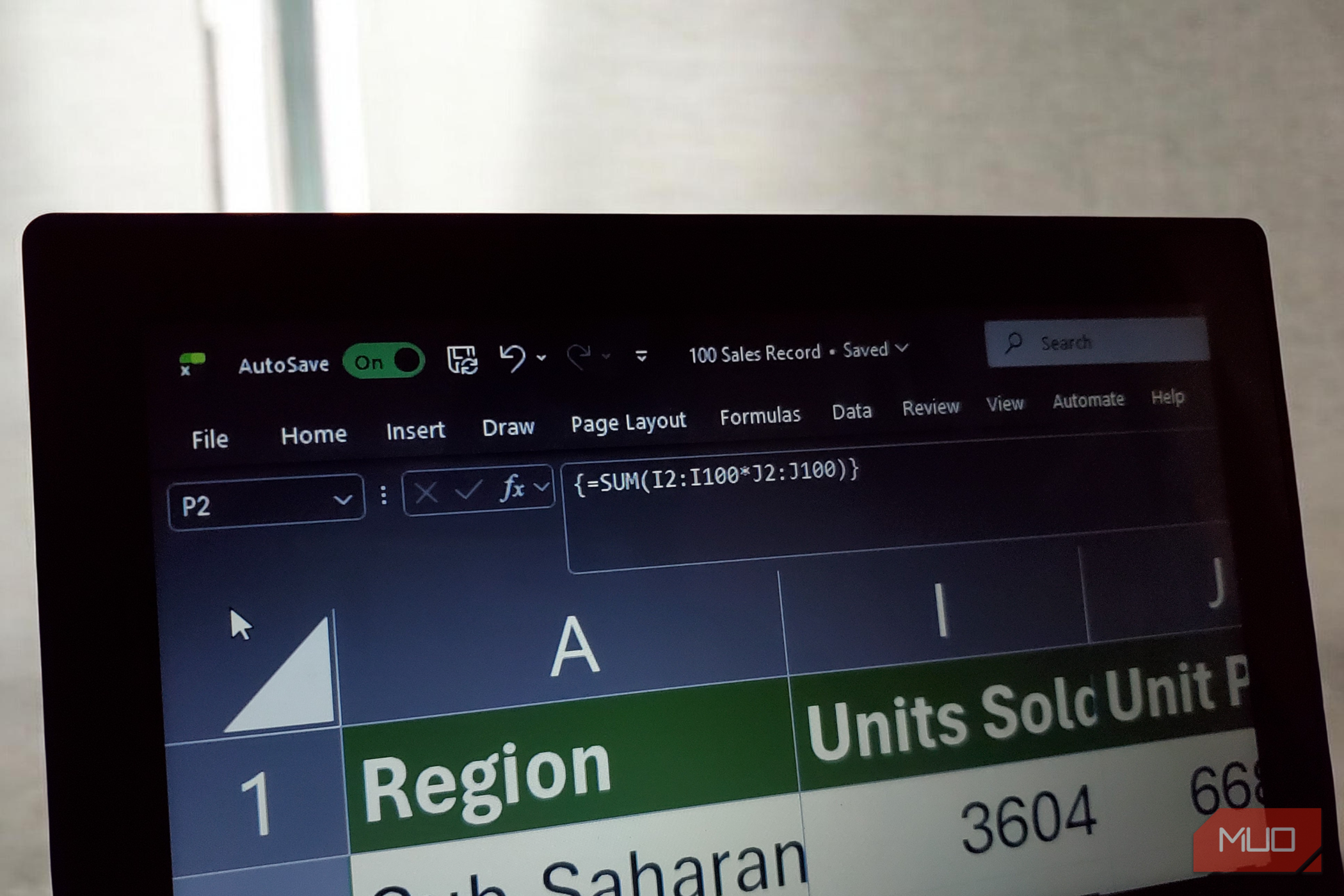
The most common type of curly brackets you’ll find in Excel formulas is the one wrapped around a formula expression, like this:
{=SUM(I2:I100*J2:J100)}
This kind of formula is known as a legacy array formula, sometimes referred to as a CSE formula. The name comes from the keyboard shortcut used to create it: Ctrl + Shift + Enter.
If you’re seeing these brackets, it’s not because you added them yourself. Excel inserts them automatically when you confirm a formula using that three-key combination. This is Excel’s way of indicating that the formula should process a range of values as an array; in other words, it handles an entire set of data at once rather than calculating cell by cell.
Basically, once you type in the above formula, without the curly brackets, and press Ctrl + Shift + Enter, you’ll be able to multiply two full columns and sum the results using just one formula without relying on helper columns or breaking the task into multiple steps in any version of Excel.
Related
Most Excel users don’t know that these features exist
Ready to go beyond the usual formulas and pivot tables?
If you try to type these outer brackets manually, Excel will treat your formula as plain text and won’t calculate anything. You have to trigger them with Ctrl + Shift + Enter. And if you go back to edit a legacy array formula, the brackets will disappear; you’ll need to press Ctrl + Shift + Enter again after editing to restore the array behavior.
Array constants
The curly brackets you do type yourself
Sometimes, the curly brackets you’ll notice in the formula bar are inside a formula rather than around it, like this:
=VLOOKUP(“Stationery”, A2:D100, {2,3,4}, FALSE)
This type of formula is completely different from a CSE formula. It’s called an array constant (or array literal), and unlike those outer brackets, these are ones you enter yourself. They’re super useful when you want to pass a fixed set of inputs to a function without referencing a separate range of cells.
The way you arrange values inside the brackets determines their structure:
Commas separate values horizontally into columns
{1,2,3} will create a row of three values
Semicolons stack values vertically into rows
{1;2;3} will produce a single column
Combining both commas and semicolons creates a two-dimensional grid
{1,2;3,4} will form a 2×2 table
You’ll see array constants appear in several scenarios, such as pulling multiple columns at once with VLOOKUP, defining custom sort orders in functions like GROUPBY and PIVOTBY, or supplying a list of positions to functions like SMALL or LARGE to extract values from a dataset in one step.
For instance, if I want to find the top three profit values from column N, I can use this formula:
=LARGE(N2:N100, {1, 2, 3})
Since the range starts at N2:N100, Excel looks at the Total Profit column and returns the first, second, and third-largest values simultaneously. Because I’m using Excel 365, the results will spill across three horizontal cells when I press Enter. In older versions of Excel, I’d need to confirm this as an array formula using Ctrl + Shift + Enter.
To return multiple results correctly, you must pre-select the exact number of cells to hold the results (e.g., 3 horizontal cells for the top 3 profits), then type the formula and press Ctrl + Shift + Enter. If you select only one cell before CSE, Excel returns only the first element of the array. You’d then need to manually copy the formula across or down.
Again, imagine you’re working with lookup data and your order ID sits in column G. If you want to retrieve the shipping date, unit price, total cost, and total profit (columns H, J, M, and N) for a specific ID, you could write:
=VLOOKUP(897751939, G2:N100, {2,4;7,8}, FALSE)
Because the range starts in column G, column G becomes position 1. The numbers 2, 4, 7, and 8 map to the other columns you want to return. Excel then pulls multiple values at once, placing the shipping date and unit price side by side on one row, and the total cost and total profit on the next.
Modern Excel and the shift to dynamic arrays
No more Ctrl + Shift + Enter
Screenshot by Ada
If you’re using Microsoft 365 like I am, you’ve probably noticed that Excel has evolved quite a bit. Most formulas now automatically spill their results into adjacent cells without needing to press Ctrl + Shift + Enter. This is the era of dynamic arrays, and it has made legacy CSE formulas largely unnecessary.
Where you once had to rely on a CSE formula to return results across multiple cells, functions like FILTER, SEQUENCE, and UNIQUE now handle that behavior by default when you press Enter. Excel determines how much space the output needs and fills it accordingly, which makes the whole process feel more intuitive.
That said, array constants are still very relevant. Even in modern Excel, you’ll still need to type something like {2,3;4,3} when you want to pass a fixed set of values into a formula. Dynamic arrays have changed how results are returned, but array constants remain one of the simplest and cleanest ways to define the inputs your formulas rely on.
Related
Excel’s new group of functions will break your brain in a good way
Once you grasp these, spreadsheets feel alive.
Curly brackets were telling you something all along
Ever since I learned what curly brackets mean in Excel, I’ve found it much easier to work through spreadsheets, whether I’m inheriting someone else’s file or improving my own formulas. I can quickly tell the difference between a legacy CSE formula and an array constant, which is always helpful when troubleshooting.
And now that dynamic arrays are becoming the standard, there’s never been a better time to get comfortable with how all of this fits together.
