


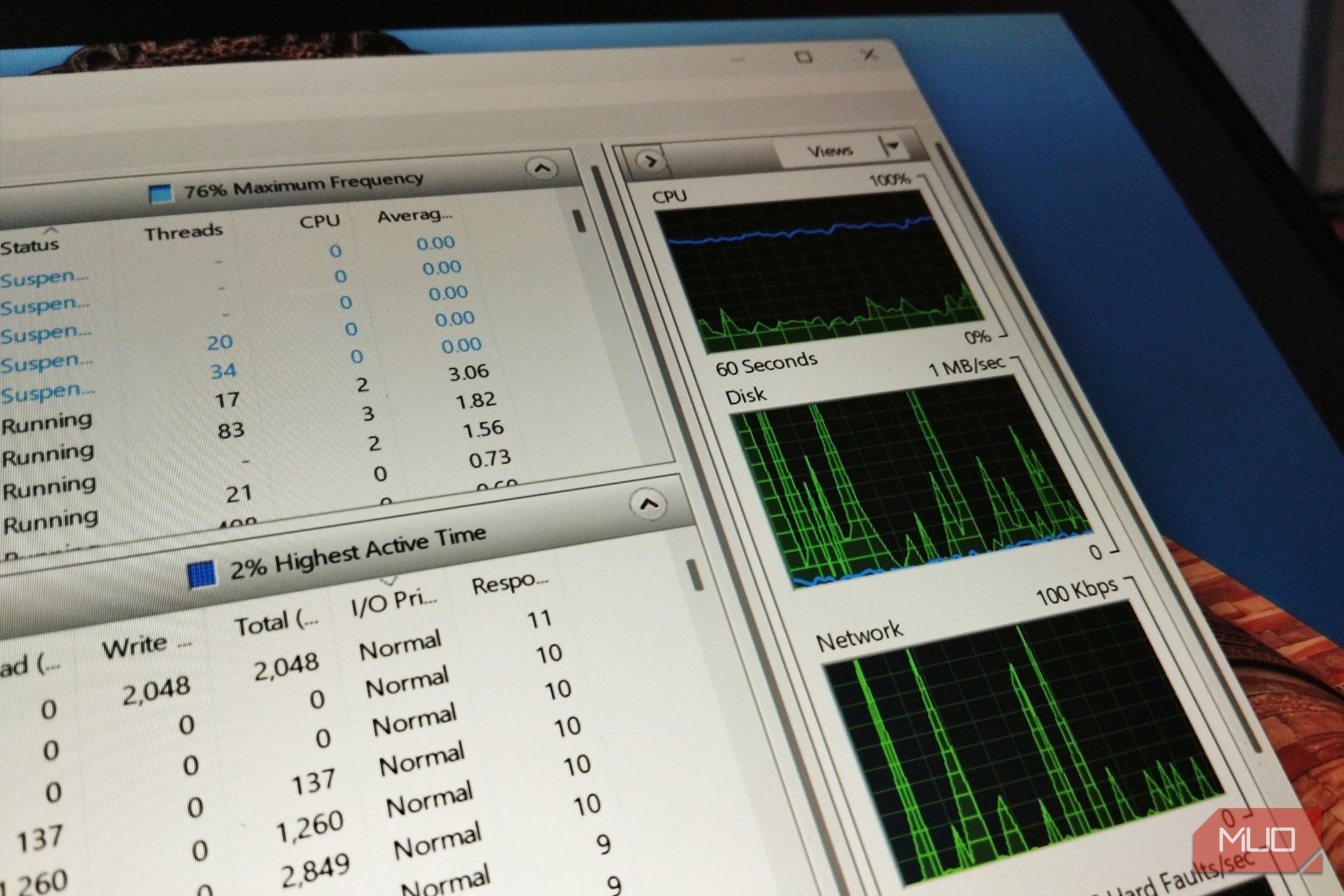
When my PC slows down, Task Manager is still the first thing I open. It’s fast, and the Disk column shows whether storage is the bottleneck. What it won’t tell me is which file is behind it, which is usually what I need to know. There are real limits to what Task Manager’s Processes tab reveals, so I lean on a tool most people scroll past. It’s called Resource Monitor. It has shipped with Windows for years, and its Disk tab answers the question that Task Manager leaves open.
Related
I found a Windows 11 log that shows exactly what’s making my PC slow — and most people don’t know it exists
A forgotten Windows feature that explains performance drops clearly.
Resource Monitor has been in Windows all along
It shipped with Windows Vista, and most people have never opened it
Screenshot by Yasir Mahmood
Resource Monitor first appeared in Windows Vista and has come bundled with every release since. It lives one layer below Task Manager, which is probably why so few people ever open it on purpose.
Getting to it takes seconds. Press Windows + R, type resmon, then press Enter. You can also search for Resource Monitor from the Start menu, or open Task Manager, switch to the Performance tab, and click Open Resource Monitor near the bottom.
The window opens on the Overview tab, with CPU, Memory, Disk, and Network stacked together. It looks dense at first, and I won’t pretend otherwise. It started making sense to me only once I stopped reading everything at once and picked the tab that matched my problem, the same way I did when using Resource Monitor to track down what was eating my RAM.
The Disk tab shows every file touching your drive
This is the detail Task Manager never puts in front of you
The Disk tab splits into three panels, each earning its place. The top panel, Processes with Disk Activity, lists every process that reads from or writes to your drive, along with its speed in bytes per second. You can sort by Total, and the busiest offender jumps to the top.
The middle panel, Disk Activity, is the one I care about most. It lists individual files and shows the full path of each one being read or written as it happens. Task Manager stops at the process, so you learn that an app is busy without learning what it’s busy with. Here you see the exact file, which often points straight at the cause.
The bottom panel, Storage, reports active time and Disk Queue Length for each drive. Queue length sounds technical, but it only measures how many requests are waiting in line. A number that stays high means the drive can’t keep up; it’s a stronger sign of a storage problem than raw activity alone. However, none of this makes Task Manager useless. For a glance, it’s enough, and an obvious disk hog shows up in its Disk column in seconds. The Disk tab is especially useful when Task Manager’s Processes view shows only a vague System or Service Host entry, or when disk usage stays high without an obvious cause.
How to track down the process hammering your disk
The routine I run when my PC grinds to a halt
Screenshot by Yasir Mahmood
When storage grinds everything to a stop, I work through the same short routine:
- Open the Disk tab and click the Total column header to sort processes from highest to lowest.
- Look at the process sitting on top, since that’s almost always the one driving the activity.
- Select the checkbox next to it to the process to filter Disk Activity to that process’s files.
- Read the file paths it’s working through, which usually reveal what the process is actually doing.
- Check the Storage panel and watch Disk Queue Length, since a consistently high number confirms the drive itself is overwhelmed.
If the top entry turns out to be a Service Host process you don’t recognize, it’s often one of the background services you don’t actually need running.
Give it a minute before deciding. A quick file copy or update can spike disk usage for a few seconds, then settle. A queue length that stays high is the real warning sign.
What to do once you’ve caught the disk hog
Naming the culprit is only half the fix
Screenshot by Yasir Mahmood
Spotting the process is the easy part. What you do next depends entirely on what it turns out to be.
Plenty of the usual suspects are background jobs running at a bad time. Windows Search indexing, antivirus scans, Windows Update, and cloud sync clients like OneDrive all throw off heavy disk activity in bursts, then settle on their own. In those cases, waiting a few minutes often fixes it.
Others are worth handling directly. SysMain, once called Superfetch, is a repeat offender on older machines, and disabling SysMain to quiet the disk made a clear difference on an aging PC of mine.
If a process looks unfamiliar and carries no clear publisher, a malware scan is the sensible next step. The one thing I’d avoid is closing system processes I don’t recognize, since some keep Windows running, and force-quitting them can cause more trouble than the slowdown did. And if an old hard drive is the real ceiling, no amount of tweaking rewrites the physics.
Your disk usage doesn’t have to be a mystery
One tab, and the guesswork is over
The next time everything feels slow, you won’t have to guess your way through it. Open the Disk tab, sort by Total, and let the busiest file show itself. It takes a minute, and I’d rather spend it than end tasks at random and hope for the best.
What keeps me coming back is how the same habit scales. Once the Disk tab feels natural, the CPU, Memory, and Network tabs start pulling their weight too, and the whole window stops looking intimidating. If you want to go a step further, the same instinct carries over to what a Performance Monitor report can tell you about your PC, which is where I’d look next.
