

Like me, you probably don’t reboot your Windows PC that often, but when you do you might notice that there are a lot of apps that open at startup. Sure, modern computers are fast, and you probably have enough RAM to handle it all, but what’s the point of loading a bunch of apps at startup that you won’t necessarily use?
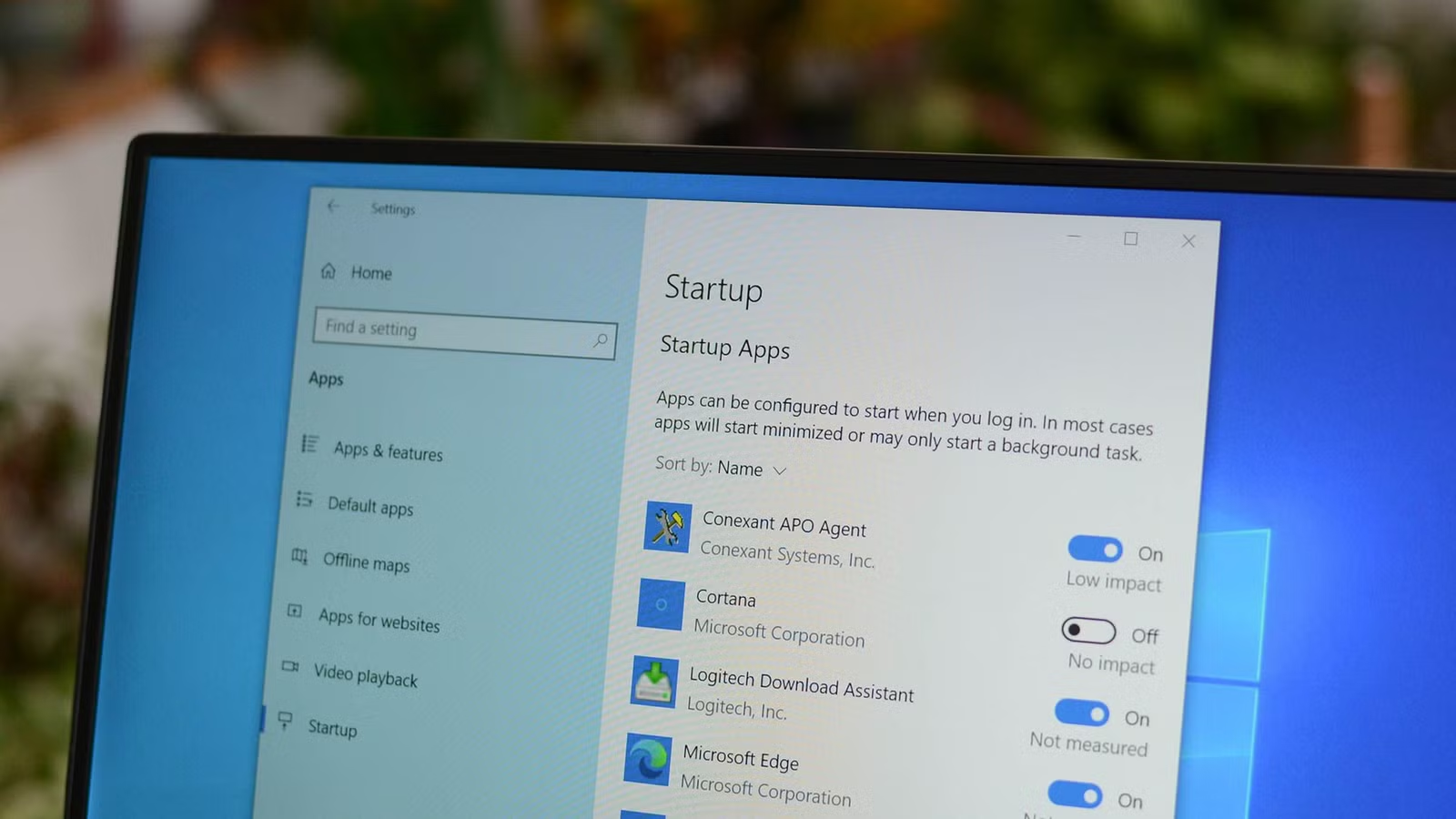
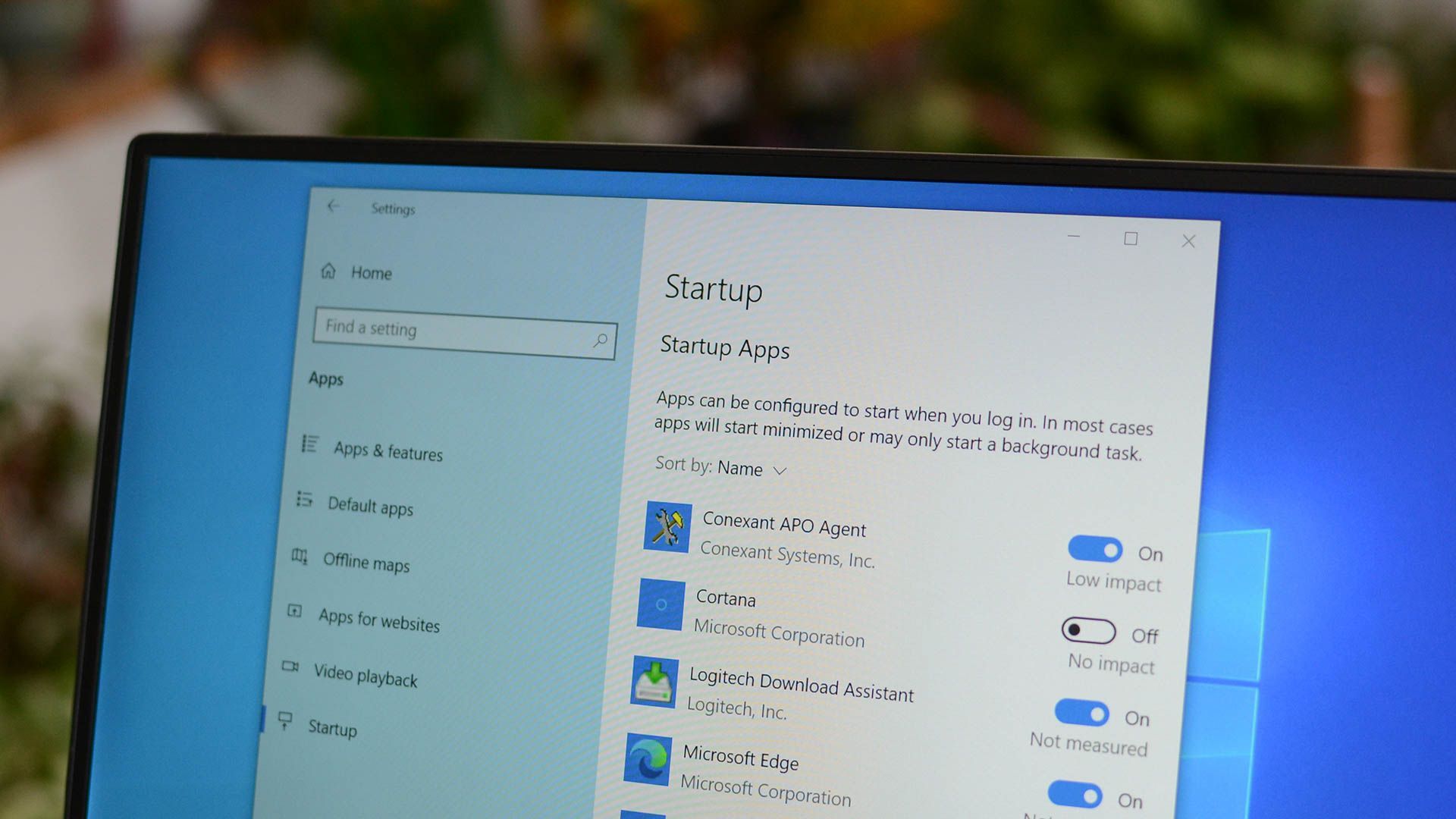
Disabling or enabling startup apps is easier than ever on Windows. You can find “Startup apps” under Settings > Apps > Startup and just toggle each individual app as you see here.
But which should you disable? The app does offer an “impact” measurement, but it never seems to actually measure anything. The good news is that you can just use logic to triage what actually needs to run every time you start up Windows.
Disable game launchers you don’t use every day
Don’t play around with performance
Like a lot of you, I mainly use my Windows computer for gaming and other entertainment, leaving my mission-critical work for my Mac. But that does mean I have an enormous number of game launchers from the various PC game marketplaces hanging around.
Brand
Apple
Operating System
macOS
The MacBook Neo with the A18 Pro chip is Apple’s most affordable laptop yet, with all-day battery life and buttery-smooth performance in a thin and light profile.
Most of these launchers default to opening at startup, but there’s a good argument to be made that you should disable most of them and only have the one you’re going to use open at any given time. Now, the downside is that you’ll have to deal with game and client updates the next time you open a given launcher, but that’s also sort of the point.
With four or five launchers open in the background, all downloading stuff and doing file maintenance, they can easily bog your system down, and they aren’t light on RAM either. The only one I always leave open is Steam, since that’s where I do most of my gaming and social stuff.
Disable chat and collaboration apps that don’t need to be always-on
Teams, Discord, Slack, WhatsApp, and so many other messaging and collaboration apps have Windows clients that want to run in the background, and start up every time you start Windows. I don’t know about you, but because I work with multiple organizations, it means there’s no standard app for communication.
Having them all start up with Windows is more than just a waste of resources, it can lead to a cacophony of notifications, which end up spoiling your workflow. So disable them at startup and only open them when you need to use them.
Personally, I’ve gone a step further than this, and I don’t bother installing the client apps in the first place. I only run apps like Slack or Teams in their website form. If someone really needs to ping me, these apps are on my phone with notifications. There’s no need to have them also steal my attention on my PC.
Disable cloud storage clients you don’t actively use
Credit: Corbin Davenport / Microsoft
Everyone wants to give you cloud storage, but you probably only use one of these services with any seriousness. In my case, I pay a monthly subscription for a 2TB Google One storage plan, and that’s what I use for work and backing up my entire life.
But, Windows comes with OneDrive, and maybe at some point you installed Box, or DropBox, or iCloud for Windows, because someone you work with uses it, or you need it for some very specific cross-platform file transfer.
Well, if you can’t uninstall the ones you don’t use often, you can at least disable them from opening at startup. If for no other reason than these apps will hammer your storage in the first few minutes, and if you actuallyf have a bunch of files to sync they can also tank your network performance.
Disable vendor update utilities and helper apps
There’s a good chance some of your hardware and peripherals came with utility apps along with whatever drivers are needed to make them work. So your notification area might be filled with RGB light controls, webcam utilities, third-party audio-control apps, or update assistants to ensure that it’s not Windows checking for the latest drivers.
Some of these apps are obviously ones that you’ll use often. I open my laptop’s performance control settings every day to switch between the quiet entertainment and more noisy high-performance modes, depending on what I’m doing.
But if there are applets sitting in your notification area that you’ve never, ever even opened, you can probably disable them at startup. Just be aware that some devices will lose special features if you close their background control apps. You’ll have to verify this on a case-by-case basis.
What not to disable
So we’ve covered the stuff you can safely disable, but there are a few things I’d say should keep the startup privilege:
- Antivirus software
- Windows Security notifications
- Touchpad and keyboard utilities on laptops
- Audio drivers and audio management services
- GPU control software if you use custom profiles
- Your primary cloud-sync service
In most of these cases, features you need might stop working if you disable these apps at startup, or you’ll just be annoyed when you open them and realize you’re behind on updates. So best to leave them alone, I’d say.
