

A lot of the guides I came across when I started using Linux showed me how to work. I want to do the opposite and teach you how to stop working.
I understand that the terminal is a powerful tool for repairs, fixing broken dependencies, and hunting down rogue log files, but after several years of using it, I believe it’s even more valuable as a time-saving tool. I have replaced repetitive GUI workflows with a handful of the most hyper-efficient command combinations, and they’ve shaved off several hours from my weekly maintenance routine. These are the commands that bought me the most time on Linux.
Stop losing files again
Search entire drives instantly
Afam Onyimadu / MUO
It’s very easy for files to disappear into the wrong places on Linux. At certain times, my downloads get mixed with projects, and important screenshots may be buried deep inside subfolders. Initially, I’d manually click through the directories or use some GUI search tool. The first approach was simply time-consuming, and the second sometimes missed the file entirely or was just too slow.
I switched to the find command, and it fixed all that friction. With the simple command below, I query the Documents folder and its subfolders directly for any files or directories with the word “invoice” and don’t have to rely on memory:
find ~/Documents -iname “*invoice*”
I make variations of it depending on what I need. I use the command below to search the current directory for files modified in the last seven days:
find . -mtime -7
I use the find command below to surface all unusually large files:
find . -size +1G
Add -type f to your find commands to return only files and exclude directories from results.
I use the -iname flag to make my search commands case-insensitive, ensuring I don’t miss anything due to capitalization. With find, it now takes just a few seconds to accomplish what used to take 10 to 15 minutes.
Related
Bazzite has a feature that makes switching from Windows feel much easier
I thought I was going to be stuck having to relearn how to download apps again on Bazzite
Your storage is hiding things
Reveal what filled the disk
Afam Onyimadu / MUO
On most computers, storage issues build gradually over time, and when you least expect them, they may cause failed updates and downloads. You may see warning messages showing your drive is full, but the problem is that most people don’t always know what has taken up all the storage.
On my systems, Docker images, cached packages, Flatpaks, old kernels, and forgotten downloads are the most frequent culprits. The problem with using certain GUI storage analyzers is that you may need several navigation layers to uncover the real details.
I get the answer fastest by running the command below, which scans the filesystem’s root and ranks the largest directories instantly:
sudo du -sh /* 2>/dev/null | sort -rh | head -20
Including 2>/dev/null in the command suppresses permission errors so the output stays readable.
As the biggest offenders are revealed, I run the command below to narrow the search further:
sudo du -sh /var/* 2>/dev/null | sort -rh | head -10
Running these commands reveals the problem in seconds, ensuring I don’t have to spend time hunting it down.
You can also consider installing ncdu, which gives you a navigable disk usage view, allowing easy cleanup after the problem is discovered.
Linux already explained the issue
Read only the real errors
Afam Onyimadu / MUO
The symptoms of several Linux problems can be vague, which makes troubleshooting harder. In the past, I would spend hours reading forum threads after searching for the error on the internet. But I can now save a lot of time by reading the system journal directly.
I typically start with the command below when something feels wrong:
journalctl -p 3 -xb
Running the command gives me only the most serious errors in the journal from the current boot, allowing me to spend far less time spotting the actual problem. I can even narrow things down further with the command below if I need to investigate specific services:
journalctl -u NetworkManager -b
While this command doesn’t directly fix the problem, it removes guesswork from troubleshooting. So, while in the past I would try several random fixes from the internet that took so much time, I now see what failed and when, and that’s all I give my energy to.
Large transfers stopped stressing me
Copy files without babysitting
Afam Onyimadu / MUO
File transfers can feel very fragile. I may drag a large file to an external disk, but if, for some reason, the transfer stalls halfway or the drive disconnects, I have no way of knowing exactly how much data was copied.
This totally changed with rsync. This is how the version I use the most looks:
rsync -avh –progress ~/Documents /media/backup-drive/
Even though the speed is extremely impressive, what I love most about rsync is how reliable it is. I simply rerun the command if a transfer fails, and it copies only what’s missing rather than the entire dataset from scratch.
Adding the –delete flag is perfect for moving folders that must remain exact mirrors. For example:rsync -avh –delete ~/Documents /media/backup-drive/
The –delete flag permanently removes files from the destination that no longer exist at the source. Always double-check your source and destination paths before running it.
This one saves me time by helping me avoid repetitive work. I no longer have to babysit my transfers.
One process ruins everything
Catch resource hogs quickly
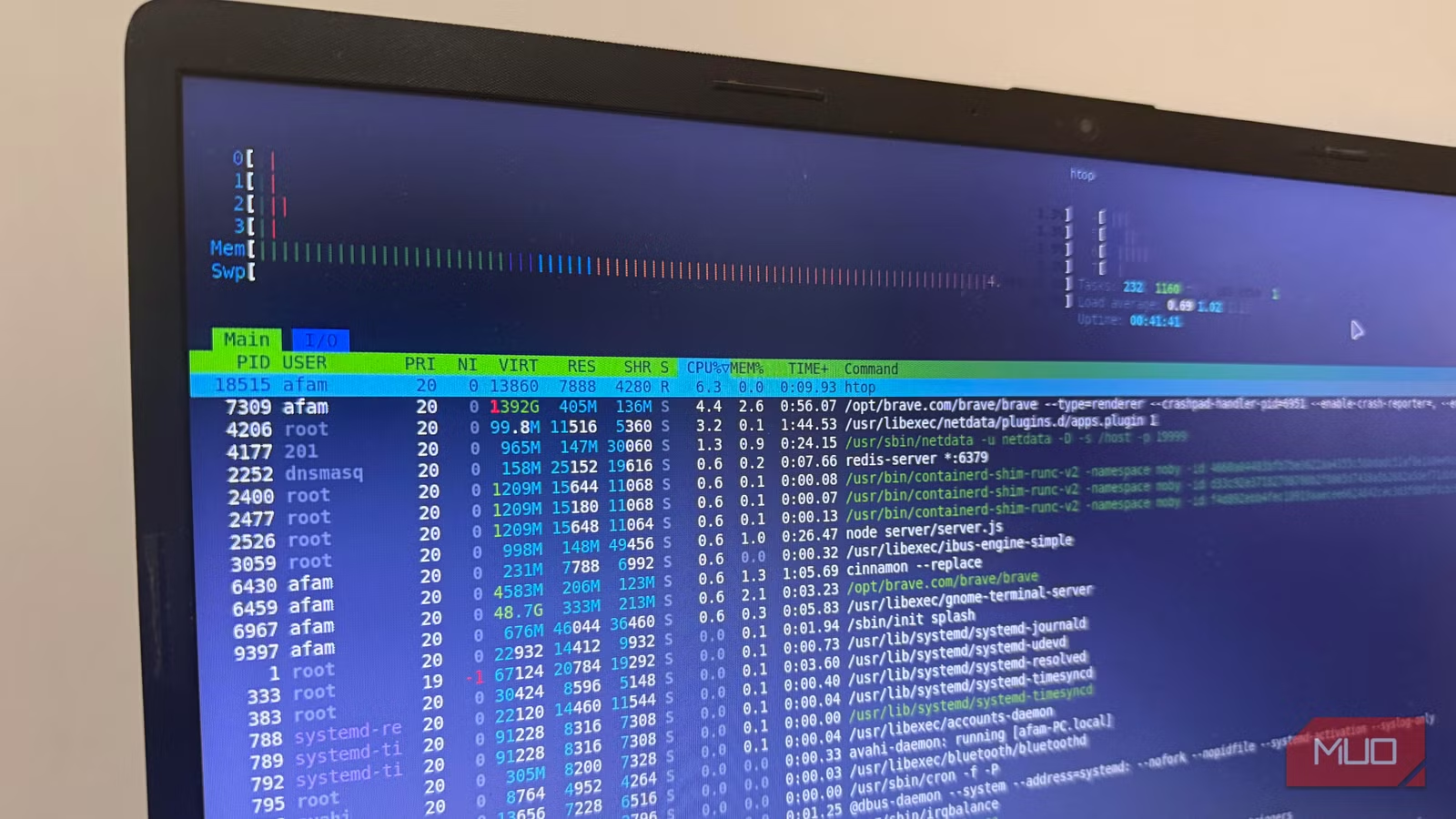
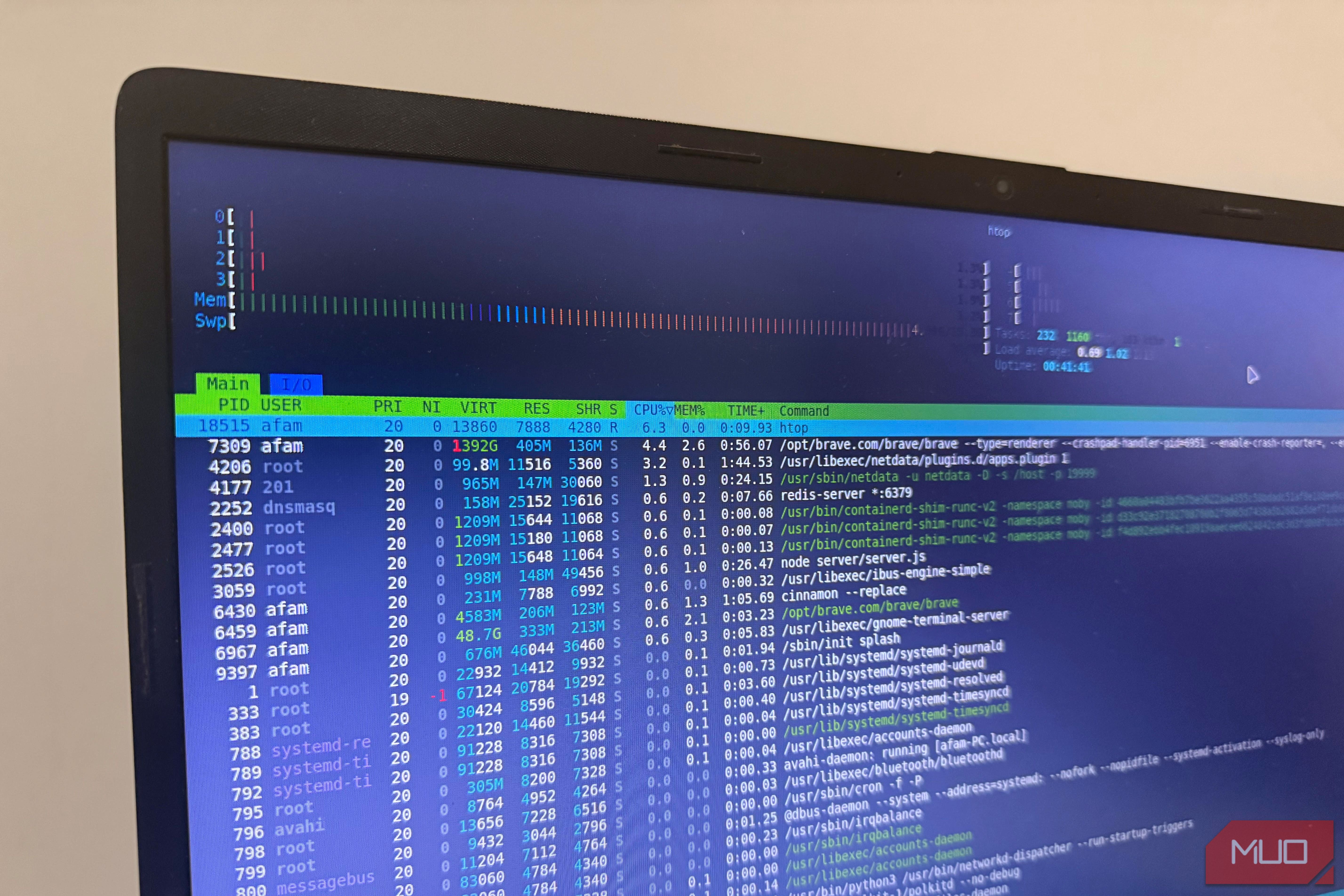
Linux systems slowdowns are more often triggered by single applications consuming more CPU or memory than they should, rather than by the operating system itself. However, the real problem is identifying the specific application. This is when I save a lot of time using htop. You may need to install it first with this command:
sudo apt install htop
Once installed, run the command htop to get a live view of running processes, CPU, and memory usage. Pressing uppercase P sorts by CPU usage, and uppercase M sorts by memory usage. Almost every time, the biggest culprits are at the top.
Htop is the command that replaces statements like “my computer feels slow,” showing you the exact processes responsible. By removing guesswork from this element of my device use, it saves several minutes weekly.
A few commands can save a lot of time
These commands are extremely valuable to me because they reduce how much I actually need to do to get valuable results. They are a reminder that while the terminal remains one of the best repair tools on Linux, it’s also one of the most efficient ways to reclaim time.
