


You don’t have to stick to GNOME if you don’t want to. There are plenty of desktop environments, or those close to it, to switch to from GNOME that offer much more freedom. Some people prefer more control and power over what happens on their computers. Just keep in mind that if you’re new, you probably shouldn’t be messing with advanced changes unless you’re okay with bricking your desktop or laptop.
KDE Plasma is great for customization
You want to have the most control
Credit: KDE
KDE Plasma is the best choice to switch to if you think GNOME is too restrictive. GNOME removes features like desktop icons and minimize buttons to keep a distraction-free space. This means you have to install third-party tools to get basic functions back. KDE Plasma takes the opposite path by letting you change every animation and panel location without needing those third-party extensions that can break during updates.
You get total control right within the system, letting you adjust your window decorations, cursor styles, and color schemes without extra tools. It’s also great for Windows users since it keeps a similar look right out of the gate. You get a bottom taskbar, an application launcher on the left side, and a system tray on the right side.
It comes with widgets that actually work, known as Plasmoids, letting you put tools like calculators, clocks, and clipboards directly onto your desktop or panels. It can have so many menus that it gets confusing for new people. However, like with anything else, you’ll just need time to get used to it.
Cinnamon desktop feels stable and familiar
Cinnamon Mint is still my favorite
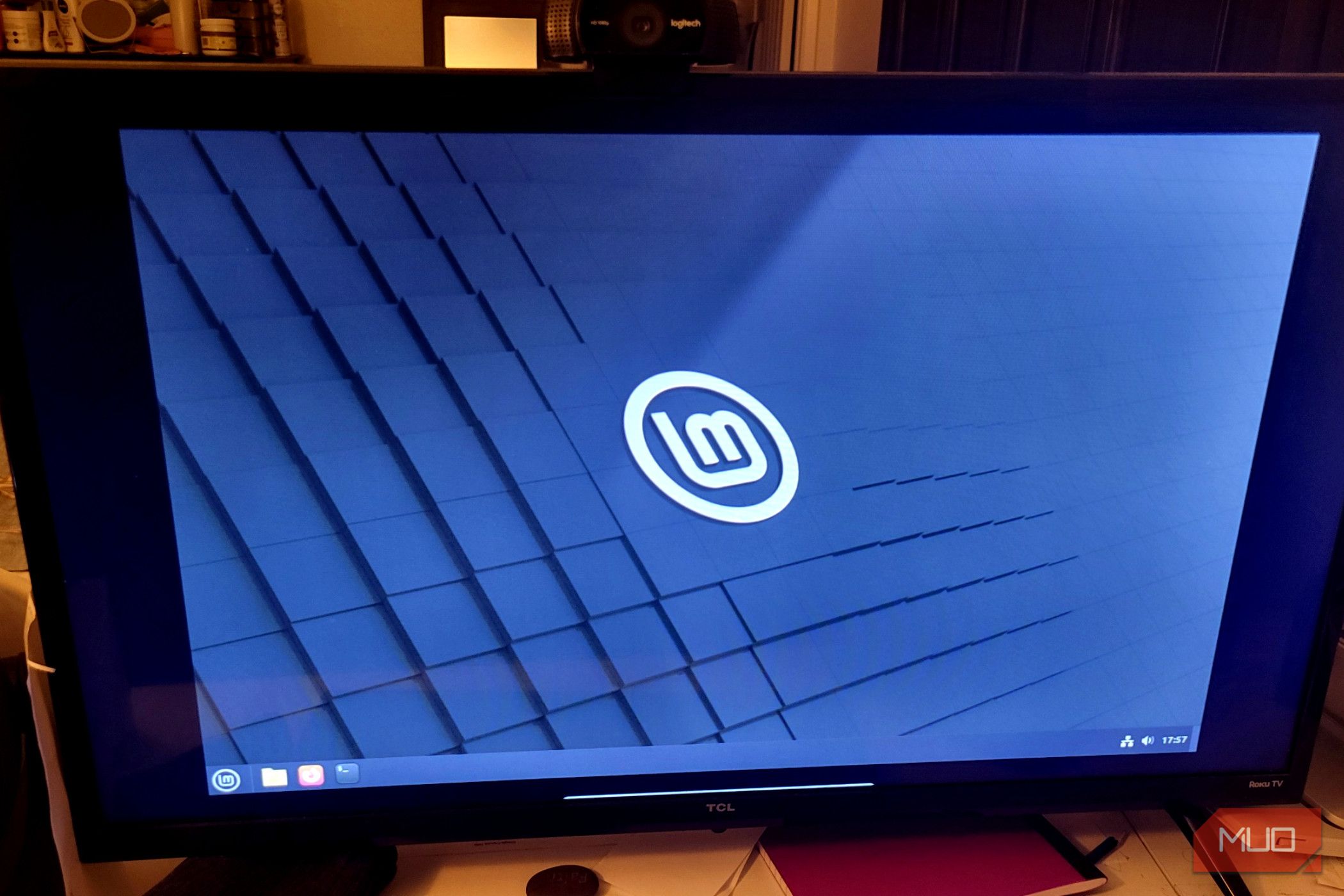
The Cinnamon desktop is my personal favorite choice since it’s very stable and gets completely out of your way when you’re trying to work. It comes with a traditional bottom taskbar and a start menu that feels entirely natural for anyone who has spent time on a computer. Since it’s built specifically for Linux Mint, you know it’ll be reliable for daily use without needing much maintenance or troubleshooting.
I actually used this setup to get out of the Windows ecosystem to begin with, and I always recommend it to anyone who is making the same transition. Some people argue that the default interface looks a bit dated or plain compared to modern options. That’s a fair point, but you can always mess with the settings to make it the way you want it.
It is very easy to customize Cinnamon themes, desklets, or panel applets right from your system settings. You don’t need to configure a bunch of complex text files to change your desktop colors or adjust the window borders.
OS
Linux
Minimum CPU Specs
64-bit Single-core
Minimum RAM Specs
1.5 GB
Linux Mint is a popular, free, and open-source operating system for desktops and laptops. It is user-friendly, stable, and functional out of the box.
Speed up your work with Cosmic
There are only a few faster environments
Credit: System 76
Cosmic is a good choice for a faster workflow. Since the desktop environment is written completely in Rust, it feels very fast and responsive. System76 built this new desktop, instead of GNOME, making a system that focuses a lot on performance and low input latency. This speed makes it appealing to power users who need their computer to keep up with demanding tasks.
The auto-tiling feature is part of the compositor, so you don’t need third-party extensions to manage your windows well. When you open a new application, it snaps into a clean layout on its own. You can toggle tiling on or off for specific workspaces, giving you more control over how your windows behave compared to the limited options in GNOME.
Related
I replaced GNOME with the new COSMIC, and it feels like the future of Linux
It’s fast, furious, and somewhat bonkers, but it gets the job done.
It also has window stacking, letting you combine multiple applications into a single tabbed window, like a web browser. If you want to group your terminal and documentation side by side and switch between them instantly, Cosmic handles it directly. You can even adjust the interface density, panel positions, and accent colors directly from the settings menu, which doesn’t need configuring.
Keep in mind that the desktop is newer, so it can have some bugs during daily use. You might see minor graphical glitches or missing features since it’s still in its alpha phase. Menu overlaps or quirky behavior with external monitors can happen.
Revive old PCs with XFCE
This is the one you need if your computer is older
Credit: XFCE
XFCE is a good option if your hardware is older or if you want to avoid extra software. When you’re running a machine from several years ago, you need an environment that stays out of your way and uses few resources. Since it uses very little memory, your computer can focus its power on your applications instead of the desktop.
It can idle at around 200 megabytes of memory on a good day, so it is a good option for computers that struggle with heavier modern interfaces. You can also build the layout you want without heavy animations slowing you down. You can select the specific components you want to run, keeping the entire footprint small and fast.
You start with a classic panel-based layout that is very predictable, letting you configure your workspace as you need. You have to sacrifice the modern look at first, because it looks dated by default since it skips the flashy transitions. However, you can add better-quality themes to make it look great without adding extra weight to the system.
All you have to do is adjust the panel background, download custom window borders, and try out different color palettes to make it feel like your own. I’d recommend this for slower or older computers because you don’t need a lot of processing power for a clean, customized interface.
Get modern visuals with Hyprland
This looks really cool when done right
Credit: Hyprland
Hyprland is technically a window manager instead of a full desktop environment, but the visuals make it worth the switch. It has great animations and rounded corners that you can find on Linux. Apple made me a fan of that look, and Hyprland handles it well. It’s native to Wayland, giving you modern display features like fractional scaling and mixed refresh rates across different monitors. The automatic window layout saves a lot of time once you get the hang of it, keeping your workspaces organized as new applications open where they belong. This layout method means your hands stay on the keyboard, and you don’t have to manually drag or resize windows all day long.
However, it does have a steep learning curve and needs you to edit config files to get everything working. You don’t get a graphical settings menu out of the box for the core system. Instead, you modify a text file to set up your keybindings, monitor rules, and startup apps. This initial setup takes time, and you’ll need to choose your own status bar and app launcher.
Once you build that muscle memory, managing windows and flying through workspaces feels very fast and direct. Besides, you’re coming from GNOME, so you already know that sticking to defaults isn’t always the best path, and adjusting a few config files gives you the layout you want.
What’s included?
The tools needed to make this work
Developer(s)
Vaxry vaxerski
Hyprland is a tool for Linux that automatically organizes your open windows into a neat grid so they don’t overlap. It is basically a lightweight system that manages your screen layout for you, but you get total control over how everything looks and moves.
Pick the one that best suits you
You should really think about what you want from your computer and why you are switching over. I like having spare desktops and laptops to mess with and learn more about environments, but my workhorses use the OS that I want them to use. So make sure that you pick the one you’re okay with for a long time, because switching environments can be tedious.
