

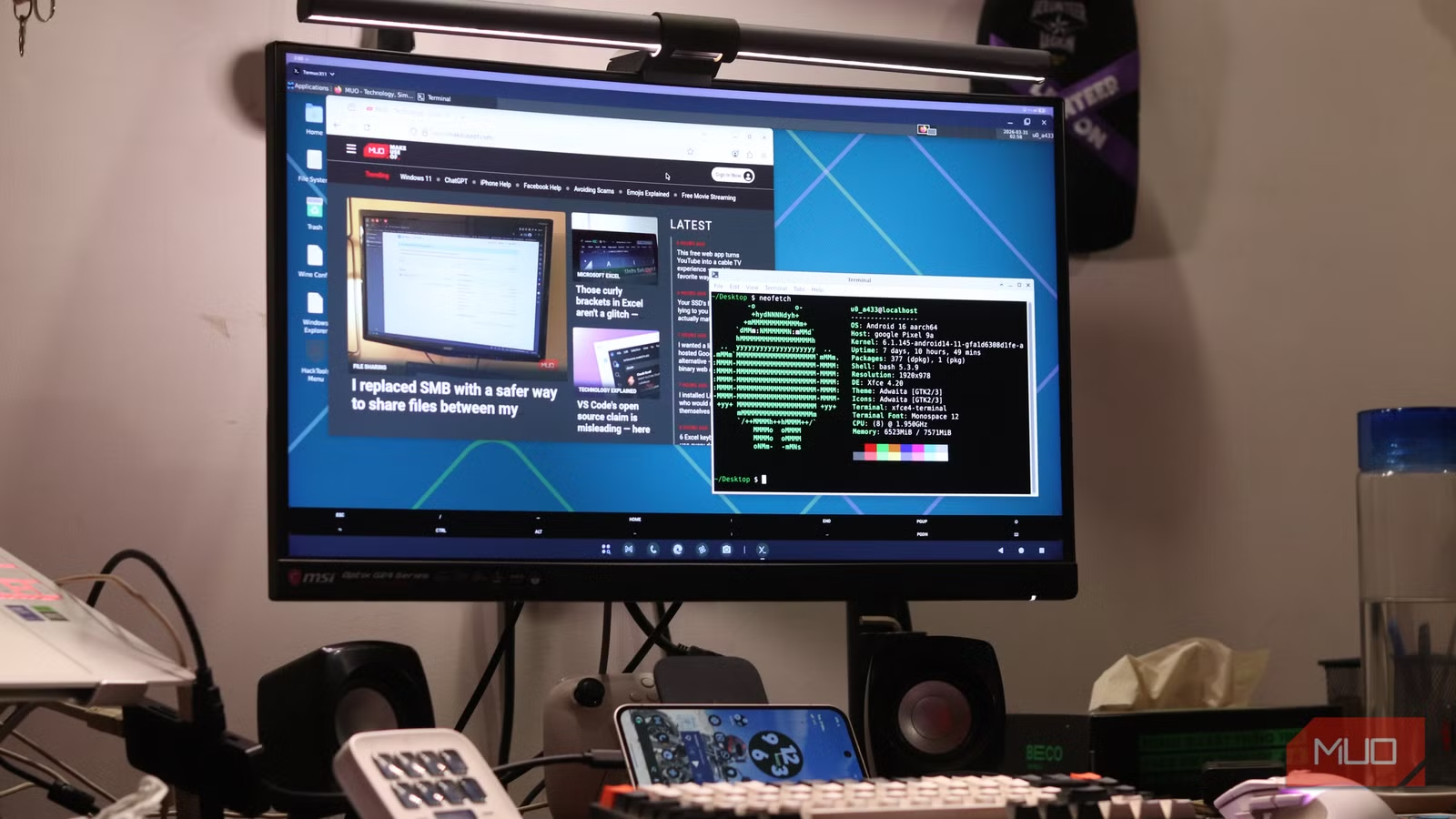
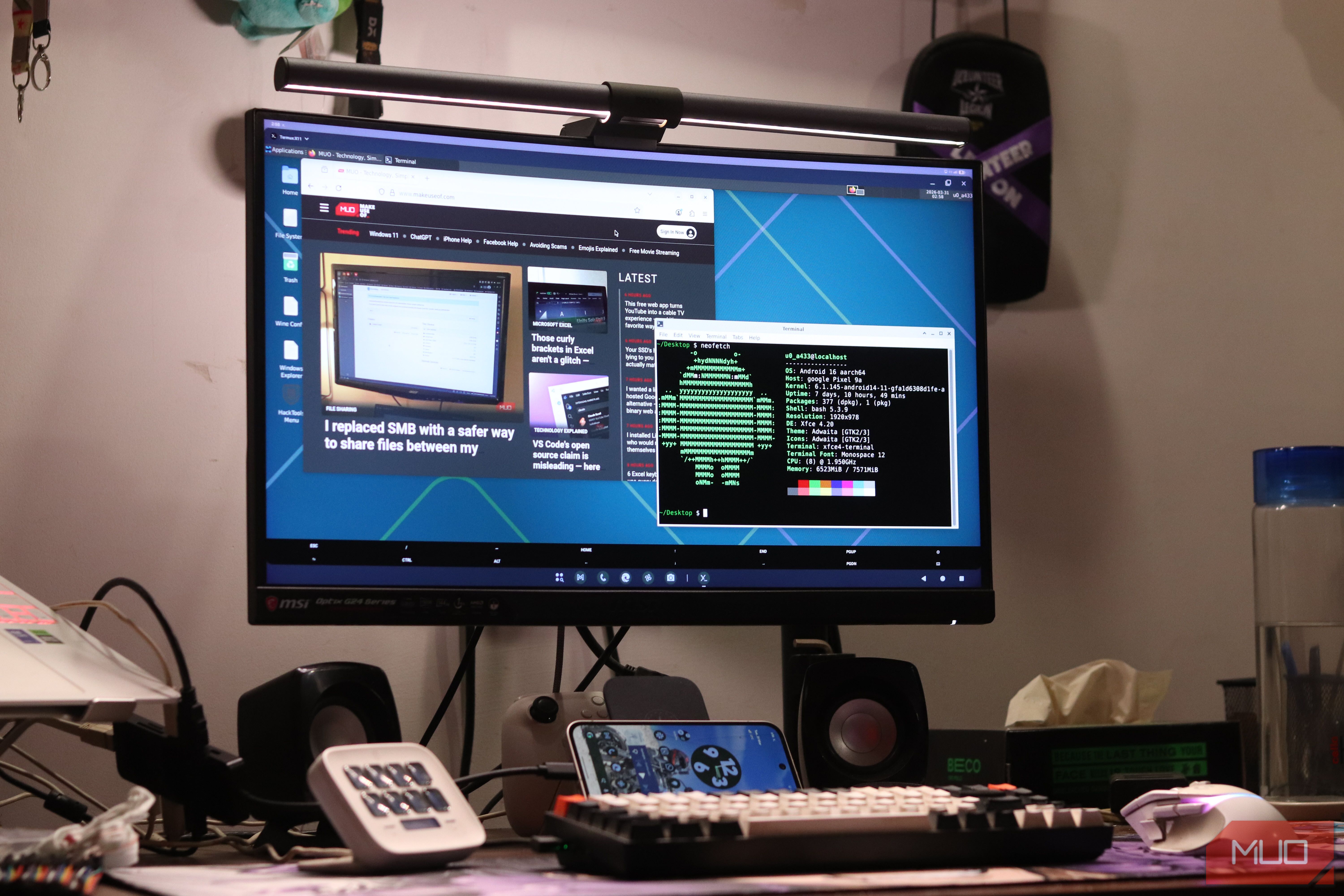
Android has tons of buried settings and hidden features that can surprise even the most experienced of users. The new Linux terminal on Android is no exception to this rule, buried beneath a trove of developer settings you can’t reach unless you know what you’re looking for.
And it’s not like you’re just getting a bare-bones terminal after going through the effort to dig this feature up. What you’re getting is a fully-fledged Linux terminal that can turn into a Linux desktop with a single command — all running natively on your Android.
Related
Android’s Linux terminal is so good that I keep finding new reasons not to open my PC
I keep reaching for my phone, and it’s not for scrolling.
Android has been hiding a Linux machine
How the new Linux Terminal runs a real Debian environment inside Android 16
This isn’t Termux, it’s not UserLAnd, and it’s not some shell emulator sandboxed inside a Java or Kotlin app. Android 16’s Linux terminal runs a real Debian-based Linux system inside a full virtual machine, powered by the Android Virtualization Framework (AVF) — a set of APIs that have quietly been evolving since Android 13. AVF uses protected KVM (pKVM), a hypervisor that creates a mutually distrusted isolated execution environment between the Android host and the Linux guest.
The VM gets its own Linux kernel, its own memory space, and crucially, access to your phone’s GPU. That GPU access is important because Linux attempts on Android have been victim to performance issues for ages, especially if you want to run a desktop environment. That isolation, however, is a double-edged sword. On one hand, it means the terminal can’t mess up your Android installation as it’s completely walled off. On the other hand, it means the Linux environment can’t easily access your phone’s files, cameras, or other Android-specific features.
I used this native implementation to install Linux on my Pixel and turned it into a pocket workstation. But, since Android 16, AVF support is mandatory for all newly launched devices, meaning this isn’t a Pixel-exclusive trick anymore. Some manufacturers are holding back on the feature, likely due to conflicts with their in-house security architecture, but you can expect this to be a mainstream Android feature soon.
Getting started takes just a few taps
Enabling the hidden feature is far easier than you’d expect
Setting up the new terminal is also quite straightforward. Just follow these steps:
- Enable Developer Mode by heading to your phone settings, then to the About Phone section, and tapping the build number seven times.
- Head to the developer option settings and tap the Linux development environment option.
- Enable the (Experimental) Run Linux terminal on Android slider.
This enables the terminal on your phone. Once done, you need to download the terminal separately as follows:
- Open your app drawer and tap the Terminal app icon.
- You’ll be prompted to download the Terminal (roughly 500 to 600 MB) before launch. Click the Install button.
- Once the installation is complete, you can start typing out commands.
From there, it’s standard Linux: sudo apt-get update to refresh package lists, apt install to grab whatever tools are needed. Python, Node.js, Git, htop — the usual apps are all available via Debian’s already massive package repositories. Any Linux programs you should know about on PC also now also work on your phone.
It’s more than a terminal
Install packages, run development tools, and build a genuine Linux workspace on your phone
Image taken by Yadullah Abidi | No attribution required.
Getting a terminal up and running natively on your phone is cool, but upgrading it to a desktop environment is a single command task. Just run the following command after updating your installation:
sudo apt install task-xfce-desktop
And that’s it. This is a rather large package bundle, so give the command a few minutes to run. You’ll also be asked to select a keyboard layout at some point during the installation, so keep an eye out. Once the command runs successfully, completely close and relaunch the terminal app to ensure the VM starts cleanly. You’ll find a desktop icon in the top right of the terminal app, tap it, and the XFCE desktop will load directly onto your phone’s screen. If it asks for a login, use droid as the username and password for the default user.
You can also set the desktop as the default boot target if you want the VM to always load into the desktop environment instead of the CLI. Open a terminal within your desktop environment of choice and run:
sudo systemctl set-default graphical.target
You can switch back to CLI-only mode at any time with:
sudo systemctl set-default multi-user.target
If you’re facing performance issues, chances are VirGL, Android’s graphics virtualization layer isn’t enabled. To enable it, simply create an empty file named virglrenderer inside the /sdcard/linux directory. You can also do this via ADB if you’ve got it set up on your machine.
It’s not quite ready to replace your laptop
The missing features and limitations you’ll run into today
Image taken by Yadullah Abidi | No attribution required.
Now this is still a developer feature on Android, meaning there are rough edges you will encounter. For starters, audio support for GUI applications isn’t fully implemented, meaning even if you see a GUI, you may or may not hear any sounds. If you’re using mobile data rather than Wi-Fi, you can also run into connectivity issues inside the VM.
File access has improved significantly and now exposes almost all of your shared storage to the Linux environment via /mnt/shared. It’s a major upgrade over earlier builds where you were restricted to the downloads folder only. Last but not least, the desktop environment might straight up refuse to run on your phone, even if you can get the terminal app itself running fine.
You can do real work with it
Coding, SSH, scripting, package management, and other practical workflows on Android
Honestly, there are tons of things you can do with a Linux terminal on Android that no regular app can match. Anything from turning your phone into a pocket workstation for on-the-go work to hosting a music server on your Android, it’s all possible. You can manage servers from your phone, automate or script it, run file servers, and much more.
Package management through apt works exactly like a standard Debian machine. You can install Node.js, Python, Git, and a full developer toolchain in minutes. Hook up your phone to an external monitor via USB-C, pair a keyboard and mouse and the entire experience shifts from being a cool gimmick to legitimately useful. Android 16’s desktop mode runs on external displays and the Linux VM runs inside it — giving you a real Linux workstation powered by whatever chipset your phone is carrying.
This changes what an Android phone can be
Android is taking another step toward becoming a legitimate desktop operating system
For the past decade, running Linux on Android has been a patchwork of compromises. Android 16’s approach is different because it’s a first-party, officially supported, hypervisor-isolated Linux VM baked directly into the OS. No tricks, no workarounds, no rooting required.
Related
I gave my Android a terminal, and it became my most capable computer
My pocket computer got a lot more interesting.
Is it ready to replace your laptop today? Not quite. But the foundation is solid and ARM devices are only going to get more powerful. Your Android phone already carries more raw compute power than most people know what to do with, and Android 16 is finally letting you use it that way.
