



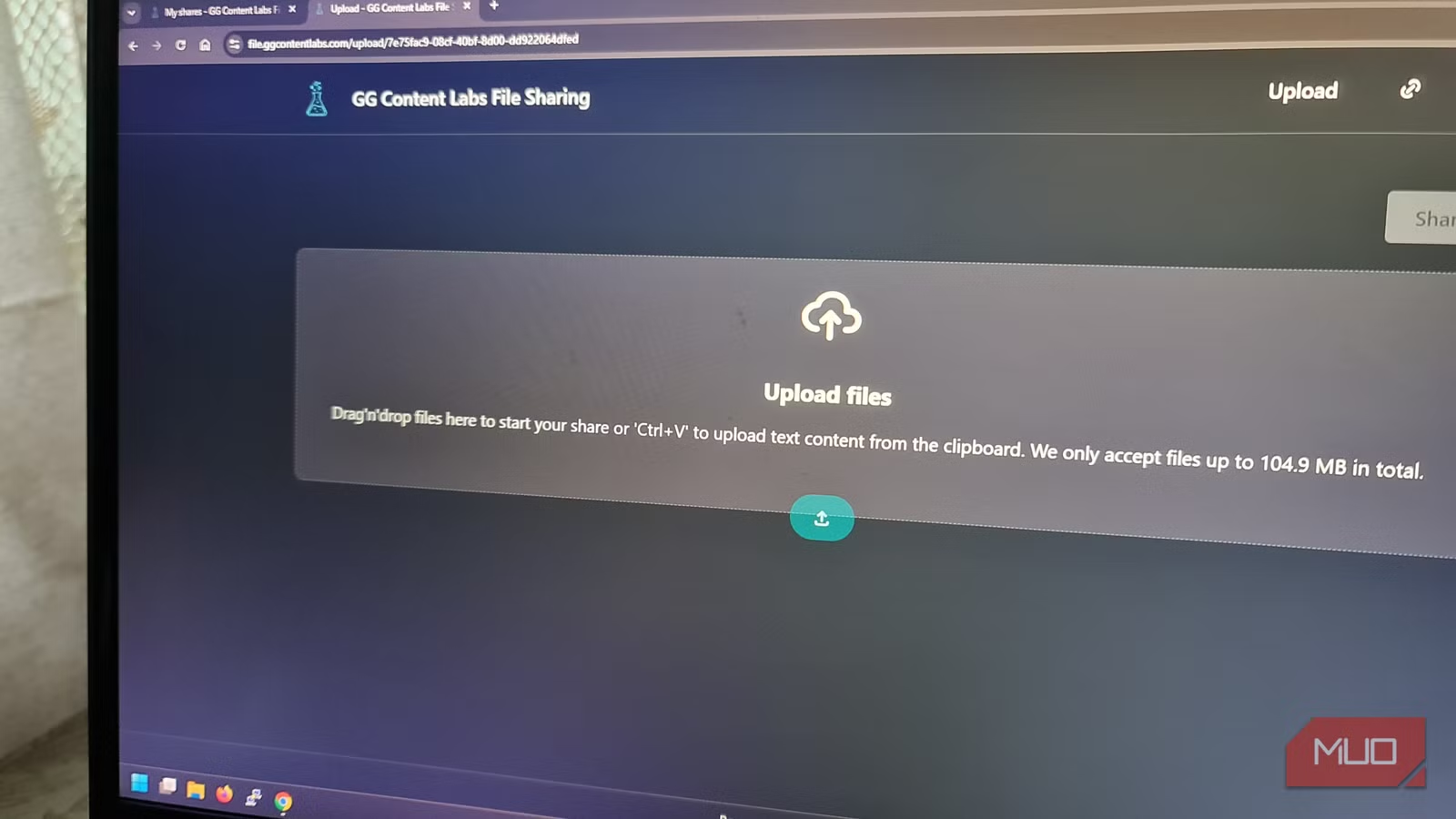
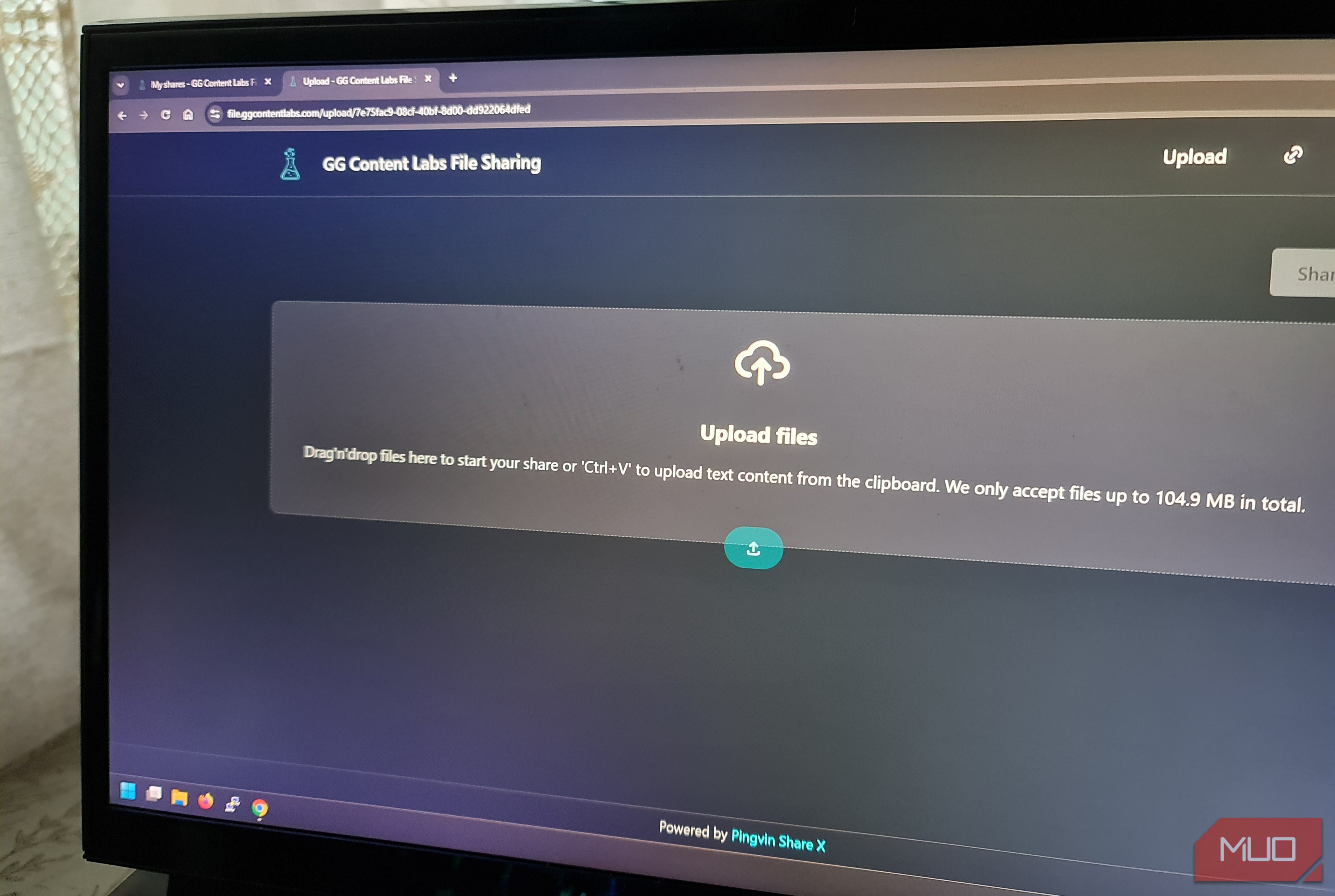

It feels like every time I need to send a file quickly, the easiest option is usually the one full of dodgy ads and questionable links. Don’t get me wrong, random upload sites do work, but they also typically come wrapped in fake upload buttons, mystery ads, throttled downloads, and links that I’m not sure ever actually disappear.
I wanted something cleaner, but also firmly under my control. I already have a server set up at home and a subdomain ready for the job, so I created a DNS A record and pointed it at my home IP. I then built my own private file drop with Pingvin Share X, the maintained fork of Pingvin Share, behind the lightweight web server Caddy, with automatic HTTPS.
The project was straightforward because I wasn’t trying to build a private cloud. Just an interface and a controlled place to upload files, send links, and receive files back with email support. Yes, it took more effort than using a random upload site, but it’s become something I use regularly for work and clients.
Related
I ditched LocalSend and PairDrop for this better file sharing app
I thought my old setup was fine, until this changed everything.
I just wanted a file drop that did one job really well
The goal wasn’t cloud storage, just a bit more control over file sharing
I don’t need a full Google Drive, OneDrive, or Nextcloud replacement here. Those tools still make perfect sense when I need folder syncing, collaboration, and reliable long-term storage. That wasn’t the problem I was trying to solve.
I needed something small and direct that could serve as a place to upload and share documents with no size limit, generate links, send them in emails, and delete files when I no longer needed them. Yes, the random upload sites serve the same purpose. That’s why people keep using them. But sending a link to a resume or document from a website that advertises questionable services in their local area isn’t what I want a client or professional to see when viewing my files.
Pingvin Share X fits my purpose because it just serves that one job. The dashboard can be customized and branded slightly for my use, and gives me total control over the experience from upload to email. It also supports reverse sharing, which turns out to be incredibly useful when you need the recipient to upload something in return without them needing to even have an account.
I used Docker, but I kept the app port hidden
The container made the setup easier, while Caddy and UFW handled the public side
I initially wanted Pingvin Share to be a native install, but backed away once I discovered it meant fiddling with Node and PM2. What I needed was something I could just redeploy easily enough on a new virtual private server or VM.
So I used Ubuntu 24.04 LTS with Docker Compose, Pingvin Share X, Caddy, and Uncomplicated Firewall (UFW). The installation itself was straightforward. I only needed to pay attention to Docker networking and UFW because Docker tends to add its own iptables rules, which can still be reachable from the public internet if you don’t lock it down properly.
The fix was to bind the container port to localhost instead of 0.0.0.0. This kept Pingvin Share X available only inside the server, with Caddy kindly handling the public HTTPS side of things.
The line that defined this in my Compose file was:
ports:
– “127.0.0.1:3000:3000”
Then the core Compose section itself was as simple as possible to allow me to change most settings via the Pingvin Share UI.
services:
pingvin-share-x:
image: smp46/pingvin-share-x:latest
restart: unless-stopped
ports:
– “127.0.0.1:3000:3000”
That meant the only ports I needed to open with UFW were:
sudo ufw allow OpenSSH
sudo ufw allow 80/tcp
sudo ufw allow 443/tcp
That just left Caddy to handle the public ingress point on /etc/caddy/Caddyfile:
file.ggcontentlabs.com {
reverse_proxy 127.0.0.1:3000
}
And finally, a reload:
sudo caddy fmt –overwrite /etc/caddy/Caddyfile
sudo systemctl reload caddy
That gave me everything I needed, including Docker, Caddy for HTTPS, UFW for the public firewall, and Pingvin safely tucked away behind a reverse proxy.
The useful part wasn’t the file uploads, but controlling the link
Passwords, expiry dates, and download limits made it feel safer than a throwaway upload site
Uploading and downloading worked like a dream, as expected from a tool that does one job and does it well. I uploaded a normal test file, created a share, copied the link, and opened it in a private browser to see what the recipient would see.
After testing the initial file-sharing capability, I created a custom icon and name for the file upload server, disabled the ability for anyone to create new accounts, and entered my SMTP mail server settings to enable email delivery of links.
But Pingvin Share has additional functionality that makes it worth the setup. After creating an initial admin account, I could then:
- Add expiration dates to links.
- Require a password for viewing.
- Write a short description.
- Manually delete the share as needed.
- Apply some minor custom branding.
- Request files with a reverse share.
- Set a unique visitor limit.
Expiry dates are definitely a useful feature because I can be confident that even after I forget the link exists, access will eventually expire. Passwords are extremely valuable for group and chat shares, and visitor limits mean I can sleep easily knowing that it won’t get passed around between different people indefinitely.
Best of all, I finally had a professional-looking page, with my personal branding, and no fake download buttons or giant blinking ads.
Reverse shares were a feature I didn’t know about, but absolutely loved
Letting someone upload files back to me was more useful than another download link
One of the more pleasant surprises about installing Pingvin Share X was the capability to send reverse shares. I didn’t even know this feature existed, but after trying it once, it’s now something I use almost daily.
When I upload a file, someone else downloads it. That’s how file upload sharing alternatives work. But what if I need someone to upload a file and give me access? That’s the job of the reverse share function. Essentially, I create a link that asks someone to upload a file, then use that link to access it myself.
That feature is actually way more useful than it sounds. For one thing, it doesn’t require the uploader to create or have an account. And because I often need things like screenshots, drafts, and archive files from other people, it saves people from having to send a chain of emails to cover larger or multiple files.
Be careful with public reverse share links. Set limits, passwords, and expirations to stop them from becoming free cloud file storage for anyone who happens to stumble upon the link.
Pingvin Share X is small, practical, and perfect for personal use
I would not treat this like a WeTransfer alternative for the whole internet, but I’m definitely keeping it for myself
Pingvin Share X is not a replacement for a full cloud storage platform. I still need to maintain the server, keep the Docker image updated, ensure that the disk doesn’t fill up, and so on. It’s also not permanent archival storage. Pingvin Share X absolutely excels at being a temporary file-sharing tool, but it’s not a NAS killer or even an alternative for online cloud storage.
For my use case, it worked perfectly fine. In under an hour, I ended up with a clean HTTPS file drop on my own subdomain, where I could upload files, set limits, and accept reverse shares.
That’s why I’m keeping it around. Not because it’s anything fancy, but because Pingvin Share X is so simple and convenient that I now use it daily without having to worry if my recipients have Google or Microsoft accounts.
If you’re looking for a simple way to replace all the ugly parts of free file-sharing websites, but keep the practical functionality, I can’t recommend Pingvin Share X enough.
Related
I built a private cloud workspace at home, and it was easier than I expected
Remote desktop is great, but this is way cleaner (and free).


