

Windows computers can gradually get slower over an extended period, and if nothing is done about it, some daily tasks become heavier than they should. At that point, carrying out several concurrent activities, like downloading game updates while working, can feel painful.
There are specific settings you can tweak to boost speed, but in my case, the real issue turned out to be simpler: my system drive was doing too much. Moving my user folders to another drive made the situation far better. It didn’t make the system faster in a benchmark sense; however, it fixed several bottlenecks that produced an immediate difference under load.
The real reason my PC felt slow wasn’t Windows itself
The system drive was stuck doing everything at once
Afam Onyimadu / MUO
Windows 10 and 11 are quite efficient on their own. They keep indexing running at low priority and ensure thumbnails are cached. Explorer also works efficiently, avoiding excessive or repetitive disk activity. However, if your system drive has to process multiple disk-intensive operations, you start noticing performance degradation or system slowdowns.
All these tasks—large downloads, cloud sync activity, game updates, and Windows Update—compete for disk access. Sharing the same physical drive as the OS turns Windows into a single point of contention, slowing everything down without triggering obvious failures.
The moment I moved my user folders to a separate drive, I ensured these concurrent tasks no longer collided. I created a clear distinction between where Windows handles OS tasks and where most file-intensive work occurs, resulting in smoother performance under high workloads.
Free space counts more than raw speed after a point
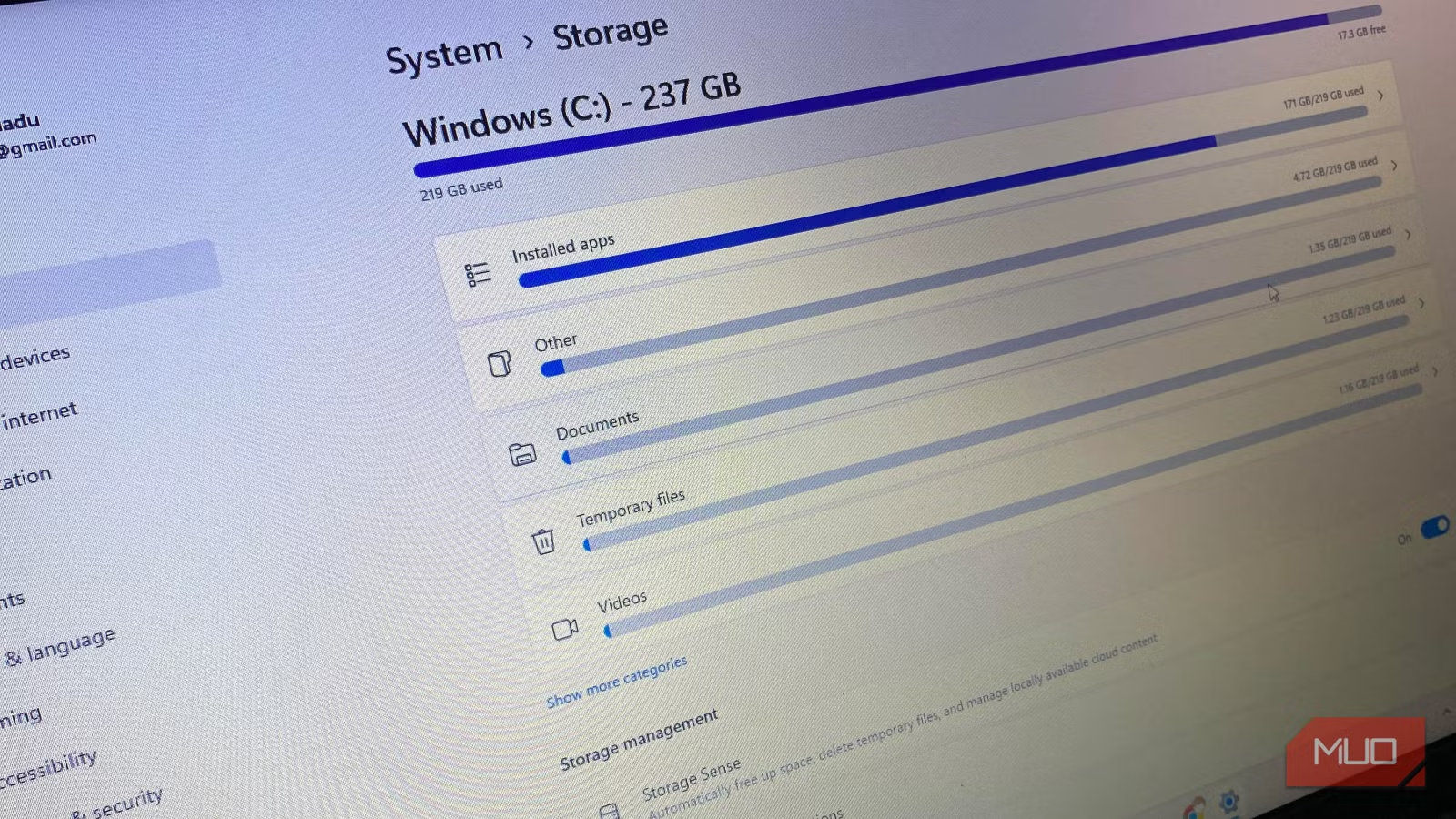
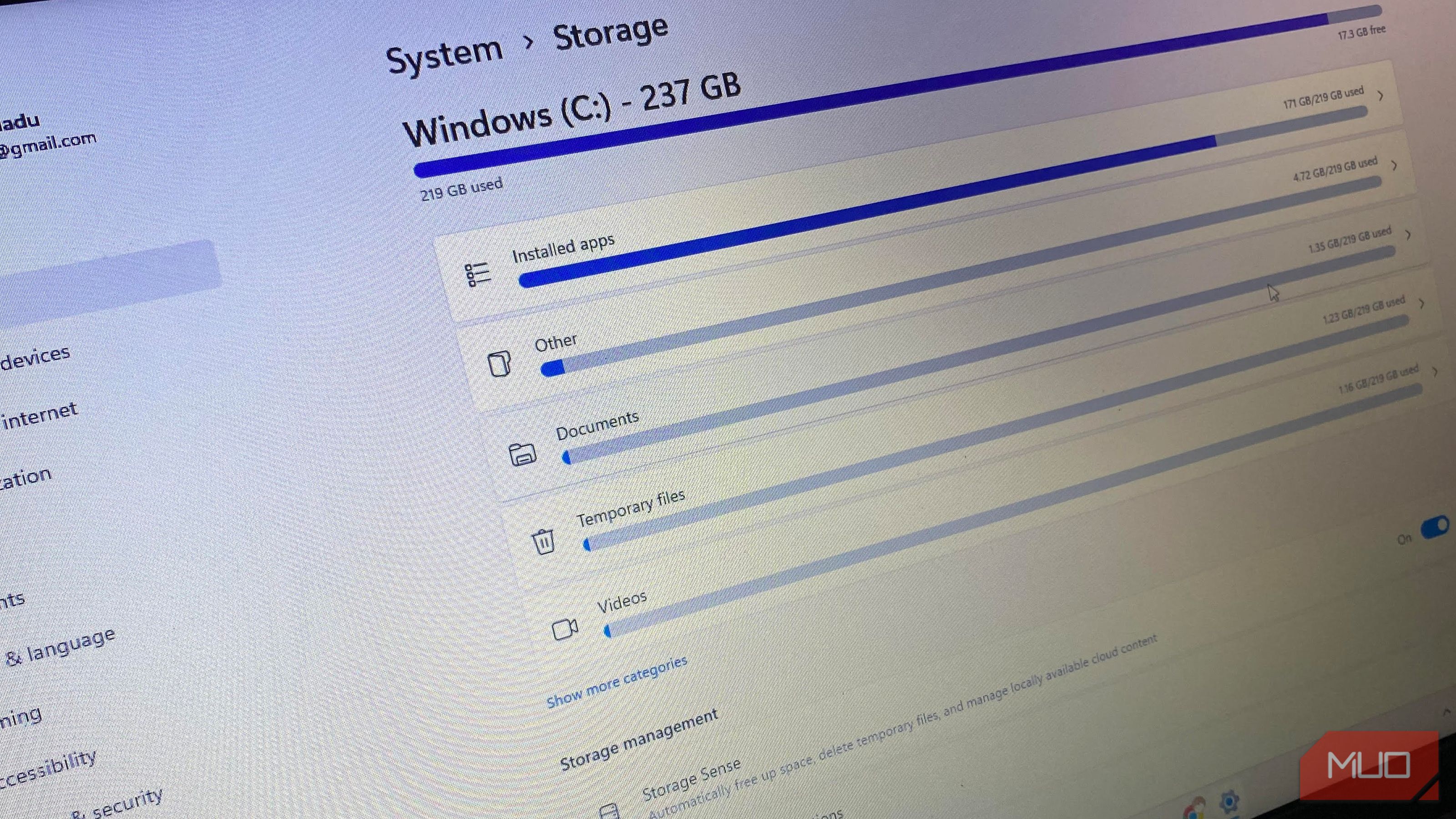
A crowded SSD quietly loses its advantage
Afam Onyimadu / MUO
Free space is important for SSDs to function optimally. It’s harder for a drive to write efficiently when it’s at full or nearly full capacity, which takes a toll on sustained performance, especially during heavy activity.
Modern, premium drives handle the drop in sustained performance better during light workloads. These kinds of drives have DRAM caches and generous over-provisioning that make them more efficient at managing low free space.
Still, it’s telling when Windows, downloads, and user data share the same space. You force that drive to accommodate sustained or mixed workloads. Moving user files to a different drive helped me reclaim space and reduce write pressure on my system drive. It ensured the system wasn’t sluggish at the worst moments, times when I had a lot of running tasks. You really don’t have to reinstall Windows to fix system lag.
Moving user folders the Windows-native way actually matters
This is one place where shortcuts cause real damage
Windows uses its Location tab as a built-in mechanism for moving user folders. Right-click the folder, select Properties, and clickthe Location tab to find the Move option. Using this option to move your files prevents breaking apps’ internal references, permissions, and library mappings.
This native move implementation is safer than copying and pasting your Documents or Desktop. The traditional copy-and-paste will force connected apps to recreate folders on C:. Ultimately, backups can fail and interfere with the permission structure after an update.
The proper way to move files is longer but ultimately cleaner. It ensures that Windows is aware of a folder relocation. This awareness is essential for your programs to behave consistently. In the end, moving folders the right way helps you get the real benefits while avoiding long-term maintenance issues.
The speed boost depends entirely on where you move things
Not all secondary drives improve performance
Afam Onyimadu / MUO
It’s good to balance expectations with reality. In my case, it was a huge success because I moved my user folders to a fast SSD. However, if you move your user folders to a slower drive, don’t expect any magical speed gains. In fact, browsing large directories or photos could be significantly slower if you move user folders to a mechanical HDD.
The goal is to split workloads intelligently for good results. You can keep downloads, cloud sync, and large-file storage on a slower drive without significantly affecting responsiveness. However, keep Windows on a fast SSD to keep it responsive. If you have a dual-SSD system, you won’t see a huge difference, but it’s still the best option for preventing worst-case slowdowns.
The problems no one mentions until something breaks
Some apps assume your folders never move
Afam Onyimadu / MUO
An honest realization is that not all applications respect Windows’ folder abstraction, especially those that use hard-coded paths. For other apps, it gets tricky if cloud sync is involved. OneDrive is an example. It needs to be carefully reconfigured after the folder is relocated.
Drive letters also play a significant role. If your destination drive changes letters in the future, it could break the configuration. Also, you can reverse the move, even though it’s not always seamless. Windows will handle it, but for individual apps, you may have to do some manual cleanup. However, if done right, your system becomes more responsive when you need it most.
Related
I changed one registry value and my Windows PC feels instantly faster
This registry change fixed the sluggishness I’d learned to tolerate.
Real speed gains, but context matters
In my case, I eliminated I/O contention by moving my user folders from a nearly full system SSD to a larger secondary SSD. The move freed considerable space and enabled speed gains. You will see comparable results if your setup matches this, and it should be a change you consider if you want Windows to be faster.
However, it’s not a magic wand for speed. What it actually does is prevent Windows from tripping over itself, which is exactly why your computer feels more responsive.
