


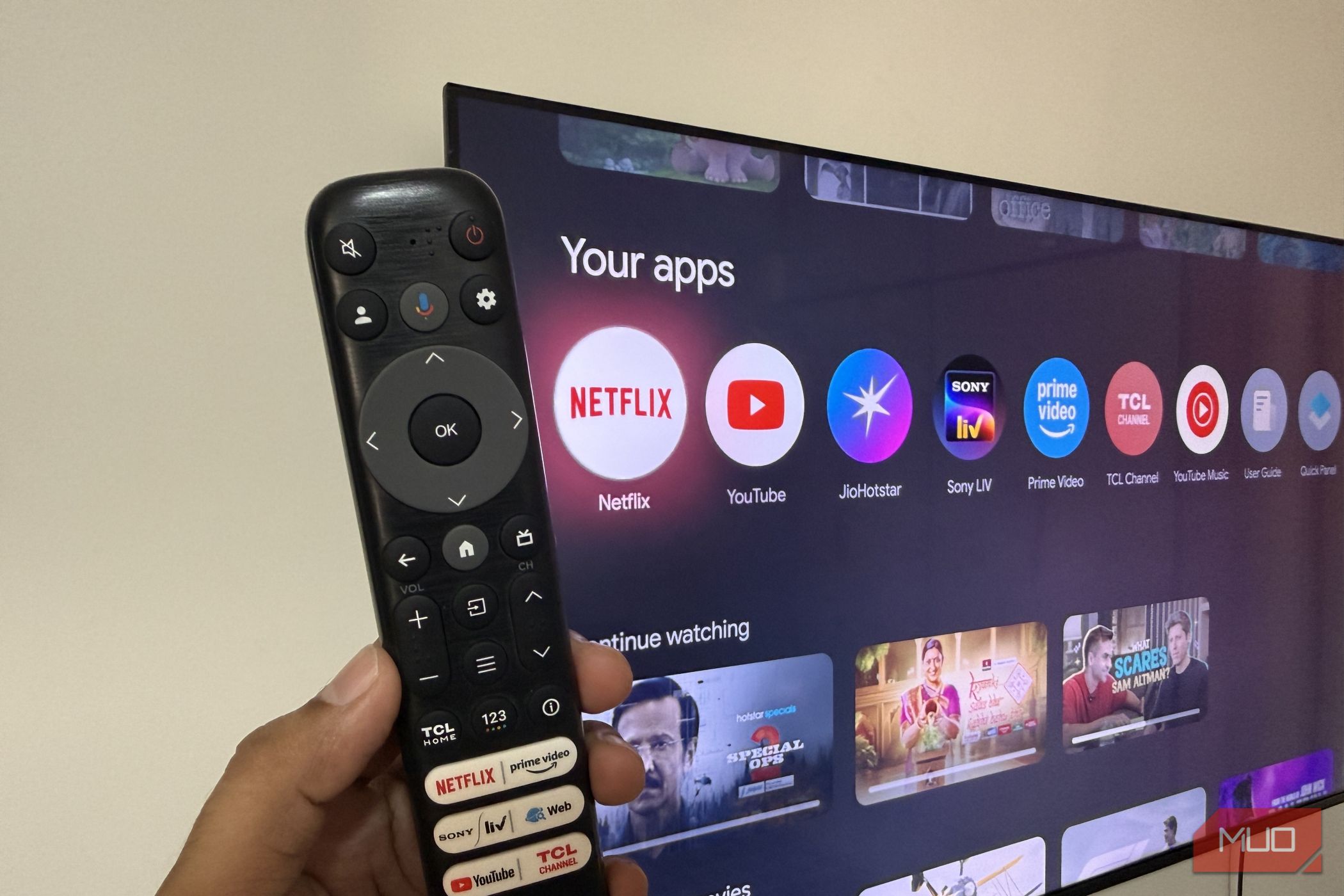
Google TV is one of the best smart TV platforms around, but the thing is, most people never go beyond the usual streaming options. And that’s a shame because Google TV includes some really clever features that can change the way you use your TV.
These let you do everything from declutter the home screen and mirror your phone’s screen to even speed up your Google TV. Some of these are buried deep inside the settings menu, while others are available right in front of you but are easy to overlook.
Related
I Finally Found the Solution to My Android TV’s Slow Boot Times
No more staring at the boot screen.
Switch to apps-only mode
Escape the recommendation overload
Image Credit: Pankil ShahCredit: Pankil Shah/MakeUseOf
Google TV loves to recommend stuff. The home screen comes filled with recommended movies, trending TV shows, autoplaying trailers, and sponsored content. Honestly, all of this makes your TV look more like an advertising board than your personal entertainment space. An easy way to get rid of this is to simply install a third-party launcher. But if you don’t want to do that, Google TV also includes an alternative called Apps-Only Mode.
As the name suggests, this mode strips away all the clutter from your home screen and only shows your apps. You don’t see any thumbnails or ads in this mode. Most importantly, your Google TV also feels faster and easier to navigate. To enable this, head to Settings > Accounts and profile > Apps only mode and choose Turn on.
Speed up your TV in seconds
Credit: Shimul Sood / MakeUseOf
Much like Android phones and tablets, your Google TV also has a Developer Options menu that’s hidden by default. It’s easy to unlock it, though. Go to Settings > System > About > Android TV OS Build and press the OK button seven times. Once done, go back to the System menu and choose Developer options.
There are several options here, but the most useful one is the animation scale controls. You’ll see options like Window animation scale, Transition animation scale, and Animator duration scale. By default, they’re all set to 1, but you can change them to 0.5x or even turn them off entirely to make your Google TV incredibly snappy. What these options do is control the speed of those animations and transitions when opening apps or switching menus, so reducing them makes the interface feel faster.
Another handy option is USB Debugging. This option lets you remove all the pre-installed Google and manufacturer apps on your TV, though you do need a third-party app like ADB TV for this. It’s a great way to declutter your TV and free up some storage space.
Install apps from phone or PC
Skip the TV keyboard
Pankil Shah / MakeUseOfCredit: Pankil Shah / MakeUseOf
Google Play Store has some amazing apps for your TV, but navigating it with a remote can be painfully slow. Even if you know the name of the app, typing with that clunky on-screen keyboard is rarely a pleasant experience. Thankfully, there’s a much easier way.
You can simply open the Play Store on your phone or browser, sign in with the same Google account that’s on your TV, and browse apps there. Once you find something you like, hit Install, choose your Google TV from the list. The app will then be downloaded onto your TV automatically. Yes, it’s a small feature, but it can save you a lot of time, especially when setting up a new Google TV.
Mirror phone or PC wirelessly
Go beyond TV shows and movies
Your Google TV isn’t just for viewing shows and movies. One of its most underrated features is wireless casting, which lets you share content from your phone or computer to your TV. And the best part is, it works with Android, iOS, Windows, and even macOS.
It’s great for when you want to view photos from a recent trip on the big screen or use your favorite app on a giant screen. On phones, you can use the Cast option in most apps. You can even use the Smart View or AirPlay option on your phone to mirror the entire screen. On Windows, simply press Win + K and choose your Google TV. This also lets you use it as a second monitor if you want.
Hold the power button for a quick reset
Use the oldest tech trick to fix your TV
Pankil Shah / MakeUseOfCredit: Pankil Shah / MakeUseOf
One of the simplest ways to keep your Google TV free from any slowdowns or errors is to restart it every once in a while. And no, simply hitting that power button doesn’t do that. That usually just puts your TV in standby mode.
Thankfully, you don’t have to unplug and replug your TV either. Simply press and hold the power button on your remote and choose OK. Once the TV is off, turn it back on normally. It’s basically the classic “turn it off and on again” trick, and it still works like a charm.
Google TV may seem like a simple OS, but these features prove that there’s so much to explore. And honestly, these settings are just the start. With the right Google TV apps, you can do much more.
Dimensions
6.4 x 2.4 x 0.5 inches
What’s Included
Chromecast, Voice Remote, Power Cable, Power Adapter, 2xAAA Batteries
Brand
Connective Technology
Wi-Fi
The Chromecast with Google TV streams in 4K with HDR support for brighter, sharper picture quality. Built-in Google Assistant lets you search by show, mood, genre, or actor, and answers questions on-screen. The remote handles volume, input switching, and music playback. Recommendations are pulled from your subscriptions, watch history, and owned content, so the homepage stays relevant to you. Kids profiles let you carve out a separate space with family-friendly content, parental controls, watch time limits, and a bedtime setting. The device is built with recycled materials, reducing the amount of new hardware that ends up in landfills.
