

It is frustrating to plug your phone into your car and see the navigation map move in slow motion and your music stutter. It feels like your apps are working against you when you just want to drive. This happens because your smartphone is doing all the heavy lifting behind the scenes, running intensive processes to stream a live video feed to your vehicle’s display. You can tweak a few settings to fix your Android Auto lag; it just takes some time.
Related
I fixed my Android Auto lag and the cause was embarrassingly simple
I spent months blaming my car for Android Auto lag — it was my USB cable, and you’re probably making the same mistake.
Disable battery optimization
Stop your phone from killing the app when you turn the screen off
Jorge Aguilar / MakeUseOf
Modern smartphones aggressively manage power to extend battery life, but this efficiency is the hidden culprit behind Android Auto lag. By default, Android uses power management frameworks like App Standby Buckets and Doze mode to monitor background energy usage and restrict hardware resources.
When I plug my phone into my car or connect wirelessly, I lock the screen and put the device in the center console. If I didn’t disable my battery optimization, this would confuse my phone. Since the screen is off, the operating system will think the phone is idle and try to optimize Android Auto by killing its background processes and apps.
It limits the processing power allocated to the app and restricts background Wi-Fi data usage, prioritizing minor battery savings over Android Auto performance. This is usually the reason why you get the most frustrating performance issues, specifically delayed touch responses and audio stuttering. You shouldn’t have your power saver on all the time anyway, and this is a good reason why.
Android Auto is a resource-intensive application that needs a constant, high-speed data stream to display maps, show a live video projection on your dashboard, and process high-resolution audio simultaneously. When the system limits the processing power to save energy, it just can’t keep up with real-time projection.
It’s like a domino effect. The artificial processor slowdowns starve the data stream, causing the video buffer to run dry, which leads to slow map movements and delayed screen interactions. When battery levels drop below 20%, the operating system’s optimization settings become even more aggressive, and you can lose your background Wi-Fi connection to wireless adapters. This is what makes the audio and the entire system disconnect.
Go to Android Auto in your settings and override the power saving. I checked mine and found that the app is set to “Optimized,” which is the standard setting that lets the phone balance performance and battery life based on your perceived usage patterns. You need to change this setting to “Unrestricted” to stop the operating system from interfering.
Lower animation scales
Free up CPU power by cutting down on useless visual effects
At its core, Android Auto is a projection-based system where your smartphone is the primary computational engine. Instead of the car itself processing the apps, the mobile device handles rendering, software logic, and computing, encoding the output as a live video stream that is then sent to the vehicle’s head unit.
So your phone is constantly working hard to encode frames in real time, pushing up to 60 frames per second to match the display’s refresh rate. This massive, sustained processing load can push your phone’s processor to its absolute limits, leading to severe overheating, slowdowns, and noticeable lag.
There are ways to fight this, such as using shielded USB 3.1 cables to improve signal integrity, disabling background Wi-Fi scanning to reduce CPU interrupts, or updating Bluetooth AVRCP versions to stabilize connections. However, you should really think about what the animation itself is doing to your phone.
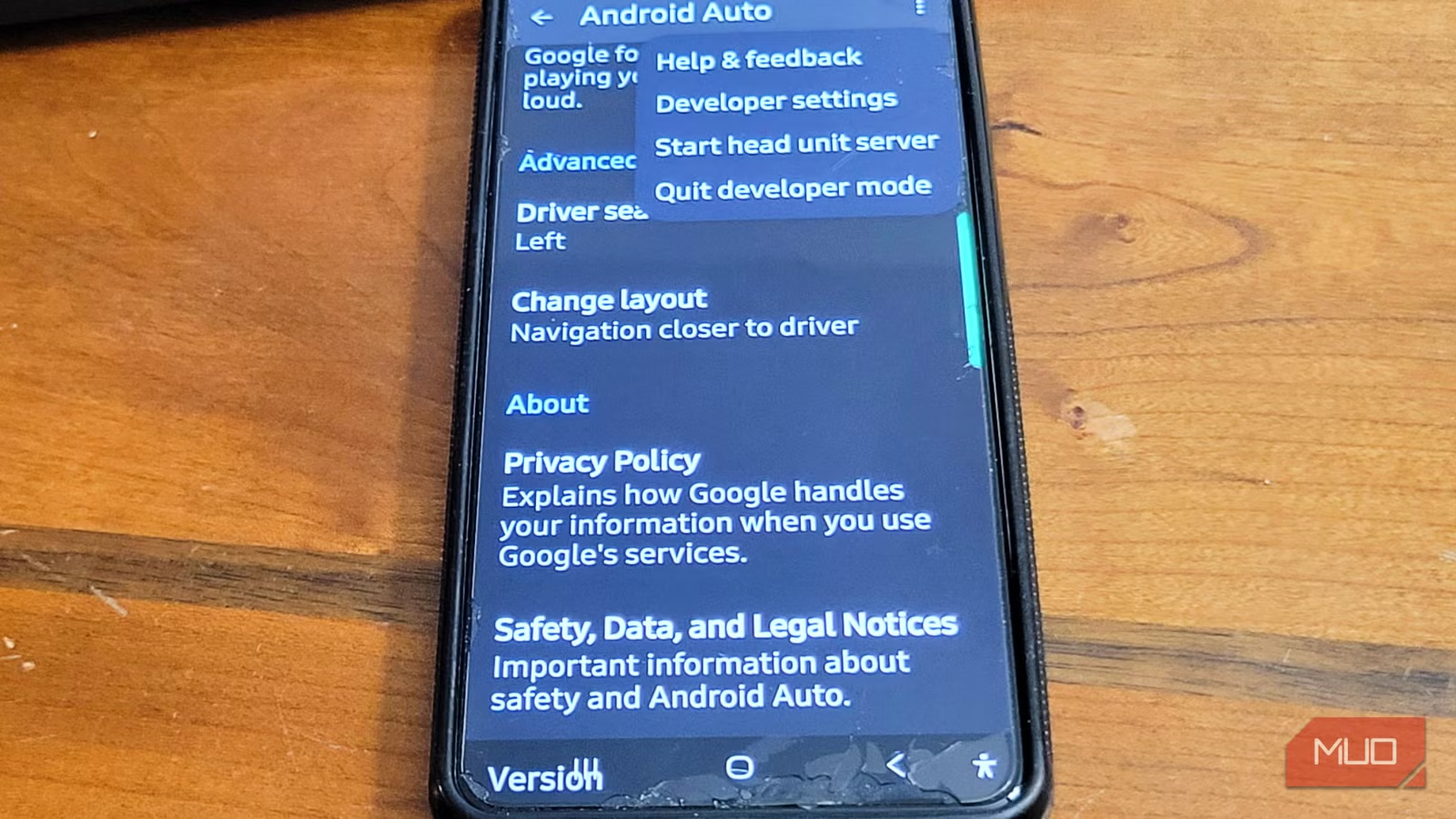
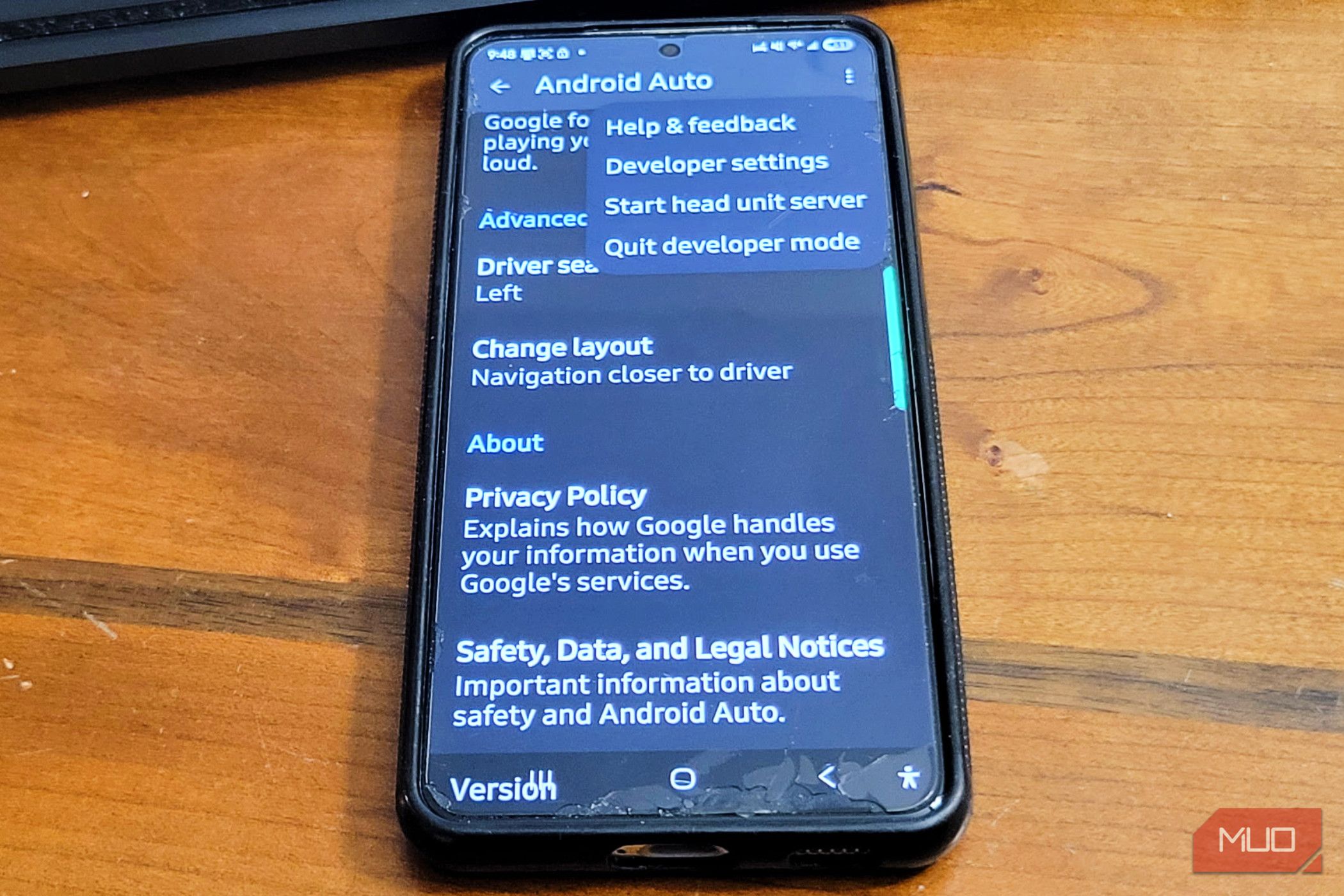
Open your phone’s main settings menu, scroll to the bottom, and select the section labeled “Your phone’s software details.” Find the entry called “build number” and tap it about 10 times in a row until a pop-up notification says you are now a developer.
Head back to the main settings page, where you’ll get a new menu option called developer options at the very bottom. Open this menu, scroll down to the drawing section, and look for the settings called window animation scale, transition animation scale, and animator duration scale.
Tap each of these three options individually and change their values from the default 1.0x to 0.5x. Once adjusted, your phone will spend half the time rendering visual effects, freeing up system resources and reducing lag in your car’s dashboard projection. I did this on my old phone, and it made everything feel fast again.
Clear Android Auto cache
Wipe away accumulated junk data to stop random performance drops
Jorge Aguilar / MakeUseOf
Over time, as you rely on your vehicle’s infotainment system for daily commutes and long road trips, your phone accumulates a massive amount of temporary files and data fragments in the local storage. Wireless and wired Android Auto connections use a lot of resources, constantly pulling GPS data from satellites, streaming high-resolution audio, and encoding live video streams to project your phone’s UI onto the car’s display.
Every time you open Google Maps to find a route, stream a playlist on Spotify, or ask the assistant a question, the system adds to your cached data to help these apps load faster in the future. When this clutter grows, the app spends extra processing time sorting through files, and it slows down.
Instead of speeding up your experience, the sheer volume of fragmented data creates a bottleneck. The lag can make Android Auto feel completely unusable. You might notice that your music sounds choppy, the navigation map moves in slow motion, or the UI simply refuses to register your touch inputs promptly.
Since the processor is forced to work overtime sifting through it all, this can sometimes even lead to thermal throttling as the overworked hardware heats up from the strain. The system is essentially choking on its own leftover data.
Go to your phone’s settings and open the apps menu. Select storage in Android Auto, and tap the option to clear the cache. I like to do this once a week for all my apps. Clearing this data removes junk without deleting your personal settings, which improves performance.
Don’t settle for a slow UI
Going into developer menus and changing power settings might feel a bit intimidating if you prefer to leave your phone alone. But if you’re tired of delayed touch responses and audio dropouts during your daily commute, making these adjustments is worth your time. The steps don’t require external tools; the changes are easy to reverse, and once you finish, you get a responsive system that actually keeps up with your drive.
OS
Android
Price model
Free
App Type
Navigation/Entertainment
Android Auto is an Android-only app that mirrors your phone onto your car’s infotainment display with a simplified, driving-optimised interface. Supports Google Maps, Waze, music and podcast apps, hands-free calls, messaging, and Google Assistant voice control. Requires a compatible vehicle and Android 8.0 or later.
