



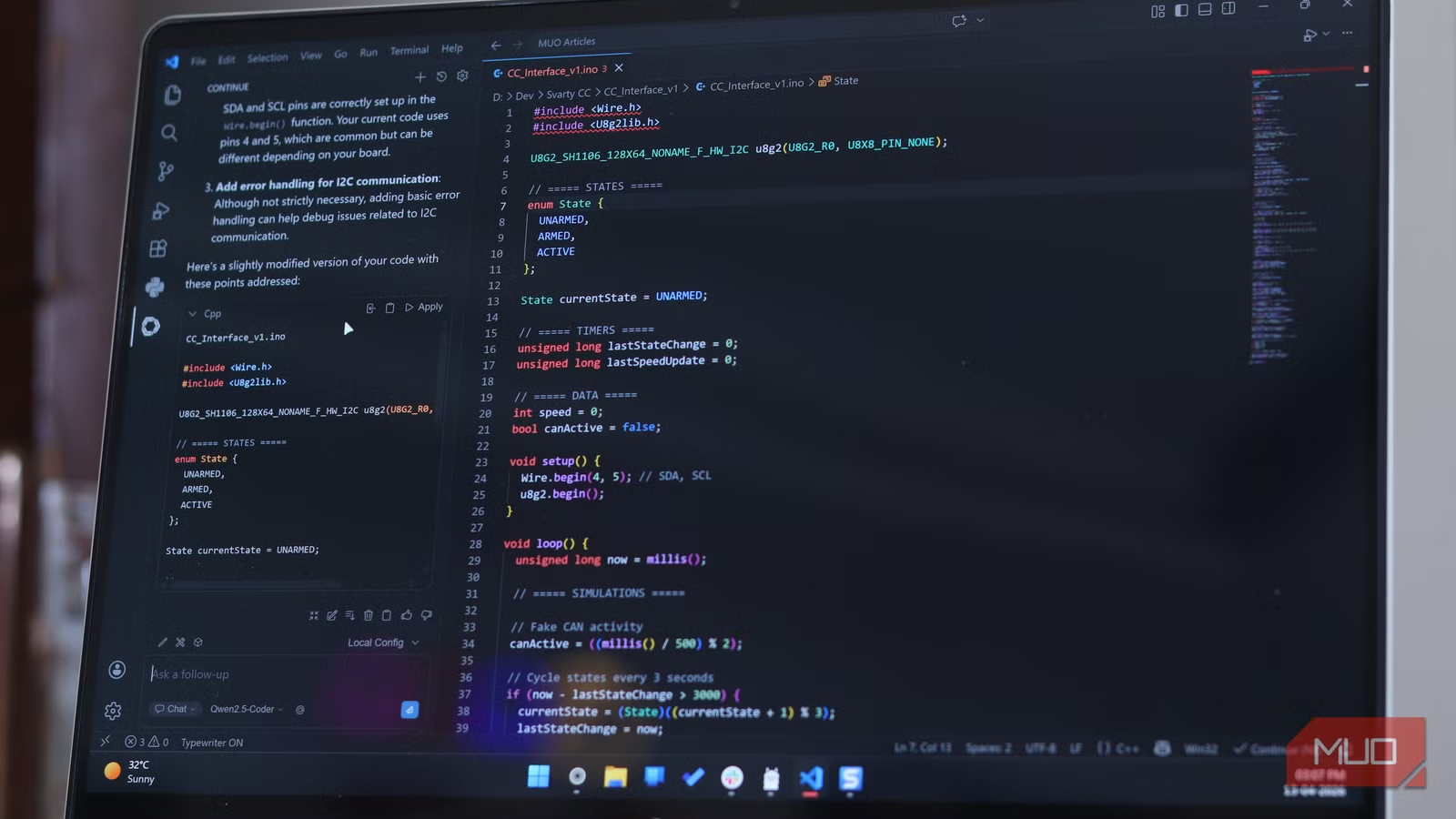
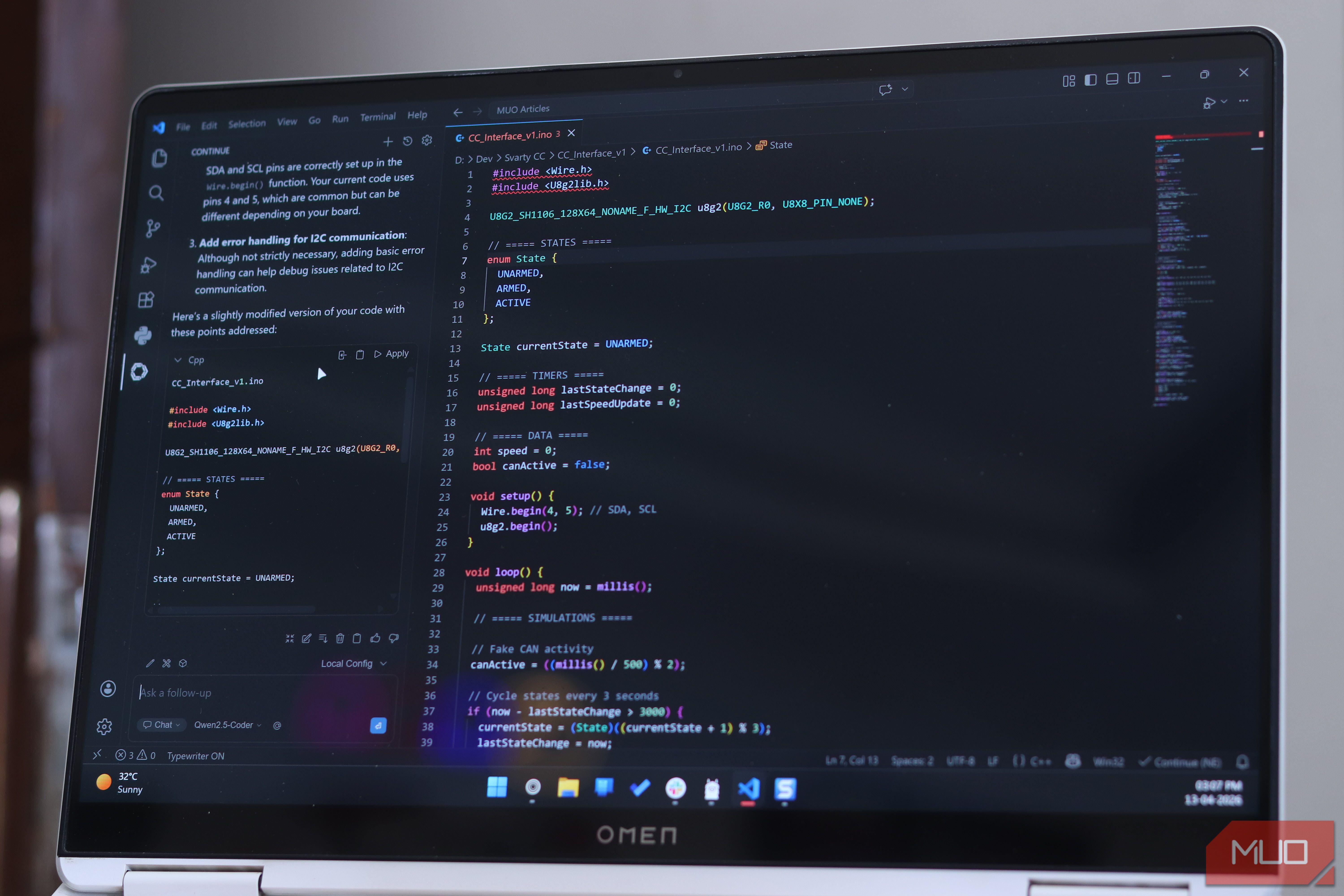

I’ve been vibe-coding and using AI assistants for a while now. As useful as that is, including times when ChatGPT told me no when working on a project, the subscriptions add up quickly. The bigger problem, however, is the nagging feeling that every snippet of code I write is being sent to a remote server I have no control over. For personal projects, that’s a minor annoyance. For anything professional or sensitive, that’s a dealbreaker.
So I finally decided to finish something I had been planning for months: setting up a local coding assistant that works inside my editor. I ended up with a setup that works inside VS Code, runs offline, and costs nothing after setup. The stack I landed on is quite excellent, and I haven’t looked back since.
This stack just clicks
Three tools that actually work together without friction
The whole setup is built on three tools: Ollama, Continue.dev, and a good local model. That’s it. No cloud API keys, monthly billing hassles, or data leaving your machine.
Ollama is the runtime that lets you pull and run LLMs locally in a single terminal command and is one of the best apps to enjoy the benefits of local LLMs. It handles otherwise complicated tasks like model management, hardware compatibility, and serving the model via a local API on your machine. It works across Windows, macOS, and Linux, and installation is as simple as downloading an executable, running it, and running the terminal command to download your model of choice.
Continue.dev is an open-source, actively maintained VS Code extension that connects your editor to the local Ollama instance running on your machine. You get features like inline autocomplete, a chat panel docked inside VS Code, and the ability to highlight blocks of code and get quick explanations. You can even ask the AI model to refactor the code or generate tests for it, all without leaving your editor.
Last but not least comes your model. And this is where you have a tough decision to make.
OS
Windows, macOS, Linux
Developer
Ollama
Price model
Free, Open-source
A lightweight local runtime that lets you download and run large language models on your own machine with a single command.
The model choice makes or breaks it
Picking something fast, capable, and local-friendly
Screenshot by Yadullah Abidi | No Attribution Required.
The model you pick can make or break your entire experience. You might not need a monster GPU to run local AI models, but you do need to be smart about your choice, depending on your needs and PC hardware.
I found my sweet spot at Qwen2.5-Coder, Alibaba’s coding-focused model. It’s outstanding for its size, with the 7B version running comfortably on 8GB of VRAM, which the 32B model delivers performance on par with GPT-4o on code generation benchmarks. It supports over 92 programming languages, and it’s quite good at fixing broken code.
Related
I built a local coding AI for VS Code and it’s shockingly good
There’s a better way to code with AI than those pesky online subscriptions.
If you’ve got more VRAM to spare, specifically 16GB or more, DeepSeek-Coder-V2 is also worth a look. It’s a Mixture-of-Experts model trained on over 2 trillion tokens of code and technical text. In layman’s terms, it’s got stronger reasoning capabilities, making it better suited for vibe-coding entire projects from scratch. Other options include Qwen3-Coder and Llama 3.3 70B, but feel free to browse other models from sources like Hugging Face for other alternatives that might work better for you.
Setup is way less painful than expected
Go from zero to working assistant in surprisingly few steps
To get everything working, install Ollama, and then run the terminal command to download your model of choice. For example, to install Qwen2.5-Coder, run this command:
Screenshot by Yadullah Abidi | No Attribution Required.
ollama run qwen2.5-coder:7b
Once Ollama downloads the model, it’ll start the local server automatically. You can test this by heading to 127.0.0.1:11434 in your browser and you should see a page with the text “Ollama is running.” If you don’t, head over to Ollama settings and enable the Expose Ollama to the network slider.
Screenshot by Yadullah Abidi | No Attribution Required.
Then, switch to VS Code, head over to the Extensions tab, and search for Continue. Install the extension and wait for the Continue button to appear in the sidebar. Click the extension icon and follow these steps:
- Click the Open Settings gear icon in the top right of the extension window.
- Head over to the Configs tab and click the settings gear icon next to the existing Local Config. Click the plus icon to create a new config if one doesn’t exist.
- The configuration is simple YAML here. Give it the model name, set the provider to ollama, and type in the local API URL as mentioned above.
You can use the template provided below to quickly get started. Make sure you’ve swapped out the model name for whatever model you’re using.
name: Local Agent
version: 1.0.0
schema: v1
models:
– name: Qwen2.5-Coder
provider: ollama
model: qwen2.5-coder:7b
roles:
– autocomplete
– chat
– edit
– apply
apiBase: http://127.0.0.1:11434
If you did everything right, you should be able to get inline completions by pressing Tab on your keyboard. Pressing Ctrl + L or clicking the Continue icons opens the chat window, allowing you to talk to the AI about your code, generate more of it, or analyze it however you want. You can also switch models on the fly within Continue, in case you want to use a lighter model for quick completions and a heavier one for more complex generations.
It completely changed how I code
Faster edits, fewer context switches, better flow
I’ve been using this setup for a while now, and the difference is tangible. The most obvious benefit is speed as there’s no waiting around for a server to respond. Completions feel snappier than most cloud tools I’ve used, especially when working on a spotty internet connection. It also integrates rather well into VS Code, meaning I don’t have to constantly jump between my editor and browser to work.
Related
I’ll never pay for AI again
AI doesn’t have to cost you a dime—local models are fast, private, and finally worth switching to.
The real benefit for me, however, is peace of mind. When I’m working on something sensitive, whether it’s professional work for a client or a security audit of existing code, no data is leaving my machine for an external server. There’s no mental overhead about where that data is going, and I have privacy built into my workflow by default.
If you’ve been paying for a coding assistant subscription, give it a shot. Whether you’re tired of paying a monthly fee or have privacy concerns, local AI is good enough that the cloud version now doesn’t feel worth it. In fact, for daily in-editor use and assistance in development, this stack is better. As long as you’re not using AI as a replacement for human thinking, but as an assistant to get your code written faster and in a more robust manner, you won’t find yourself wanting, except for some experimentation with different models.


