


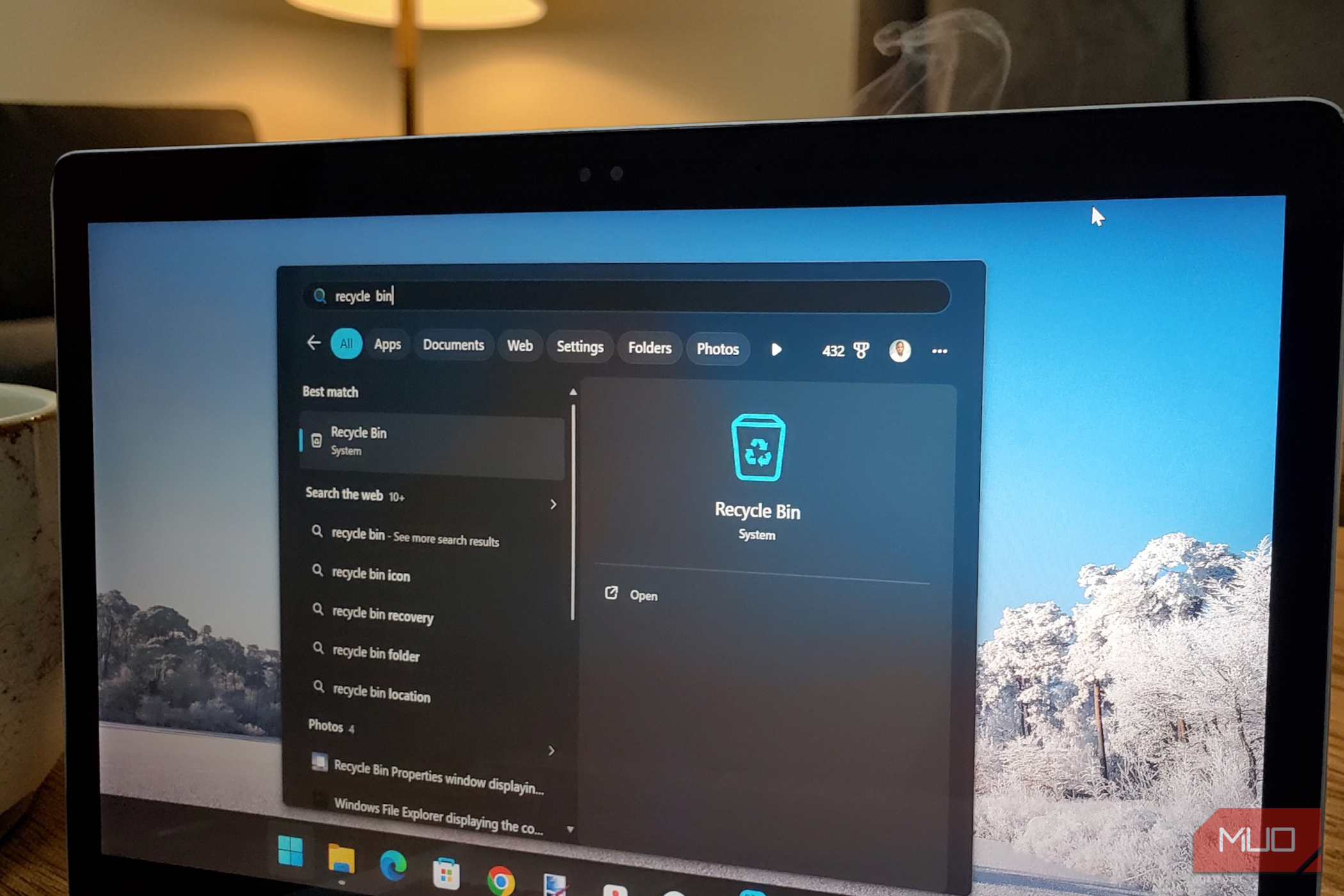
There’s a specific kind of panic that sets in when you open the Recycle Bin in Windows to recover deleted files and find they’re gone. You didn’t permanently delete the files, nor did you hold Shift. You just deleted it the normal way, the way you’ve deleted files for years, fully expecting it to sit patiently in that little trash can until you needed it.
I’ve been there, and the explanation turned out to be so mundane it was almost insulting: the Recycle Bin decided my older files were a liability and disposed of them without a word. That specific betrayal sent me down a rabbit hole I clearly should have gone down years ago. Here’s what was actually going on.
The Recycle Bin has been rationing space this whole time
Five percent of your drive is doing a lot of heavy lifting
Most people treat the Recycle Bin like a bottomless holding pen — send something there, forget about it, retrieve it someday if needed. But it was never bottomless. The Recycle Bin stores deleted files only until its maximum storage capacity for that location is reached. When that happens, Windows automatically and permanently deletes the oldest files in the bin to make room for the newer ones.
The default size allocation isn’t arbitrary either. The default maximum size of a Recycle Bin location is about 5% of its available space. On a 1TB drive, which offers about 931GB of usable space, that works out to roughly 46GB of bin space. That sounds like plenty until you’re regularly deleting large video files, disk images, or project folders. It fills up faster than you’d expect.
Related
I Freed Up 48GB on My Windows 11 PC—Without Losing Anything Important
Freeing up storage never felt this painless.
A lesser-known behavior is that files larger than the Recycle Bin’s available space trigger immediate, permanent deletion without a trip to the bin. You’ll see a prompt asking whether you want to delete the item permanently, and if you click through it without reading (which, honestly, most of us do), the file is gone.
It gets more interesting if you have multiple hard drives, partitions, or an external hard drive connected to your PC. Every drive, whether it’s your main C: drive, a secondary D: partition, or an external hard drive, has its own hidden system folder and its own Recycle Bin settings — and these bins operate independently. So when your D: drive’s Bin fills up, it evicts files from D: only — your C: drive’s Bin is unaffected and vice versa. That’s two bins, two size limits, two separate eviction queues running in parallel.
FAT/exFAT removable drives (USB sticks, memory cards) skip the Recycle Bin by default, so files deleted from them are gone immediately. The same applies to files deleted via Command Prompt, network locations, and the Shift + Delete shortcut. Even then, deleting a file with Shift+Delete doesn’t actually erase the data from your drive until those specific disk sectors are eventually overwritten by something else.
Here’s how to take control of your Recycle Bin’s size
Your bin, your rules, your very specific number in a text field
Now that you know the Recycle Bin has a limit, the good news is you can adjust it. Start by right-clicking the Recycle Bin icon on your desktop and selecting Properties. If the icon isn’t on your desktop, you can add it back by navigating through Settings -> Personalization -> Themes -> Desktop icon settings.
Inside the Properties window, you’ll see each drive listed at the top — C:, D:, and so on if you have multiple. Click the drive you want to adjust. It defaults to Custom size (pre-filled with ~5% in MB, e.g., 51200 on 1TB). Note: 1024 MB = 1 GB, so 10 GB = 10240 MB. Select the drive, enter your preferred value in the Maximum size (MB) field, and click Apply. Repeat the process for any other drives listed.
A few things worth noting as you set this up: the number you enter should reflect both how much space you can afford to give up and how large your typical deleted files are. If you regularly work with video files or large archives, erring on the higher side is a reasonable call. There’s no universal right answer here; it’s a trade-off between the safety net’s depth and available drive space.
There’s also a radio button in the same window labeled “Don’t move files to the Recycle Bin. Remove files immediately when deleted.” If that option is selected, the Recycle Bin is effectively bypassed entirely for that drive. So, every deletion is permanent regardless of file size. It’s worth making sure that option isn’t checked unless you’ve deliberately chosen to disable the Recycle Bin entirely.
Storage Sense is a whole separate culprit working in the background
Sometimes the janitor doesn’t wait to be asked
Even with a generously sized bin, files can still disappear if you’ve got Storage Sense running. Windows has a feature called Storage Sense that automatically deletes files to help free up disk space, including items sitting in the Recycle Bin after a certain number of days. The frustrating part is that Storage Sense can get automatically re-enabled through a Windows update, so you might turn it off today and find it quietly switched back on after the next patch.
To check whether it’s active, head to Settings -> System -> Storage. If Storage Sense is toggled on, click onto it to see the configuration. You can set it to delete Recycle Bin files after 1, 14, 30, or 60 days — or disable it entirely if you’d rather be the one making that call. The 30-day setting is a reasonable middle ground if you want automated cleanup without losing files you just forgot about.
Third-party cleanup tools like CCleaner and some antivirus programs with built-in cleanup features can also empty the Recycle Bin automatically in the background, often without making it obvious they’re doing so. If you’re running anything like that, it’s worth checking its settings to see whether bin-clearing is enabled. You might be blaming Windows for something that’s been a setting in CCleaner this whole time.
The settings were always there, waiting to be found
The Recycle Bin has been on your desktop since Windows 95. You’ve probably clicked past it ten thousand times without giving it a second thought — and that’s exactly the kind of familiarity that costs you files. Most of the frustrating things Windows does make sense once you find the right settings page. The hard part is knowing which settings page to look for. Now you do.
