


I like SSH, but I don’t love having to open it and remember a username and password just to run the same boring commands over and over. That little annoyance is the reason I started this project in the first place.
I have a few servers in my homelab, but one in particular needs constant babysitting, disk space checks, backups, and updates because it controls home automation. These jobs aren’t difficult, and some of them are automated. But the small, annoying manual tasks just feel too small to warrant an SSH session.
OliveTin fixed this in a really simple way. It let me turn my own Bash scripts into browser buttons I could access and click at any time on my home network. After installing OliveTin natively on my Debian home-ops server, I turned the inconvenience of yet another secure SSH session into proper tools.
Related
I was losing track of my self-hosted apps until I found this open-source dashboard
Managing containers wasn’t hard—accessing them quickly was the problem.
What I really needed was a button panel and not another admin command center
OliveTin is simple enough that it stays out of the way
I didn’t want my home-ops server turning into yet another dashboard. That’s because I’m running a homelab, not mission control at Houston, and already have enough useless dashboards in my life. I needed something far simpler. Just a private page with a handful of buttons for scripts I already trusted. What I didn’t need was graphs, widgets, plugins, or a full server management console.
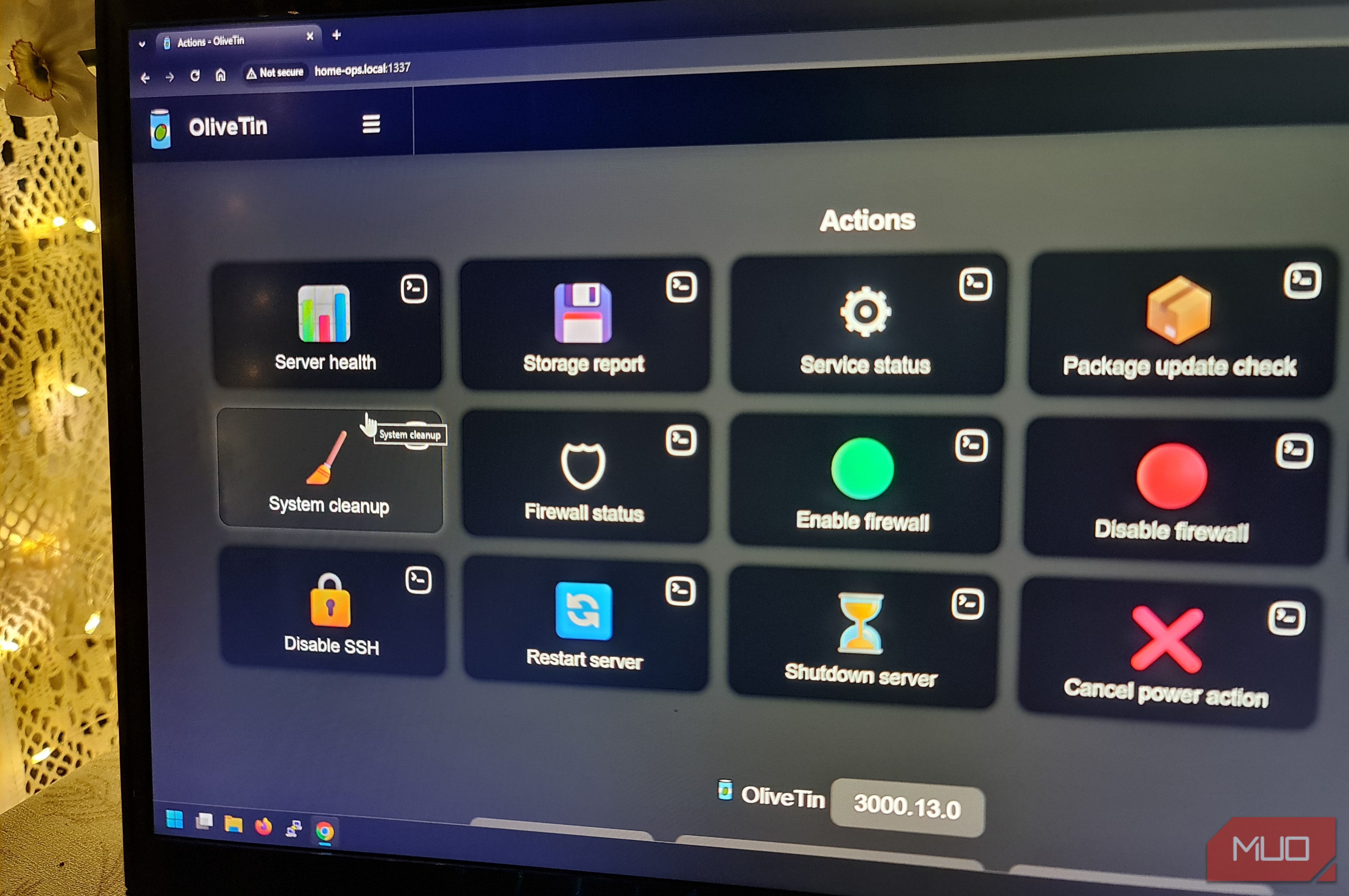
OliveTin makes perfect sense here because it’s basically a web launcher for predefined commands, making it ideal for smart home upgrades, automations, and personal server admin. I needed buttons for things like server health reports, storage reports, turning SSH and firewalls on and off, and shutting down the server. OliveTin does exactly what it says, well, on the tin.
With OliveTin, I wrote the scripts, defined the actions, and OliveTin runs on a web server, turning them into a useful browser-based app. The installation of OliveTin is simple enough. I installed it natively on my home-ops Debian server, edited its config file, and enabled the service:
sudo apt install ./OliveTin_linux_amd64.deb
sudo systemctl enable –now OliveTin
Since OliveTin works on port 1337, I allowed this port on the Debian UFW firewall and then created a small test configuration for OliveTin containing a simple button that would return some basic system info, just as a test to see if it all worked:
actions:
– title: “Hello from home-ops”
icon: “👋”
popupOnStart: execution-dialog-stdout-only
shell: echo “OliveTin is running natively on $(hostname) at $(date)”
Then I restarted the service:
sudo systemctl restart OliveTin
The button itself didn’t do anything useful, but that was the point. I only needed to prove that the service was running, that the page loaded, and that OliveTin could display the command output in the browser.
OliveTin buttons can use HTML entity codes for icons, so you can add small emoji labels in YAML for a prettier dashboard.
My first few OliveTin buttons replaced all the boring server scripts
Health checks, storage reports, service status, all the things I built scripts for, but then neglected until something broke
With the test button working, it was time to replace all the things I meant to check more often with cool buttons on OliveTin. That’s the rather embarrassing truth about half my home server maintenance. I already know which commands are needed. I’ve even written scripts for most of them. I just couldn’t be bothered SSHing in to run them.
So, the first buttons I made in OliveTin were running scripts for basic server admin jobs:
- Server health
- Storage reports
- Service status
- Package update and upgrade
- System configuration backup
- Firewall status
The server health button tied together all the Linux monitoring commands that I usually run by hand, all at once. The script the button is linked to just runs basic checks and then returns the results in a nice, human-readable format:
uptime
free -h
df -h /
The other scripts showed load averages and top CPU processes, which gave me good visibility into the server without opening the terminal. The storage button generated a report on free disk space, filesystem usage, and the largest/var directories. The service
status button checked SSH, OliveTin itself, and Docker.
With all the loose scripts organized into buttons, I had a powerful internal tool
Once the monitoring tool buttons were all working, I created a new script and button for archiving the configuration files I would most want back if I managed to monumentally break something while tinkering. It grabs items such as the hostname, hosts file, SSH configuration, firewall settings, and OliveTin’s config files.
tar -czf “$BACKUP_FILE” /etc/hostname /etc/hosts /etc/ssh /etc/ufw /etc/OliveTin
It’s nothing impressive and is essentially just a Bash script wrapping tar. But the result felt different once it had a dedicated button rather than just assigning it to a cron job and hoping that it kept working. Yes, it’s all still Bash underneath, but OliveTin stopped making a loose script feel like a chore to run and finally meant I had built properly for the home-ops server.
Then I added some more powerful buttons
Restarting SSH and changing the firewall from the browser is useful, but it deserves caution
After the harmless checks and backup buttons were working, I added some buttons that deserve a bit more caution because they could potentially lock both OliveTin and me out of the server:
- Enable firewall
- Disable firewall
- Check firewall rules
- Enable SSH
- Disable SSH
These were still simple buttons connected to simple Bash scripts:
systemctl start ssh
systemctl stop ssh
systemctl is-active ssh
That simplicity is what can make OliveTin quite powerful. If an SSH session becomes unresponsive, or I need to quickly turn off the firewall for troubleshooting, the option is right there to turn them on and off. If I click the wrong button on a headless server, though, I had better have console access handy or some other way back in.
On my home-ops server, this works fine because I control the environment and know exactly what each button does. I also have a way back in if my cat somehow manages to lock me out of my own server via OliveTin. But on a public VPS or any public-facing service, it’s obviously not advisable to run OliveTin without some form of authentication.
I gave myself reboot and shutdown buttons
Then I immediately added a cancel button
A restart and shutdown button on OliveTin made perfect sense, and I’ll end up adding the same to other servers that need a quick shutdown during times like sudden power outages. After adding the shutdown button and then accidentally clicking it, I decided I also needed a timer and a cancel button.
I changed my initial shutdown Bash scripts to include a one-minute timer:
shutdown -r +1 “Restart requested from OliveTin”
Then I added a Cancel power action button right alongside them:
shutdown -c
That tiny delay gave me enough time to cancel the action entirely before my home-ops server went down, taking all my automated smart home lighting controlwith it. It was a good reminder that powerful functionality like this definitely needs a seatbelt.
I would not expose this directly to the internet
OliveTin is useful because it runs commands, which is also why it doesn’t belong on your VPS
OliveTin supports proper security features like authentication, users, groups, and access controls, but that doesn’t mean you should expose an entire page of server buttons to the World Wide Web.
For my home-ops server, my preferred model is trusted access only. Making sure port 1337 stays locked down to local access only is pretty important, and if I really need access from outside my network, then I can put it behind something like Tailscale rather than port-forwarding.
The question of why I wouldn’t use OliveTin’s built-in login support to secure it remains, and it’s a fair one. My answer is that it’s not a normal web app because its entire job is to run commands, which changes the threat model enough to warrant putting it behind my firewall.
I’m keeping it, but only for scripts I already trust
OliveTin did not replace SSH, but it removed a lot of pointless SSH sessions
OliveTin was never meant to be a full server admin panel, and that’s exactly why I wanted it. It’s better because it only exposes the jobs I already have scripts for. If there isn’t a button or a script, then it can’t just create one and run it.
I still need SSH for real Linux server work, like config editing and log work, and no browser button is going to replace that. But for tiny jobs that I trust because I wrote the script, OliveTin is perfect. That’s because having to SSH in to execute them meant I wouldn’t run those jobs out of laziness, and my server’s performance suffered as a result.
So, I’m keeping OliveTin on my home-ops server and will actually be rolling it out to other servers that I’ve been neglecting as well. I still need the SSH for the real work, I just don’t want to have to open it every time I need to run one boring script. For that, a button is just way better.
Related
I turned my old tablet into a smart home dashboard, and it’s perfect
I use my 1st-gen iPad Pro as a smart home dashboard
