


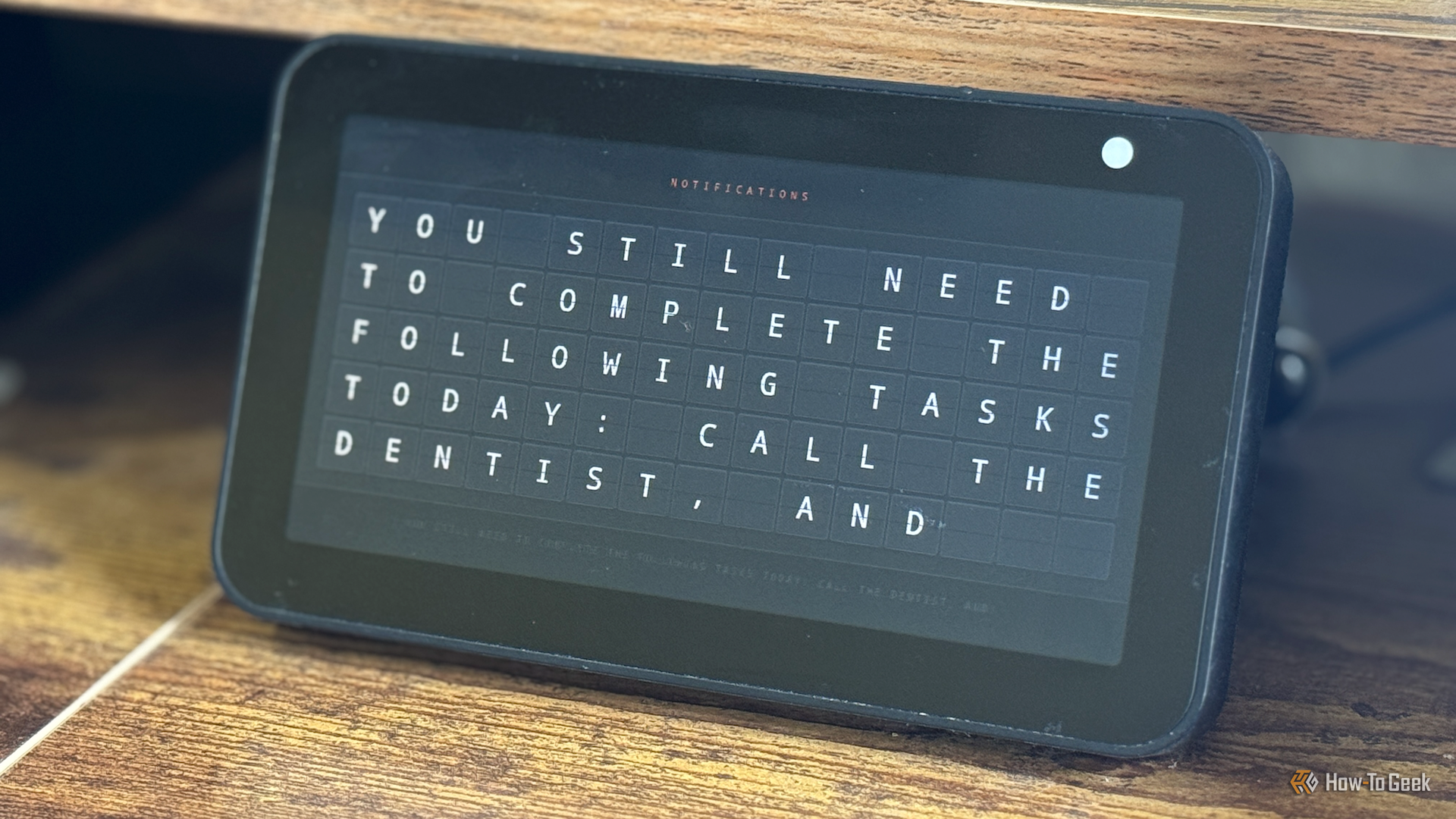
I’ve tried a lot of to-do list apps, from Todoist to Things 3, but I’ve never found one that has really felt like a perfect fit. I decided to try to build my own using Home Assistant.
Related
How I Use the Microsoft To Do App to Maximize My Productivity
My go-to app for tackling tasks, setting reminders, and staying organized—simple, smart, and synced across all devices.
How Home Assistant’s to-do lists work
A simple list that exposes useful actions
Credit: Adam Davidson / How-To Geek
Home Assistant’s Local to-do integration is a fairly basic to-do list manager. You can add tasks to different lists, add descriptions, due dates, and times, and that’s about it. The tasks are displayed in the To-do lists dashboard, and you can check them off when completed.
This basic to-do list isn’t particularly useful on its own, but what it can do is expose some very useful actions. You can use the todo.get_items action to pull tasks from a list depending on their status, such as needs_action or completed. Using needs_action will pull all tasks that have not been completed, and you can then filter these by date to only return tasks that are either due today or overdue.
Armed with this information, I would be able to create an automation that could remind me about any tasks that needed completing. First, however, I needed to be able to get the tasks into Home Assistant.
Dimensions (exterior)
4.41″L x 4.41″W x 1.26″H
Weight
12 Ounces
Home Assistant Green is a pre-built hub directly from the Home Assistant team. It’s a plug-and-play solution that comes with everything you need to set up Home Assistant in your home without needing to install the software yourself.
I used custom sentences to add tasks via Assist
Tasks can be created by voice
You can manually add tasks to the To-do lists dashboard and assign due dates to each task. This isn’t ideal, however, as it requires opening Home Assistant, navigating to the relevant dashboard, creating a task, and then applying a due date to that task. Popular to-do list managers such as Todoist let you create tasks using your voice, so I wanted to be able to do the same.
You can use the Assist voice assistant in Home Assistant to create tasks, but it’s fairly awkward. By default, saying “add X to my list” adds a task to your shopping list, and you can’t add due dates in the shopping list.
However, in Home Assistant, you can create custom sentences for Assist and specify what actions Assist should take when those sentences are spoken. Creating all the possible permutations of what you might say can be incredibly tedious, but this is where AI can help. I asked Claude to generate possible variations of how I might ask to add a task to the to-do list and added all of these to a custom sentences YAML file.
Using this method, I was able to add tasks to the to-do list using my voice. I could provide a due date as part of the spoken command, or have the due date set to today if no due date was given. I was ready to create my automation.
The automation runs when I sit in my office chair
A presence sensor does the hard work
Credit: Adam Davidson / How-To Geek
The first thing I needed for my automation was a trigger. I wanted the automation to keep reminding me about due or overdue tasks throughout the day, as this was my major issue with other to-do list apps; I’d always forget to complete the tasks that were due. I wanted this automation to keep nagging me until I actually did them.
I decided to use a smart speaker to speak an announcement out loud, as I’ve found this to be annoying enough to work. I already have an automation that uses a spoken announcement to nag me to get out of my chair after 30 minutes of sitting, and it works really well. This automation uses an mmWave presence sensor to detect when I’m sitting in my chair.
I decided to use the same sensor as my trigger. If I’ve been out of my chair for more than a minute, the automation triggers when I sit back down again.
The announcement reads all my due tasks
Overdue tasks are also included
Credit: Adam Davidson / How-To Geek
The final part was to play an announcement containing my due and overdue tasks. The automation first pulls all tasks that are not completed from the to-do list. It then looks at the due field for each item returned by the todo.get_items action and compares it to today’s date, to extract only those tasks that are due today or before today. Finally, it uses Text-to-Speech (TTS) to generate a spoken announcement that lists all of the extracted tasks.
It works incredibly well. One automation nags me to get up every half hour, and when I come back and sit down again, the new automation fires and tells me the tasks I still need to complete. It’s a constant reminder about what I have left to do, and the only way to stop the announcement other than disabling the automation is to complete them and check them off in the to-do list.
I decided not to add more custom sentences that would allow me to mark a task as completed using my voice, as this would make it too easy for me to cheat and check off a task just to stop the announcements. I have to physically open the to-do list dashboard and check it off, which so far has been enough to stop me from cheating.
I’m finally completing my to-do lists
The repeated announcements are just annoying enough to work, as I know that the simplest way to get them to stop is to do the tasks I’ve been putting off. It’s simple but effective, and it’s genuinely helping me to get more done.
