

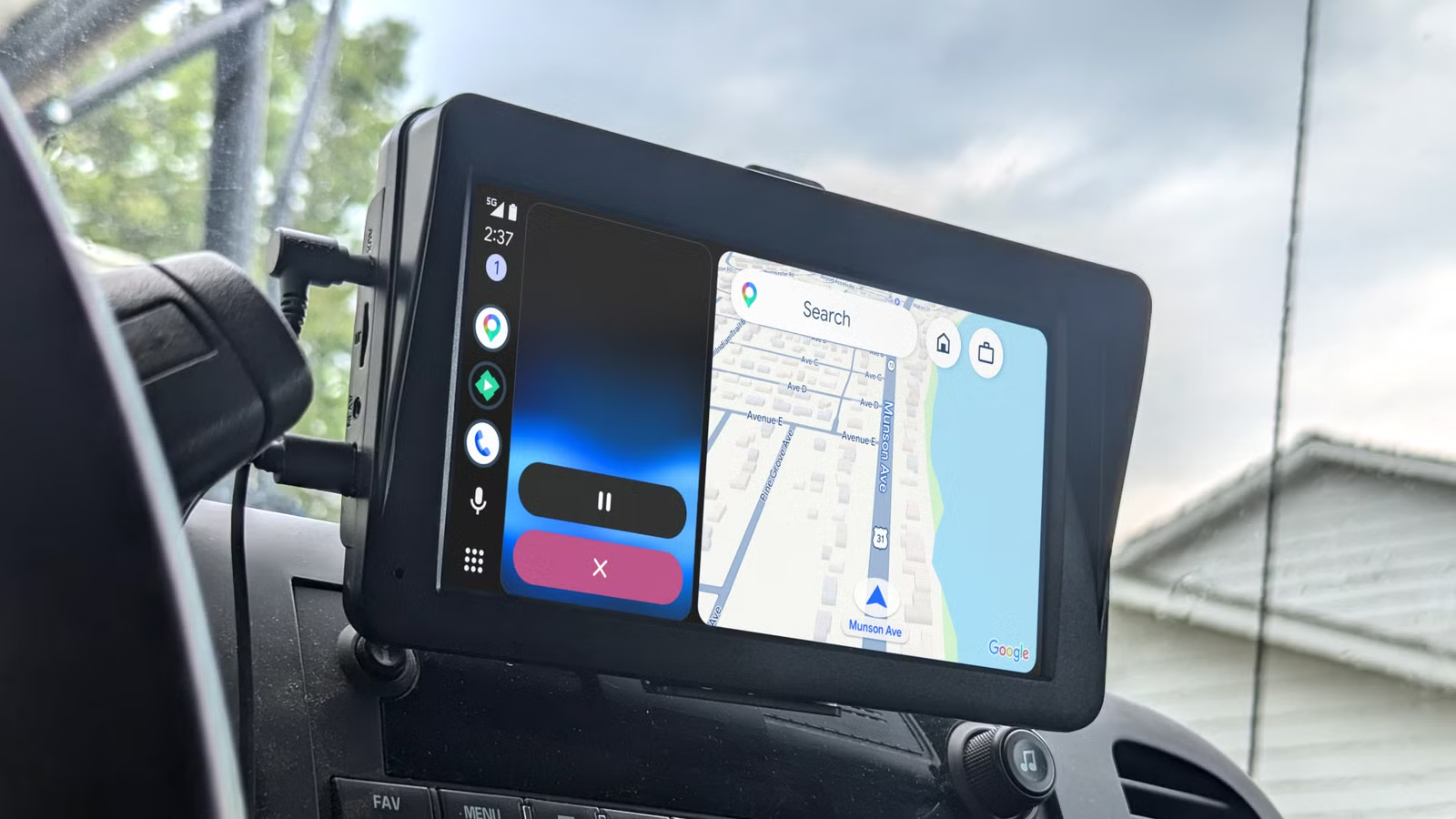
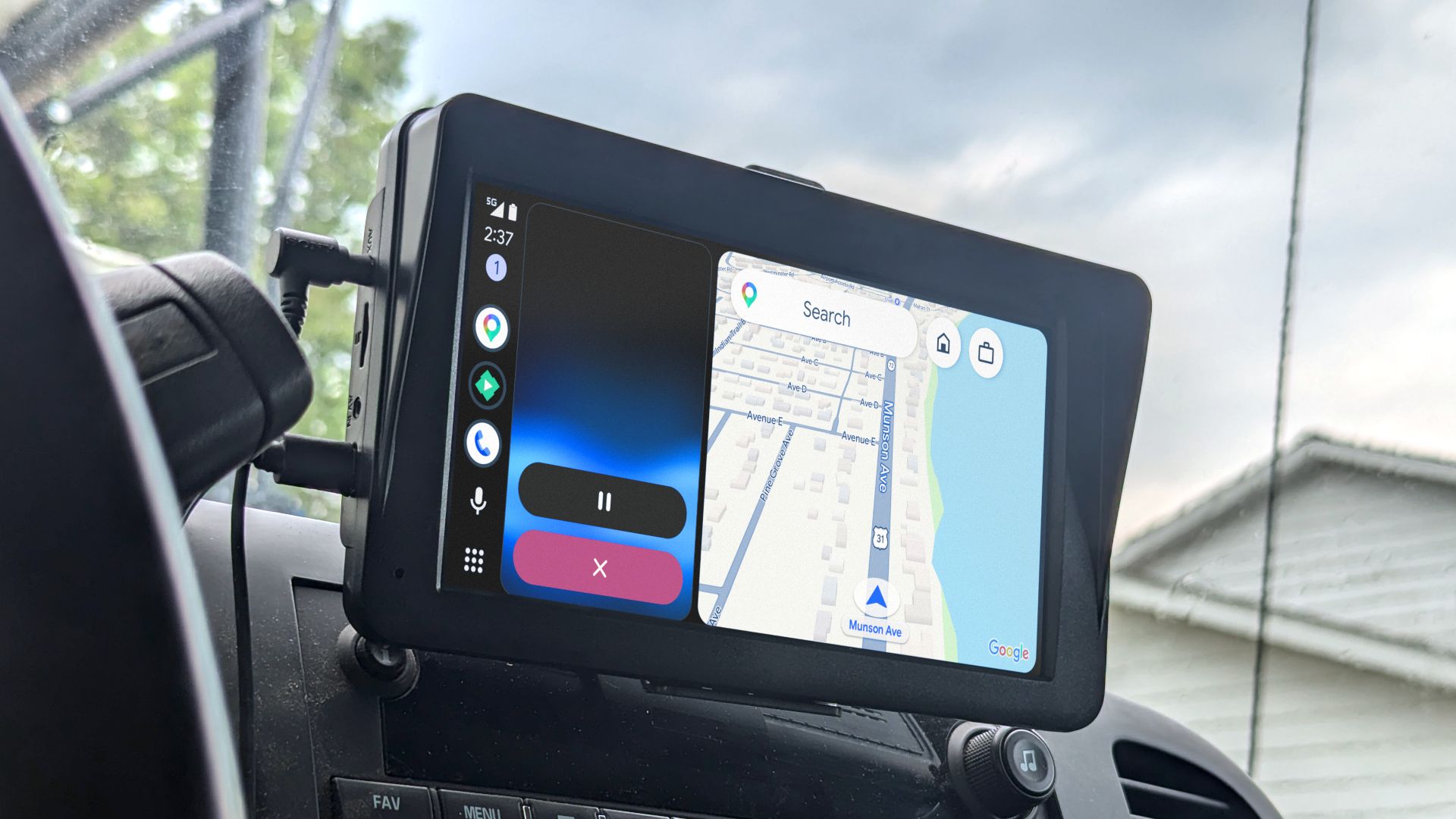
Google made a lot of lofty claims about how Gemini for Android Auto was going to make driving better. It’s been a few months now since it rolled out, and one complaint keeps popping up: Gemini talks too much. Let’s fix it.
It was announced almost exactly a year ago that Gemini would be coming to Android Auto, but it didn’t start arriving in vehicles until last November. However, it seems that it wasn’t until just recently that the majority of Android Auto users finally received the update. In April alone, there have been several Reddit threads and articles about Gemini’s chattiness.
Gemini on Android Auto talks too much
No one likes a chatty passenger
The problem that people have with Gemini for Android Auto is the same problem that people have with AI in general. It will talk very confidently about anything you ask about, but that confidence has no bearing on the actual value of what it says. In other words, saying a lot without saying anything at all.
One Reddit user posted an example of what should have been a simple interaction. They asked Gemini to play a song, and it misheard them. No big deal, it happens. However, Gemini proceeded to go on a lengthy spiel about it. In their words, here’s what Gemini said:
“Hmm, I can’t find anything matching those exact details. I think there’s been a mixup with the title and the artist. maybe you meant … or perhaps a song by … . If you can can clarify what you meant I can have another look for you. Or maybe you could tell me a genre of music you’d like to listen to and I’ll do that for you. Just tell me what you’d like to do and I’ll try again.”
While this soliloquy was happening, they weren’t able to get a word in. Finally, when Gemini was done, they repeated the request, to which Gemini confidently responded affirmatively…and nothing happened. No music was started.
This is just one example, but it highlights what others have been experiencing as well. Even when the responses and actions are correct, Gemini simply says more than is needed—especially while you’re driving.
Related
I finally found the ultimate Android Auto setup: Here’s the 3 changes I made to get here
Whether you’re commuting to work or heading on a cross-country road trip, your car’s infotainment system is vital. For years, I settled for the average Android Auto experience that’s often laggy, cluttered, and tethered to a USB cable, but not anymore. I recently made several changes and now have the ultimate Android Auto setup, and here’s how. For whatever reason, a lot of people still don’t use Android Auto. And for those who do, the experience is “good enough” that they don’t try new things. If you’re looking to actually enjoy all it has to offer, you’ll want to stop dealing with glitches, optimize the experience, get some good apps, clean up notifications, and make Android Auto shine.
How to make Gemini more concise
Or say “goodbye” to Gemini entirely
The good news is that there are some options to make the situation less painful. First, if you want to keep using Gemini, you can actually just ask it to be more concise when responding. There’s no official setting for this; simply say, “Hey Google, be more concise.” Gemini will probably reply, “Understood, I’ll keep things brief and to the point,” and it should commit that information to its “memory.”
Your other option is to go back to Google Assistant—that’s what many people have been doing. This can be done from the Android Auto settings on your phone.
For Samsung Galaxy phones, go to Settings > Connected devices > Android Auto. On a Google Pixel phone, head to Settings > Connected devices > Connection preferences > Android Auto. When you’re there, the steps are Manage your Digital Assistant > Digital Assistants from Google > Google Assistant.
It might get better
Gemini on Android Auto is still relatively new, so hopefully it will improve over time. Ideally, Google would have rolled out an experience that’s better than the previous one. There’s been a lot of talk about Gemini being an “upgrade” to Google Assistant, but in the real world, Android users haven’t always felt like that’s the case.
Related
5 Android Auto settings you should change from your phone
Android Auto is obviously designed to be used on a screen in your vehicle, but there are also a few things that can only be done from the comfort of your phone. Setting these things up before you get in the driver’s seat will make your next trip even easier. Accessing the Android Auto settings on your phone will be a bit different depending on the specific device. For Samsung Galaxy phones, go to Settings > Connected devices > Android Auto. On a Google Pixel phone, head to Settings > Connected devices > Connection preferences > Android Auto. When in doubt, you can simply search for “Android Auto” in the Settings app.
