

Your PC works hard every day, running programs, storing files, and keeping you connected. Even the strongest hardware, however, can slow down over time if it isn’t properly cared for. And nothing kills productivity faster than a slow or unstable PC. Luckily, Windows comes with built-in commands that can help maintain stability with minimal effort.
With these commands, you can repair corrupted system files, scan and fix hard drives, optimize performance, and even resolve stubborn network problems. Running them takes less than five minutes, and the reward is a more reliable PC.
5
DISM
Fix Windows from the inside out
Screenshot by Yadullah Abidi | No Attribution Required.
DISM stands for Deployment Image Servicing and Management. If your PC is feeling sluggish or acting a bit… off, this command can fix it. It goes straight to the heart of Windows, repairing any corrupted files and ensuring everything runs smoothly.
This command checks the health of your system image and replaces anything that is damaged or missing. Depending on the size of your system and how much needs repair, this could take a few minutes or a bit longer.
Using DISM is simple. Open your Command Prompt as an administrator, type the following, and hit Enter:
DISM /Online /Cleanup-Image /RestoreHealth
4
SFC
Keep your system files healthy
Screenshot by Yadullah Abidi | No Attribution Required.
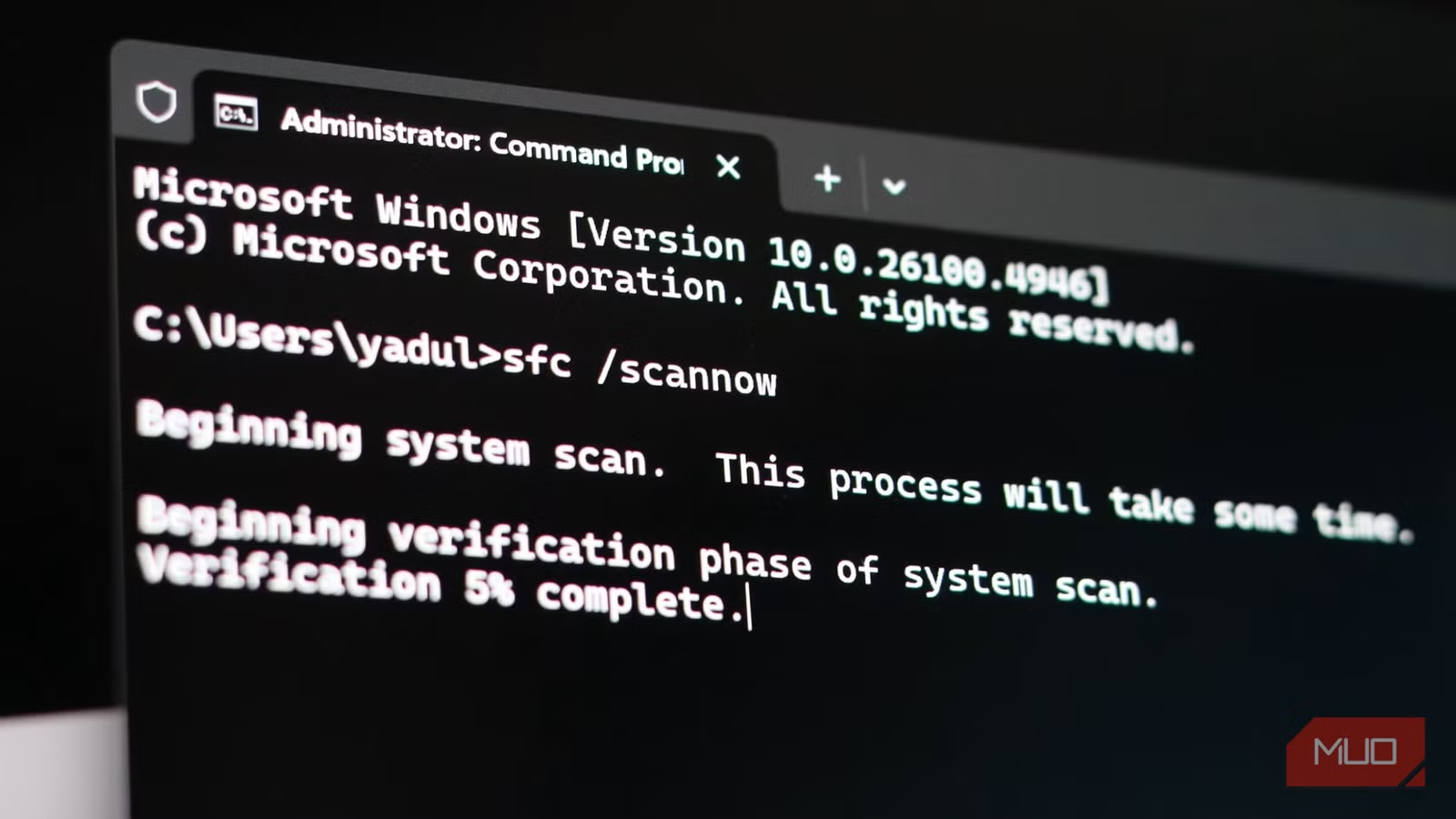
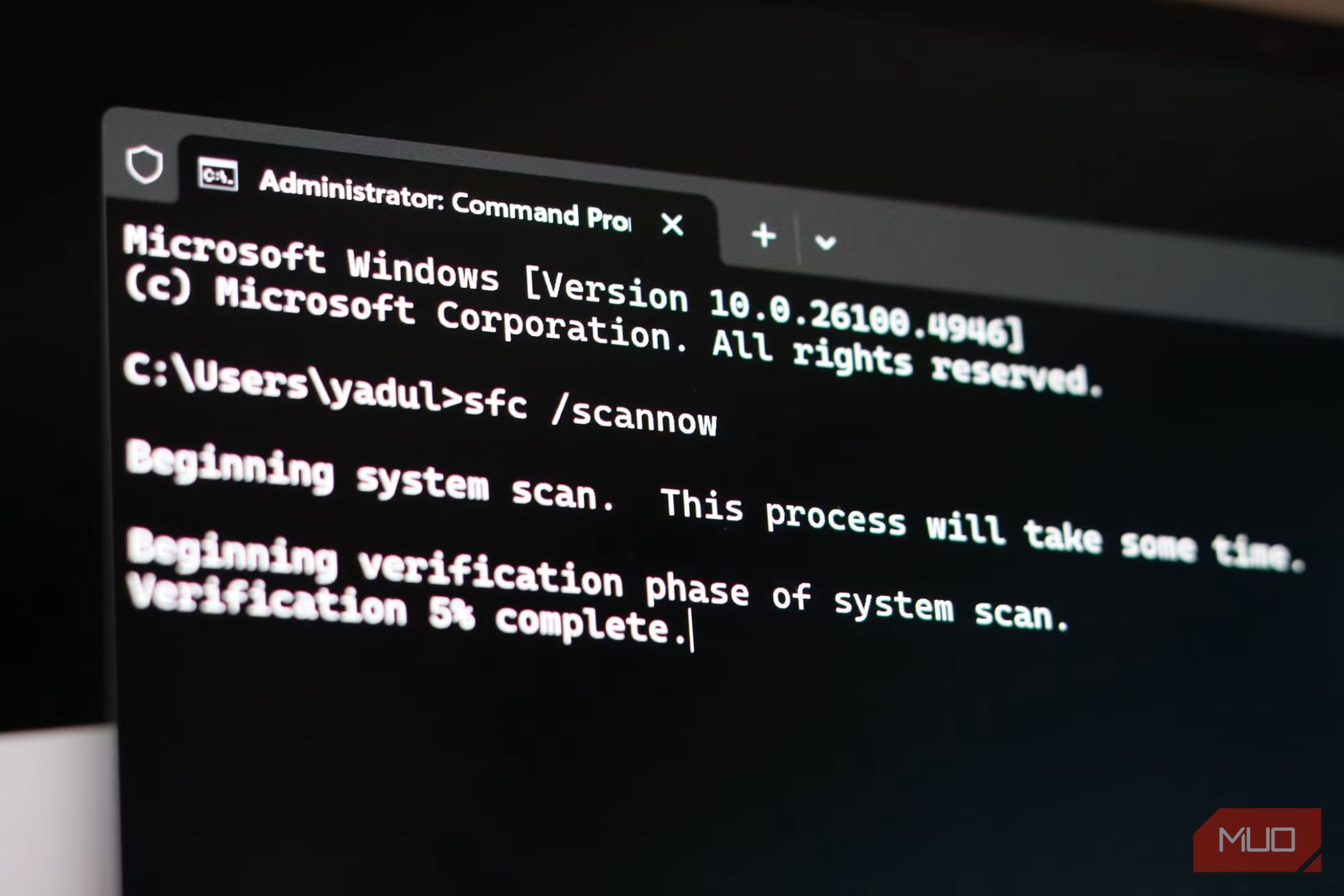
While DISM repairs the deeper system image, SFC goes through your actual Windows files and makes sure everything is exactly where it should be. It spots missing or corrupted files and replaces them with healthy versions straight from your system cache.
To run SFC, open Command Prompt as an administrator, type the following command, and hit Enter:
sfc /scannow
Windows will then scan your files and automatically repair anything that’s out of place. Making SFC part of your regular maintenance routine keeps your system stable, prevents annoying crashes, and ensures your programs run without hiccups.
Both SFC and DISM notify you if any issues are found. When that happens, these tools take care of the repair automatically. Just remember to reboot your PC after running them to make sure all fixes are fully applied.
3
CHKDSK
Give your hard drive a health check
Screenshot by Pankil Shah — No attribution required
Sometimes the problem isn’t Windows itself, but the storage that holds it. CHKDSK, short for Check Disk, scans your hard drive or SSD for errors, bad sectors, and file system issues, then fixes what it can. It’s like giving your hard drive a thorough health check to make sure your data stays safe, and your system runs smoothly.
To run CHKDSK, open Command Prompt as an administrator and type:
chkdsk C: /f /r /x
The /f in the above command fixes any errors it finds, /r locates bad sectors and recovers readable information, and /x forces the drive to dismount before scanning. If you’re scanning your main system drive, Windows will usually schedule the check for the next restart. Running CHKDSK regularly helps prevent crashes, data loss, and frustrating slowdowns caused by a troubled drive.
2
defrag
Optimize for peak performance
Screenshot by Pankil Shah — No attribution required
Over time, as you save, delete, and move files around, your hard drive can get a bit messy. Files get broken into pieces and scattered across the disk, a process called fragmentation. When this happens, your PC has to work harder to find and piece together those files, which can slow everything down.
Defragging a hard drive reorganizes your files so that related pieces are stored close together. This makes your hard drive more efficient and reduces the time it takes to open programs, load games, or save documents. To defrag a drive, run this command in Command Prompt:
defrag C: /O
The /O switch performs an optimization and arranges files for peak performance. On traditional spinning hard drives, defrag can noticeably boost performance. While SSDs don’t benefit from defrag in the same way, running Windows’ optimization tools is still a good idea.
1
netsh winsock reset
Fix your network in a snap
Screenshot by Pankil Shah — No attribution required
Almost everything you do on a PC requires internet, but sometimes your connection just doesn’t cooperate. Web pages load slowly, downloads stall, or apps refuse to connect altogether. Many times, the culprit isn’t your ISP or hardware, but the way Windows manages network settings.
The netsh winsock reset command can reset the Windows network stack to its default state and clear out any corruption or misconfigured settings that might be causing connectivity problems. It’s especially useful if you notice issues after installing new software, VPNs, or network tweaks but can’t seem to pinpoint the exact cause.
To use it, open Command Prompt as an administrator, type the following, and hit Enter:
netsh winsock reset
Windows will reset network settings and prompt you to restart your PC. This only resets the network catalog; it does not delete your saved Wi-Fi passwords or other network configurations like IP addresses, so it’s safe to use. Still, I wouldn’t recommend running this command regularly, only when you’re facing stubborn network issues. It’s a powerful fix best used as a troubleshooting tool.
Regular maintenance doesn’t have to be complicated or time-consuming. You only need to set aside a little time every month or two to run these commands, and your computer will reward you with fewer crashes and a more reliable experience.
