

I’ve been spending time with Windows lately (specifically on a Lenovo Yoga laptop), and my main complaint after years of being a Mac user was just how chaotic (and frankly, annoying) all the content suggestions and Bing links are. Whether on the lock screen with Bing social media quizzes (no thanks!) or the persistent news widget in the taskbar (no thanks!) or the internet search results that would appear in the Start menu when all I wanted to do was quickly pull up an app (again, don’t want that). I needed to clean up Windows to make it feel calmer and less annoying.
Here are three easy tweaks you can make right now to clean up Windows and drastically reduce the clutter and content suggestions that seem to pop up at every turn.
Related
Your Windows security updates are about to get a lot bigger (and that’s good news)
As cyber threats evolve, Microsoft’s AI-driven approach to Windows security promises to keep your device one step ahead
I cleaned up my Lock Screen
No more random news and slop from MSN and Bing
Credit: Brandon Miniman / MakeUseOf
By default, your Windows 11 lock screen has a distracting ticker of info along the bottom that ultimately gets you to view news and weather in the browser so you can rack up ad views. Annoying things like “Bing Social Media Quiz” or “Daily Wonder” would clutter my lock screen until I made these changes. That said, Microsoft knows users don’t like all the Bing stuff and is taking steps to tone down the number of Bing integrations in Windows 11.
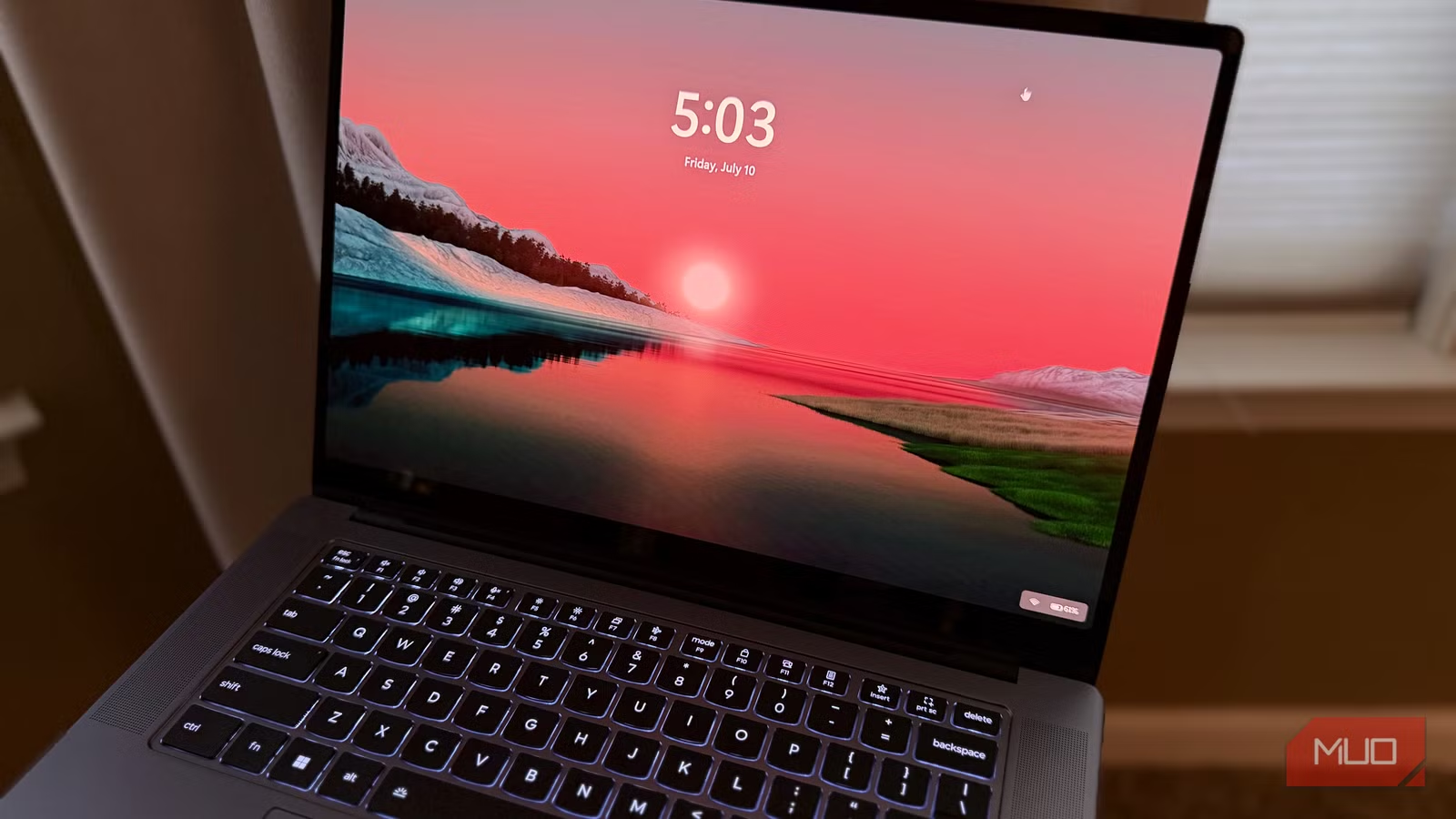
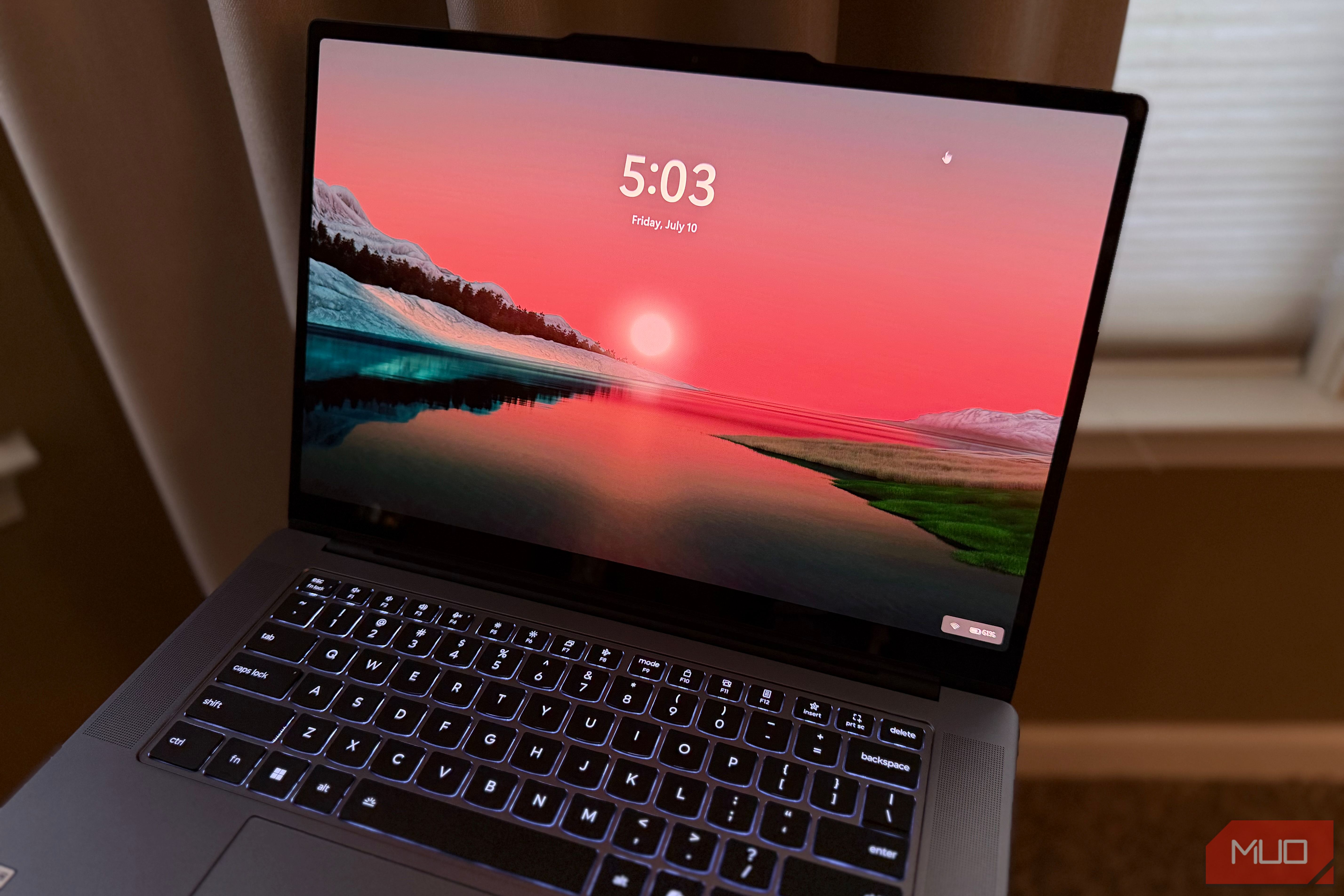
Now, my lock screen is just a clean wallpaper with my battery and Wi-Fi status, as shown above. It’s so much more serene, and it’s easy to clean up. Here’s how.
Change these settings
Credit: Brandon Miniman / MakeUseOf
Go to your Lock screen settings by going to Personalization > Lock screen, or just by searching the Start menu for “lock”.
Then, under “Personalize your lock screen”, change this to either Picture or Slideshow (the default on my laptop was Windows Spotlight). Unless you have a folder of family photos you can point to for Slideshow, pick Picture, then choose an image. Make sure “Get fun facts, tips, tricks and more on your lock screen” is unchecked. In addition, under “Lock screen status”, change the value to None. After you do this, you’ll have a beautiful and clean lock screen with no content suggestions or clutter.
No more annoying news and weather down there
Credit: Brandon Miniman / MakeUseOf
If left alone, Windows will show you news and weather in the bottom-left corner of the taskbar; click it and the full widget panel appears, packed with random news stories, sports scores, weather, stocks, and more. You might like having access to this data, especially if you take the time to configure the widgets to your liking, but for me they just add visual clutter that I find annoying.
To turn off the taskbar widgets, just right click the taskbar > taskbar settings. From here, uncheck the option for Widgets, and the taskbar will instantly become cleaner — but if you actually like the widgets, you can improve Windows widgets by changing a few settings.
Not every query needs to go out to Bing
Credit: Brandon Miniman / MakeUseOf
Most people use the Start menu as an app launcher. It’s so easy to tap the Windows key and begin typing a few letters like “calc” to get to calculator, then you press enter and boom, you have the calculator.
Unfortunately, when you type “calc”, you do indeed get the right match, but alongside annoying Bing search results for things related to calculators. It’s messy and search results in the Start menu can be turned off entirely with a quick registry edit that I’ll walk you through. Once you do it, your Start menu will be much cleaner and even a bit faster.
Credit: Brandon Miniman / MakeUseOf
Press Windows+R to open Run and type “regedit” and hit enter. If you get a warning, just press yes
- Navigate to this path manually or by pasting this into the top address bar: HKEY_CURRENT_USER\Software\Policies\Microsoft\Windows
- Look for Explorer under the Windows folder.
- If Explorer is not there (it wasn’t for me), you can add it by right-clicking an empty space, then go to New > DWORD (32-bit) value and name it: DisableSearchBoxSuggestions
- Double-click on the new DisableSearchBoxSuggestions entry, and change the value data to 1, then click OK.
Reboot your machine, and search results should be gone from the Start menu. With no Bing search suggestions, not only is the Start menu a bit faster, but you get more search results from the content on your PC that you actually want to see.
As with any registry edit: be careful, and only perform changes described exactly as you see above.
Windows can be calmer and less annoying
Credit: Brandon Miniman / MakeUseOf
Over the years, Windows has gotten a bit more chaotic and busy.
With these three changes, you’ll cut most of the annoying recommendations from your lock screen, Start menu, and taskbar, and reduce the visual clutter that comes with them. There may even be a small performance benefit, since your PC isn’t constantly fetching suggestions and news headlines. After a week with these tweaks, I’ve found zero downsides.
6/10
Operating System
Windows 11
CPU
Intel Core Ultra 9 386H
The Lenovo Yoga Pro 7i Aura Edition is a premium laptop with a 15.3″ OLED Touchscreen and is powered by the Intel Core Ultra 9 CPU with 32GB of RAM and a 1TB SSD.
