

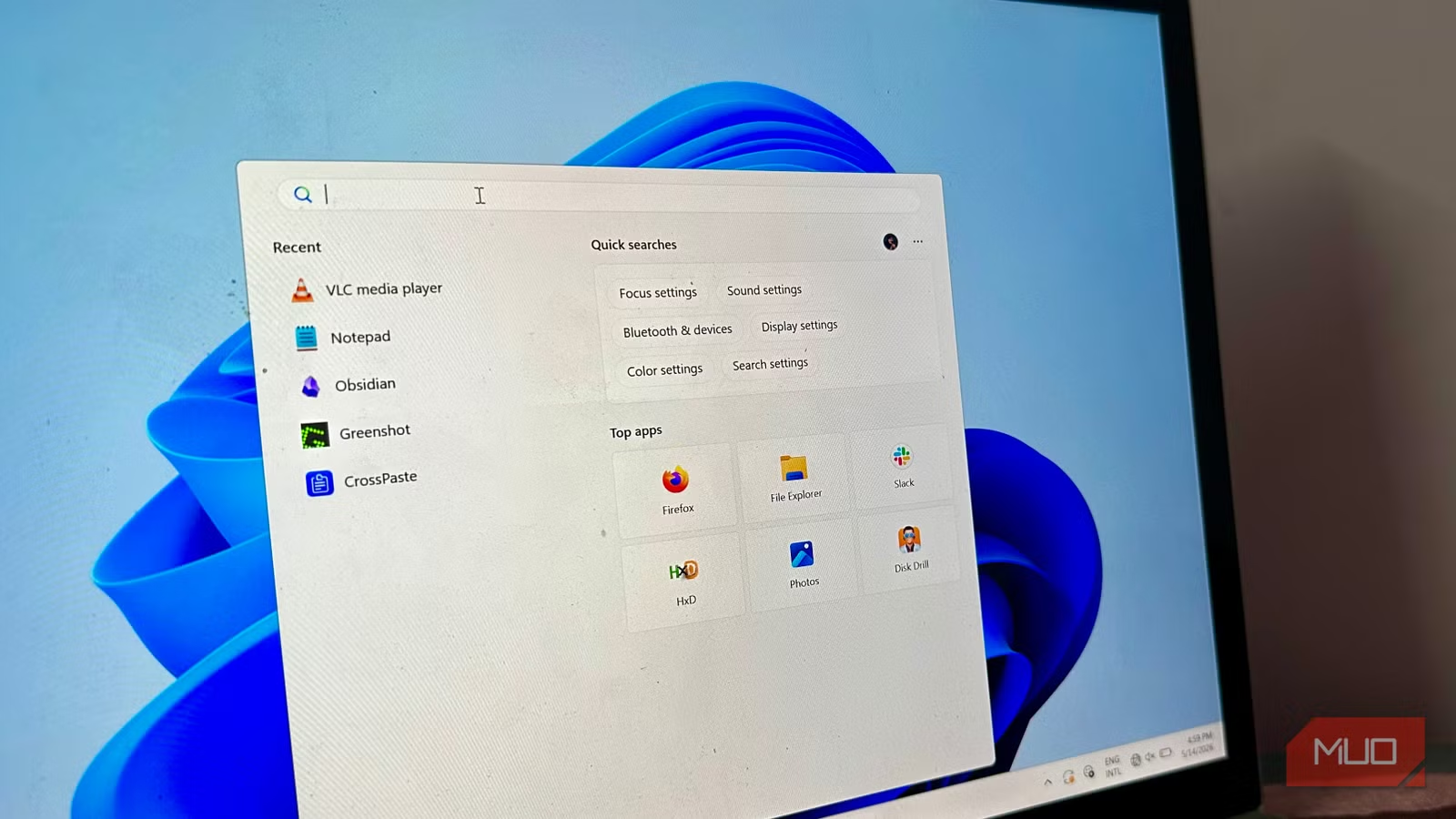
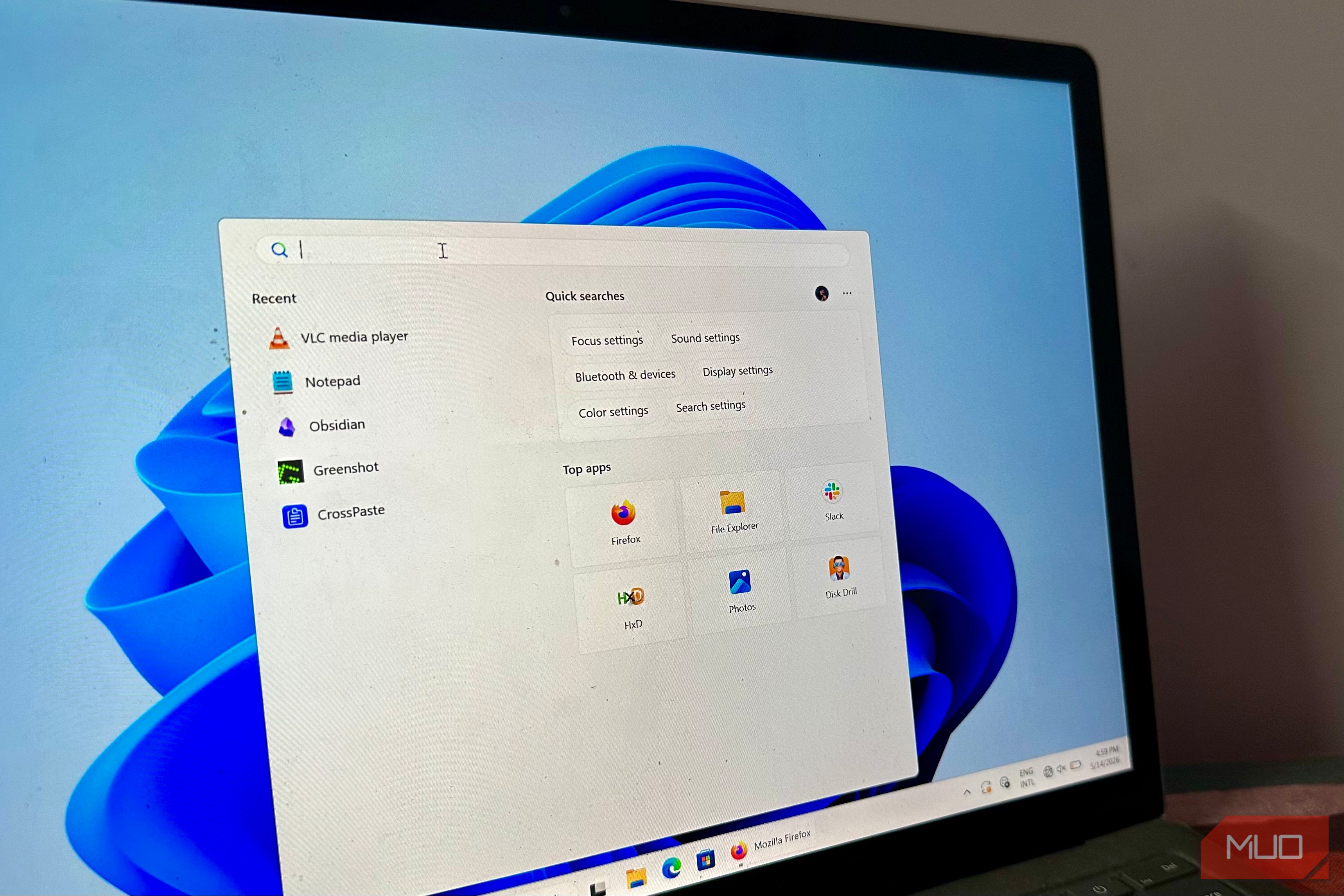
It is very common to have to stare at a motionless loading bar while your computer fans spin out of control. The default Windows search tool is supposed to help you manage your documents, but it crawls to a halt while choking on its own massive database. While there are some fixes, the links and files generally disappear into a black hole, search results miss exact filename matches, and the constant background indexing slows your entire system. However, there is an alternative that is fast and easy on your machine that you likely won’t want to get rid of.
Related
I ditched Windows Search for this free app and it’s amazing
Searching has never been this fast or this satisfying.
Windows Search is pretty limited
It’s so bad at its job way too often
Jorge Aguilar / MakeUseOf
Windows Search works differently under the hood than you’re probably used to. Instead of just mapping where your files sit on disk, the search crawls your entire directory tree and digs into the contents of your files. That means documents, XML structures, and system files are all searched at once.
It uses specialized plugins called iFilters to crack open and read those files. That sounds thorough, but in reality, it means constant, heavy disk reads to keep the index current. If the indexer runs into a corrupted file, a massive database, or a format it doesn’t know how to handle, those plugins can stall or loop indefinitely, pegging your CPU and disk until you force-stop something.
That’s why you face issues when you use it. The result is a background process that fights against whatever you’re actually trying to do.
The problem gets worse as your storage grows. The Windows Search database doesn’t scale well; it balloons in proportion to your files. The database will eventually start growing faster than it should, and performance will noticeably drop. Finally, the indexer will start failing outright, sometimes causing the system to crash. Throw a network drive into the mix, and things get even slower.
Despite all this resource drain, it will still miss files. So it’s even worse than it seems. Trying to force your way around it doesn’t help either. Some administrators disable the backup mechanism entirely to make the indexer run flat-out. Even still, that trades one problem for another.
You’re going to get sustained disk activity, heat buildup, and throttling on older drives. You’re left choosing between a background process that grinds against your work, or an index so out of date that searching it is barely faster than just opening File Explorer and looking yourself.
Everything is faster
The speed is the strangest part
When you first install Everything, you’ll notice how fast file search can be. I think it’s easy to subconsciously assume that all file searches have to be slow. However, the reason this is untrue with Everything is because of the approach.
Instead of crawling through your folder structure the way Windows does, Everything goes straight to the physical disk level. On NTFS-formatted drives, it reads the Master File Table directly. So it is looking through the database where Windows already tracks the name, size, and location of every single file on the partition.
By pulling that map straight from the kernel instead of hunting file by file, Everything builds its initial index in seconds. Since the roadmap already exists, there’s no background scanning, no CPU spike, and no fans spinning up.
Once that index is built, Everything keeps it accurate without ever re-scanning your drives. It does this by tapping into something called the NTFS Change Journal, a running log that Windows quietly maintains of every file operation on your system.
Everything just reads that log and updates its database within milliseconds of anything changing. It never has to “wake up” and go looking because it already knows. That’s why you don’t get the long wait, disk thrashing, or random pauses that make Windows Search so frustrating.
In practice, this means you can pull up deeply buried file paths almost instantly. Instead of clicking through nested folders or watching a loading spinner while Windows tries to remember where it put something, you type a few letters and the full path appears before you’ve finished typing.
It handles drives with a million-plus files without breaking a sweat, and the memory footprint is tiny. I like it because I stopped using the default search since it’s so slow and unreliable, and Everything just works better.
It’s time to drop Windows Search
It’s not worth the long wait times
Pankil Shah/MakeUseOf
It’s fair to wonder why you’d bother installing a separate desktop search app when Windows already has one baked right into the taskbar. The native tool is deeply tied into the OS and ready to go from the moment you start your PC.
There should be an important distinction between being there and being useful. Over time, Windows Search has turned into a mess. For some odd reason, it looks through web results, Bing suggestions, and promotional content when all you wanted was to find a file on your own computer.
On top of that, its background indexing chews through CPU and disk resources on both old and new machines. A lightweight alternative like Everything takes a completely different approach: fast, accurate, and easy on your hardware.
I hate having tools on my PC that don’t do their job well. Right now, the regular search does too many things poorly. Everything fixes that.
Everything could be the solution for you
Relying on a third-party utility like Everything isn’t a perfect fix for every single situation. The program only looks at filenames and metadata, so it doesn’t search the actual text in your files, unlike the native Windows tool. If your daily workflow requires deep content search within massive text documents, this lightweight alternative won’t completely replace your current setup. However, if you’d rather stop dealing with high disk usage and irrelevant internet suggestions when you just want to locate a local folder, Everything is one of the cleaner ways to do it.
OS
Windows
Price model
Free
Everything is a Windows filename search engine that guarantees fast and accurate file search even without typing entire file names.
