

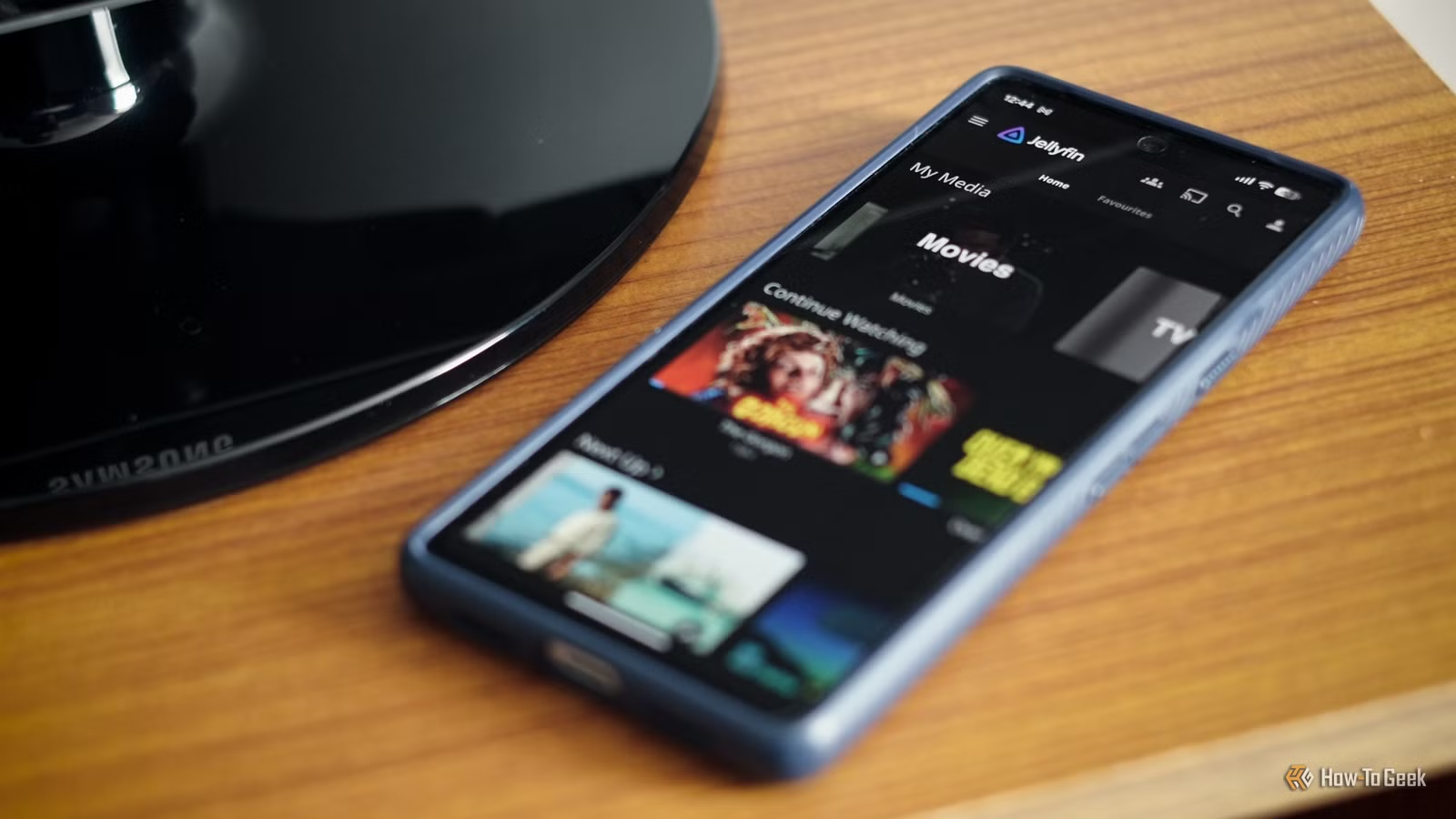

Jellyfin works pretty well on Android with all the default settings in place. But there are still a few tweaks I make in both the Jellyfin client and Android itself to tailor the service to exactly how I want to use it. From enabling wider codec support to improving offline use, to enabling background play, these tips can improve your Jellyfin experience too.
Switch the player type
Get support for more file types
By default, the Android Jellyfin client uses the built-in web player for video playback. It’s fine. It takes no setup, supports things like chapters, and is generally pretty reliable. But I still don’t use it. Jellyfin gives you two other choices for the video player, and I prefer both to the default option.
Going into Settings > Client settings > Video player type, I normally choose the Integrated Player option. This uses ExoPlayer, a media playback library maintained by Google that supports a wider range of video formats. It also feels more integrated with the OS, with features such as picture-in-picture mode, background audio, and volume and brightness control gestures that you access by swiping upwards on the left and right sides of the screen.
You have to enable some of these in the settings when you first enable it.
Choose an external player as a backup
Can’t play a file? Use VLC, of course!
The only time I move away from the Integrated Player setting is when I encounter a file that won’t play, for whatever reason. When that happens, I switch it to the External Player option.
Jellyfin lets you stream your files to a range of Android media players, although you’ll have to experiment to see which ones work. My preferred app, for example, is NOVA Video Player, but that doesn’t seem to work. The old standby, VLC, does, and it can handle a lot of content that the built-in player struggles with.
Unless you’ve got a library that’s full of difficult files and strange formats, you should only use an external player as a fallback option. Although it’s fast and works flawlessly, progress tracking is less reliable, among other things. If you stop watching a movie halfway through, you might not be able to pick up where you left off.
Create mobile-first collections
Skip the library and get your binge-worthy favorites ready
Collections in Jellyfin are good for keeping movie series, directors, or studios grouped together for easy access. But you can also create mobile-centric collections that contain the kinds of content that you want to watch on your phone.
For me, that means a set of favorite 80s movies that I can watch and rewatch, but which don’t require my full attention. For you, it might be some choice episodes of The Office to keep you amused on your daily commute. Just think about when you watch Jellyfin on your phone the most, then build two or three collections that you can always dip into without having to trawl through your entire library.
Download content for offline viewing
Prepare in advance for a loss of network coverage
Another thing I do before traveling is to download some stuff before I set off. Although being able to stream from anywhere on any network for free is one of the great things about Jellyfin, and one of the reasons why many people choose it over Plex, streaming isn’t always viable.
If you’re a passenger in a car and are driving through areas with patchy mobile coverage, or are on a flight, it’s a lot easier to have several hours of movies and shows downloaded to your device before you go that you can watch offline. To do it, locate the film or show you want in your library, tap the three-dot menu button, and select Download.
You can find the downloads in your Files app.
Adjust the subtitles
Make them more readable
It’s not uncommon to watch movies and TV shows with subtitles these days. It might be because you’re watching something in a foreign language, or it might just be because you can’t hear the dialogue properly.
You can tweak the way the subtitles look, but how you do it depends on what video player you’re using. With the default Web Player option, you can change them through the Subtitles settings. The first things I look at are the subtitle size and position, which I find are too big and too high by default. Whatever you choose, use the Preview button to see what it looks like.
For the Integrated Player option, you can use Android’s built-in subtitles instead. Tap the Customize Subtitle Style button, and you can tweak the size, color, and other things.
Change the Android battery settings
One change allows Jellyfin to work in the background
Finally, it’s worth having a look at Android’s battery settings to keep Jellyfin running smoothly, especially if you’ll be playing things in the background. Go to Settings > Apps > See all apps > Jellyfin > App battery usage. First, make sure that Allow Background Usage is on, and then tap it and select Unrestricted.
This will ensure that the app will continue running even with the screen off. I haven’t noticed any bad effect on the battery in general, but you should keep an eye on it to be sure, as some devices behave differently.
Or try a whole new Jellyfin client
Of course, for the ultimate change-up, you can get rid of the official Jellyfin client altogether and try a different app. If you fancy this, I recommend Moonfin, which looks great and adds a number of useful extra features.
But you don’t need to do that. The simplicity of Jellyfin on Android is one of its biggest strengths. And by making a few minor tweaks to its settings, you can get it running more smoothly and more efficiently than ever.
