

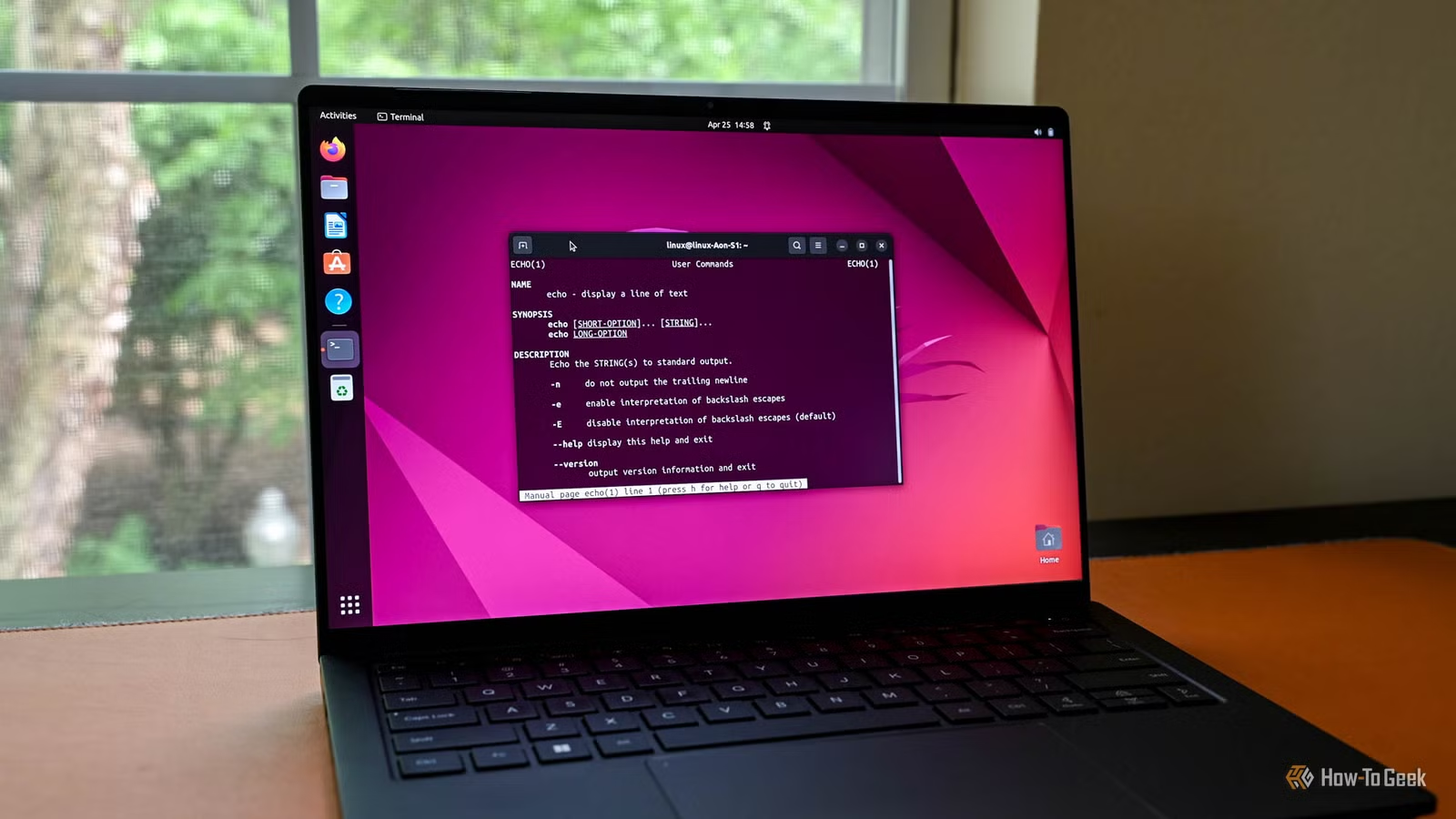
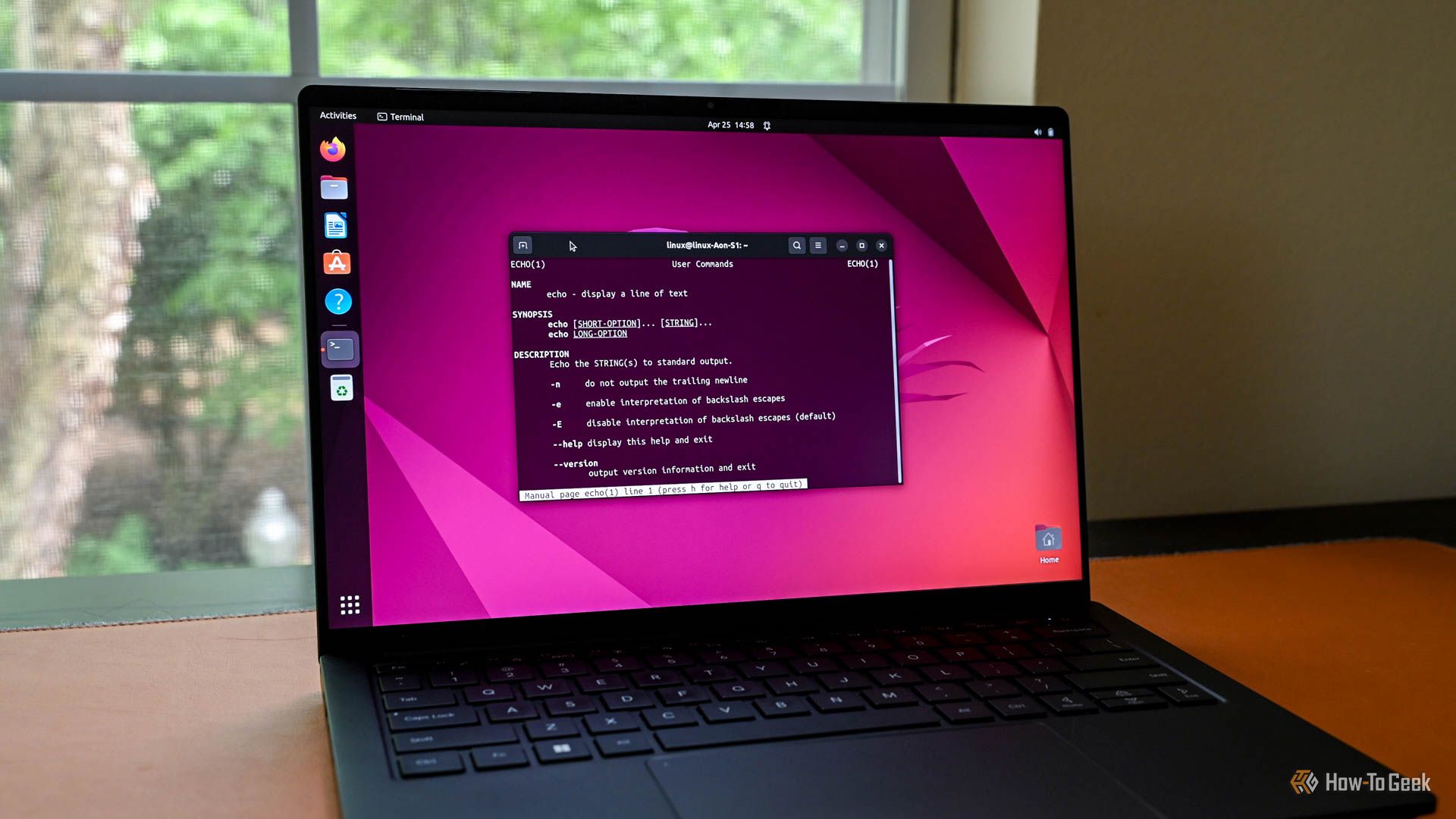
For any job you can do on Linux—or Windows—there are at least a dozen GUI apps that can do what you want. However, to keep distractions to a minimum, I use the terminal for most of my day-to-day jobs, and I don’t miss out on any productivity.
I write most code with VIM
A full IDE is too much
Credit: Jordan Gloor / How-To Geek
When I first start learning any new programming language, I tend to use the most fully-featured IDE available for that language. The debugging tools alone are invaluable, though the quality of those tools vary from IDE to IDE and language to language.
However, most of the time, the IDE’s extra features don’t justify the overhead, especially if I’m writing something fairly simple. I’ve come to use Vim for most of the coding that I do.
There are a few things that pushed me towards Vim.
- It is extremely lightweight and opens almost instantly, even on very low-power systems
- It is available for almost every Linux system
- It can be customized easily using profiles.
After you adjust to using a modal editor with a huge number of hotkeys, it is actually a very efficient way to work. I don’t need to remove my hands from my keyboard—ever—to run a script, edit a line, save, or perform any other action.
Screen makes multiple windows unnecessary
Multitasking without the clutter
When I’m working with a graphical user interface, I invariably wind up with a dozen windows scattered across three screens, each occasionally blinking, trying to grab my attention.
Sometimes that is unavoidable. However, if I don’t have to deal with that, I use screen instead.
Screen is a terminal multiplexer that allows you to open up multiple sessions within one terminal window. You can put multiple sessions side-by-side for quick comparisons or move sessions to the foreground or background without interrupting an ongoing process.
Brand
MSI
Screen Size
24.5-inch
Resolution
1920×1080
Refresh Rate
120Hz
Display Technology
IPS
The MSI PRO MP251W E2 is a 24.5-inch 1920x1080p (FHD) IPS monitor. With a refresh rate of 120Hz, it’s the perfect, budget-friendly display for both work and gaming.
Critically, nothing actually depends on my terminal window remaining open. I can close the window on my laptop, or disconnect from my headless server, and the processes I started will keep running by themselves.
Screen is one of my favorite applications, especially when I’m working on a headless server. It takes multitasking from a load of distractions down to one neat terminal window.
Command-line Git does everything I want
Graphical Git is unnecessary noise
Git allows you to create and manage different versions of code that you write, and if you do any significant amount of coding, it is invaluable.
Git can be used with a graphical user interface, but the command-line interface is every bit as fast and reliable—you just need to learn a few commands first.
In many ways, I’ve found that the Git command-line version is just more convenient. Most of my coding takes place in the terminal anyway, and switching to a GUI application is out of the way. Additionally, I don’t really mistype when I’m working with Git in the commmand line; I do misclick relatively often.
SSH works on almost every system for every job
Remote management apps are usually overkill
There are a dozen different applications that allow you to connect to a remote server, but using them is all pretty much the same. You have to launch a dedicated app, sign in or perform some other form of authentication, and then click through the interface of whatever PC is on the other end.
Instead of dealing with that, I just use command-line SSH. SSH behaves very consistently across multiple operating systems, has minimal overhead, and the only setup you need to worry about is installing the SSH server. Sometimes you have to open port 22, but not always. If you want to skip manual logins, you can even set up SSH keys, which automate the authentication process behind the scenes.
Related
The Best Ways to Secure Your SSH Server
Running an SSH server? Use these tips to increase its security.
SSH can also be used to securely transfer files using SCP or SFTP.
I can count on one hand the number of times that I’ve used anything besides SSH for remote management in the last 15 years, and I can’t imagine changing that any time soon.
Htop is as good as a GUI resource monitor
Why use up more resources to check on my resources?
Every Linux distro with a GUI has some kind of resource monitor, though they vary in complexity and quality. However, regardless of which distro I’m using, I almost never use them—Htop is plenty.
Htop is a system resource monitor that runs in the terminal. With it, you can keep an eye on which processes are using up resources, and then apply filters to isolate the most important information. If you notice that an app is frozen or using too many resources, you can end it with the push of a few buttons.
Htop works identically on every system, consumes almost no resources or space, and provides as much information as a graphical resource monitor does.
After spending several years testing dozens, if not hundreds of apps, I’ve settled on one idea: the simplest tool is usually the best. There are fewer things to break, simple tools will almost always work on any PC, and you’re not likely to have your workflow disrupted by a radical interface redesign.
GUI applications have their place—I certainly wouldn’t want to browse the web in the Terminal—but as often as not, the simple command-line utility gets the job done just as well.
