

It’s no secret that Windows Search hasn’t kept up. It’s slow, inconsistent, and constantly tries to force you into doing things its way. Sometimes it finds what you need, but there are times when it annoys you by prioritizing web results and random suggestions over the file or app you actually wanted. And don’t even get me started on how it keeps nudging you toward Bing and Edge, even if you’ve set different defaults.
What’s frustrating is not just the speed, but the unpredictability. You can never quite trust it to deliver the right result every time. That’s what pushed me to look for an alternative, and I’m glad I did because it led me to the Command Palette. It has everything I want from Windows Search, and surprisingly, it’s from Microsoft.
Related
5 File Explorer Search Hacks I Can’t Live Without
Search smarter, not harder!
Command Palette is all about speed and convenience
Windows Search pales in comparison
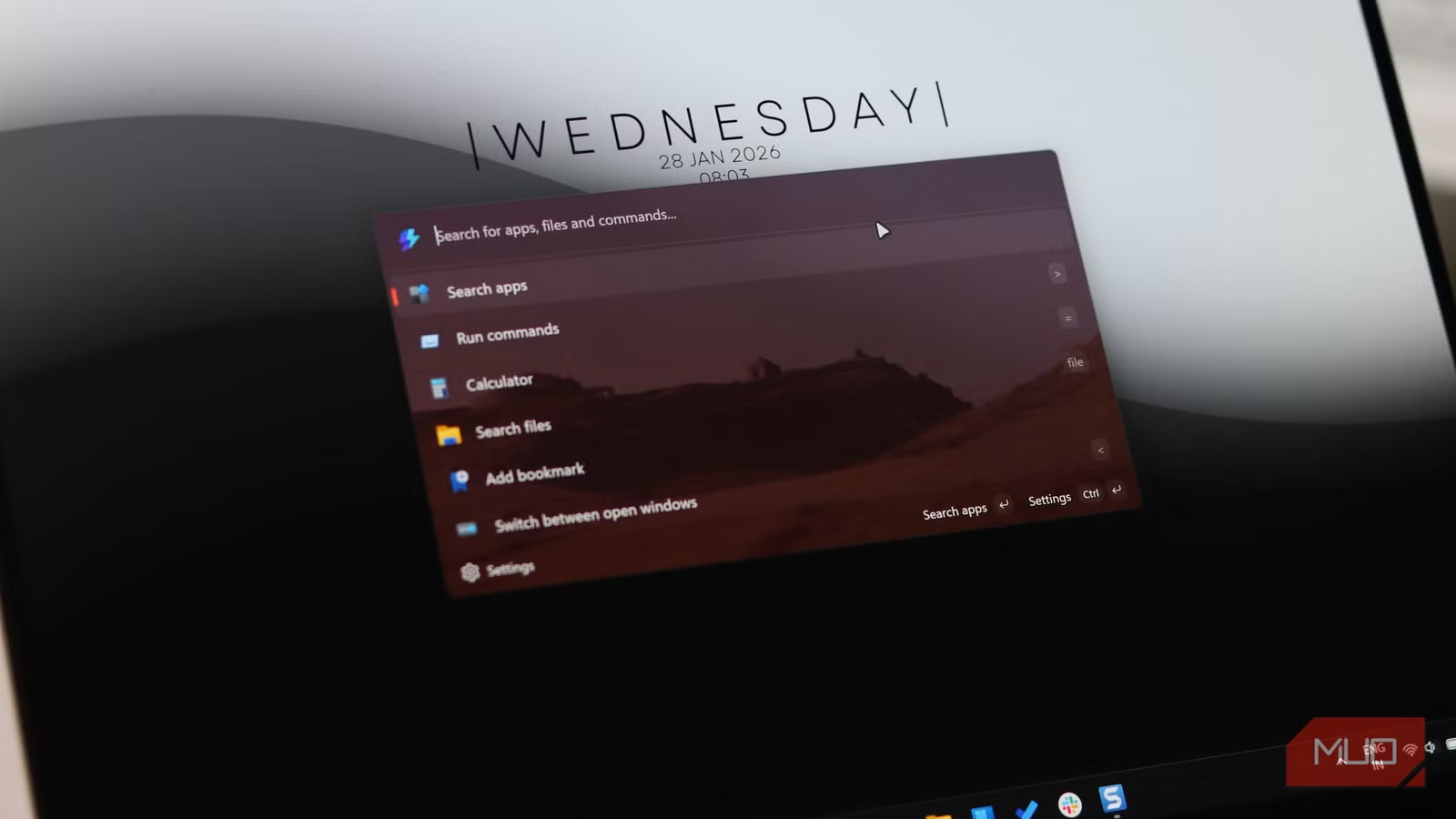
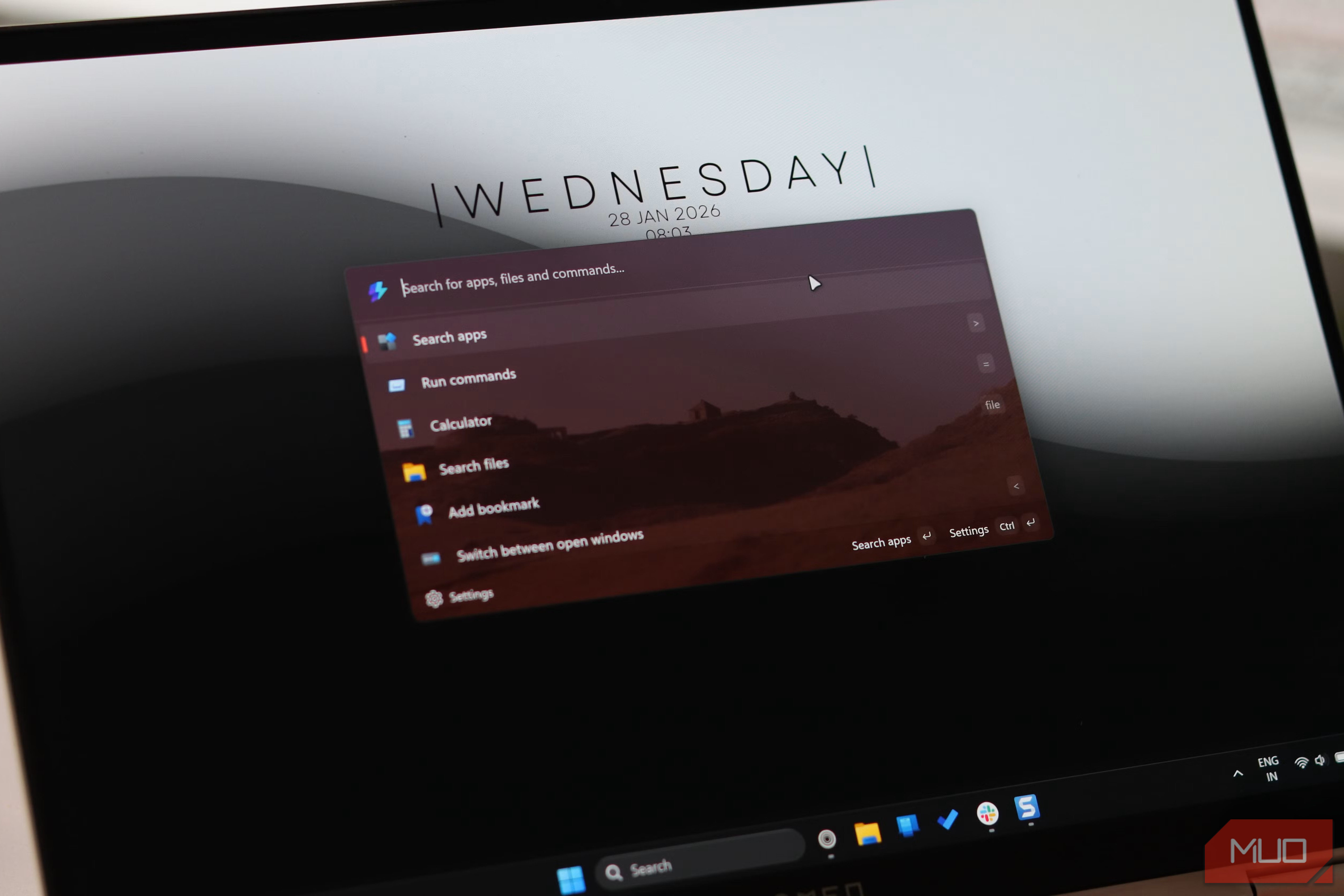
Command Palette is part of the Microsoft PowerToys app. It’s essentially a macOS-style launcher for Windows that can completely replace the Start menu, and honestly, that’s not an exaggeration.
OS
Windows 10, 11
Price model
Free
Services
FancyZones, PowerRename, Color Picker
Once you enable it by heading to PowerToys > System Tools, open it with Win + Alt + Space, and start typing what you need. It could be an app, a PDF document, or a work folder. The results will appear instantly, almost like Google search.
Beyond the usual stuff, you can use the Command Palette to run system commands, perform basic calculations, and even switch between open apps and windows. It also lets you do web searches, and unlike the Start menu, you’re not stuck with Bing or Edge. Your searches open in your default web browser in your preferred search engine.
What makes it special, though, is it can do things that Windows Search can’t. For instance, you can type in clipboard, and it’ll let you search through your Windows Clipboard. Enter services, and you can manage Windows services without opening the Services app. Similarly, you can use winget to search for and install apps directly from the Command Palette. The launcher even lets you browse the registry without actually opening the Registry Editor.
The best part about Command Palette is you can use it entirely with your keyboard. Once you’ve searched for something, press Enter to open it. If it’s an app or program, pressing Ctrl + Enter opens it with admin privileges. Ctrl + K shows more options, the ones you typically get when you right-click on a search result.
Make it yours, down to the smallest detail
Set it up your way
One of the best things about Command Palette is that it gives you complete flexibility, so you can customize it however you like. For starters, the default Win + Alt + Space shortcut works great, but you can remap it to something else entirely.
By default, the launcher always shows your previous search when you open it, which is quite useful. But if you want to start fresh, you can make it open the home page instead. And it gets better. If you have multiple monitors, you can even specify where the launcher should open. By default, it always opens on the monitor with the cursor, but you can change that. You can force it to always open on a specific monitor, or the screen with a focused window, or wherever you last left it.
Search results can be customized too. While looking for an app, you can make Command Palette show extra details like its file path. And if you prefer speed over flair, there is an option to disable animations within the launcher. This makes everything snappier and more direct.
It gets better with extensions
Endless possibilities
Screenshot by Pankil Shah — No attribution required
Command Palette already does a lot out of the box, but extensions are what turn it into something that feels almost limitless. Open its Settings menu, switch to the Extensions tab, and you’ll see modules that power its core features. Each one can be tweaked or even disabled based on your workflow.
The real fun, though, begins when you click the Microsoft Store option at the top. This will show you all the third-party extensions you can get. For instance, there’s a SteamPal extension, which integrates with your Steam library so you can find and launch your games directly from the Command Palette. The Weather extension lets you see a detailed forecast of any location right inside the launcher. Media Control lets you control music playback, switch players, and manage volume from the launcher.
My personal favorite is Quick Notes, which lets me create notes and save them as Notepad files. These are just a few examples. There are also extensions for creating QR codes on the fly, switching power modes, translating text, and even managing your calls on Microsoft Teams directly from the launcher.
Command Palette is already impressive, and it’s only getting better. With customization options and a growing list of extensions, it’s not just a Windows Search alternative but a clear upgrade. At this point, it’s hard not to wonder why this isn’t the default experience already.
