

I noticed my SSD appeared to be shrinking, even though apps and downloads hadn’t changed significantly. What made this a bit worrisome was that clearing temp files and removing installed apps didn’t really help.
After much research, I realized the culprit wasn’t the kind of file I would typically delete. I had run into a problem with Windows Search building a large database over a very long period of time. It’s not a common suspect, but it’s now one of the things I check for when I run out of storage.
What Windows Search is actually keeping on your drive
It’s building a database, not just speeding up search
Afam Onyimadu / MUO
When you search on Windows, you might think the system performs a scan at that moment, but in reality, it prepares for that search even before it happens. It builds a local database that includes everything it thinks you may search for, and as this database sits on your drive, it grows over time.
It feels like a harmless process, and for the most part, it is. At least, indexing file names is worthwhile if the result is instant search. But Windows stores metadata, such as file properties, and can even go a step further by storing the actual file content. This results in the processing and storage of PDFs, Word files, and email content in a searchable format. The resulting dataset is not lightweight.
If you configure classic Outlook on Windows 11, Windows Search will index entire mailboxes.
Search indexing is an automatic process that indexes several locations, including user folders and system paths; you do not explicitly approve them, but they still feed into the database.
The real danger isn’t just that the index grows, but that it grows gradually — so you notice only when storage is low.
A handful of settings quietly multiply the index size
Afam Onyimadu / MUO
Index size depends on the number of items indexed and, importantly, how deeply each item is indexed. This is the difference between storing file names and storing their actual content. File names take up an almost insignificant amount of storage. Metadata takes a little bit more, and the local database size quickly increases the moment full file contents are added to the mix.
This entire process depends on the file type, and there isn’t a single global setting to configure it. Windows decides whether a given file type will have its full content indexed or only properties. You will get a fast-growing index when Windows decides to index content for PDFs, DOCX files, and other common file formats.
My document-heavy folders had the biggest impact on the index. When you have numerous PDFs (a few gigabytes), they’re partially duplicated in the index in a different form. The mailbox is another notable contributor to a large local index database because its indexed elements include message content, attachments, and metadata. However, the behavior is a bit different in the new Outlook app.
If you have OneDrive configured, you may be adding another element of indexable material. Windows indexes OneDrive files that are synced locally.
Also, if you constantly re-edit specific files, they typically get re-indexed frequently. This becomes a constant churn that adds up in size over time. Index impact is summed up below:
Indexed data type
Storage impact
Real-world example
File names only
Low
Basic folders
Metadata
Moderate
Photos, music
File contents
High
PDFs, Word documents
The five-minute cleanup that actually freed up space
Cutting back the index without breaking search
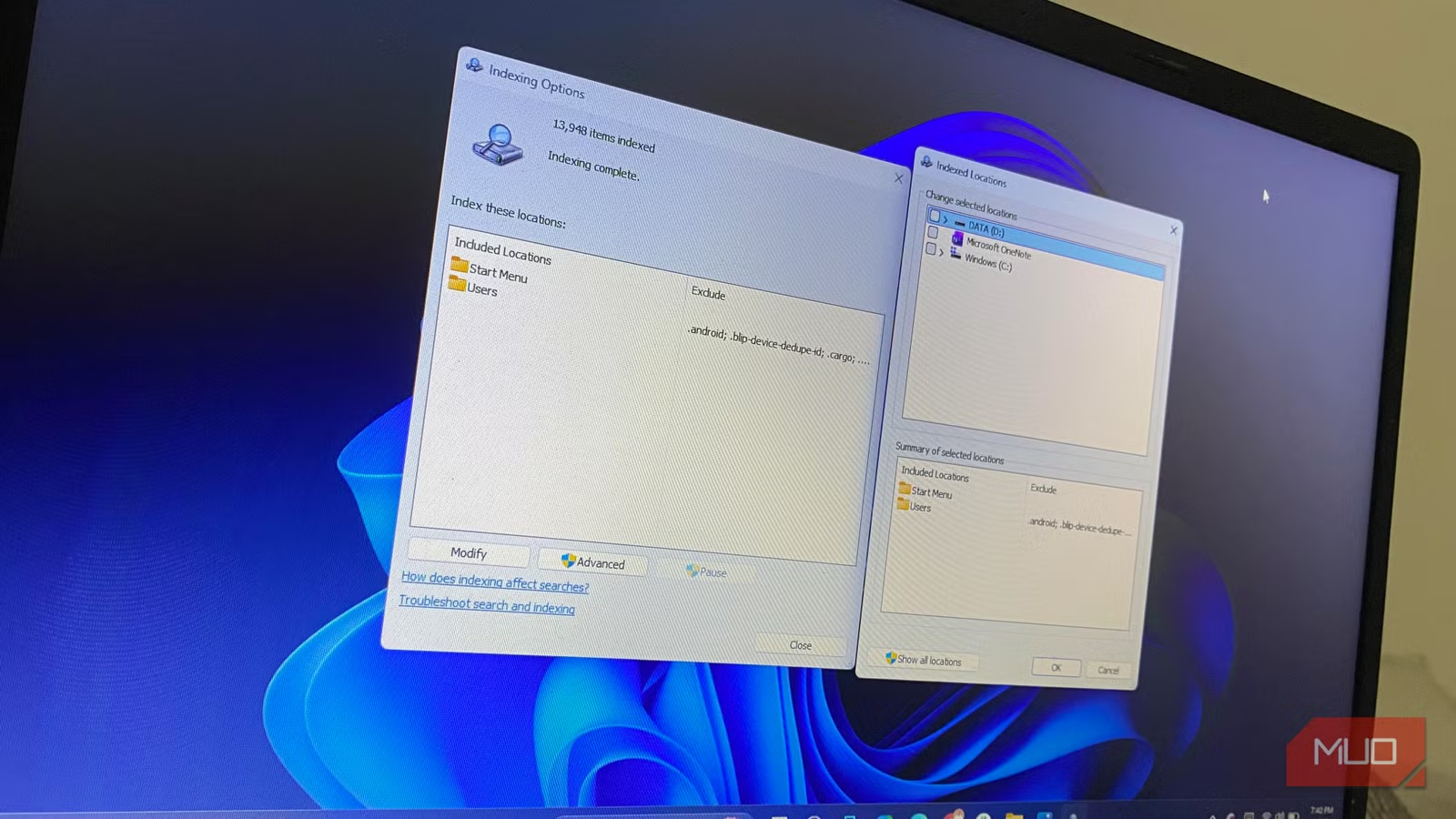
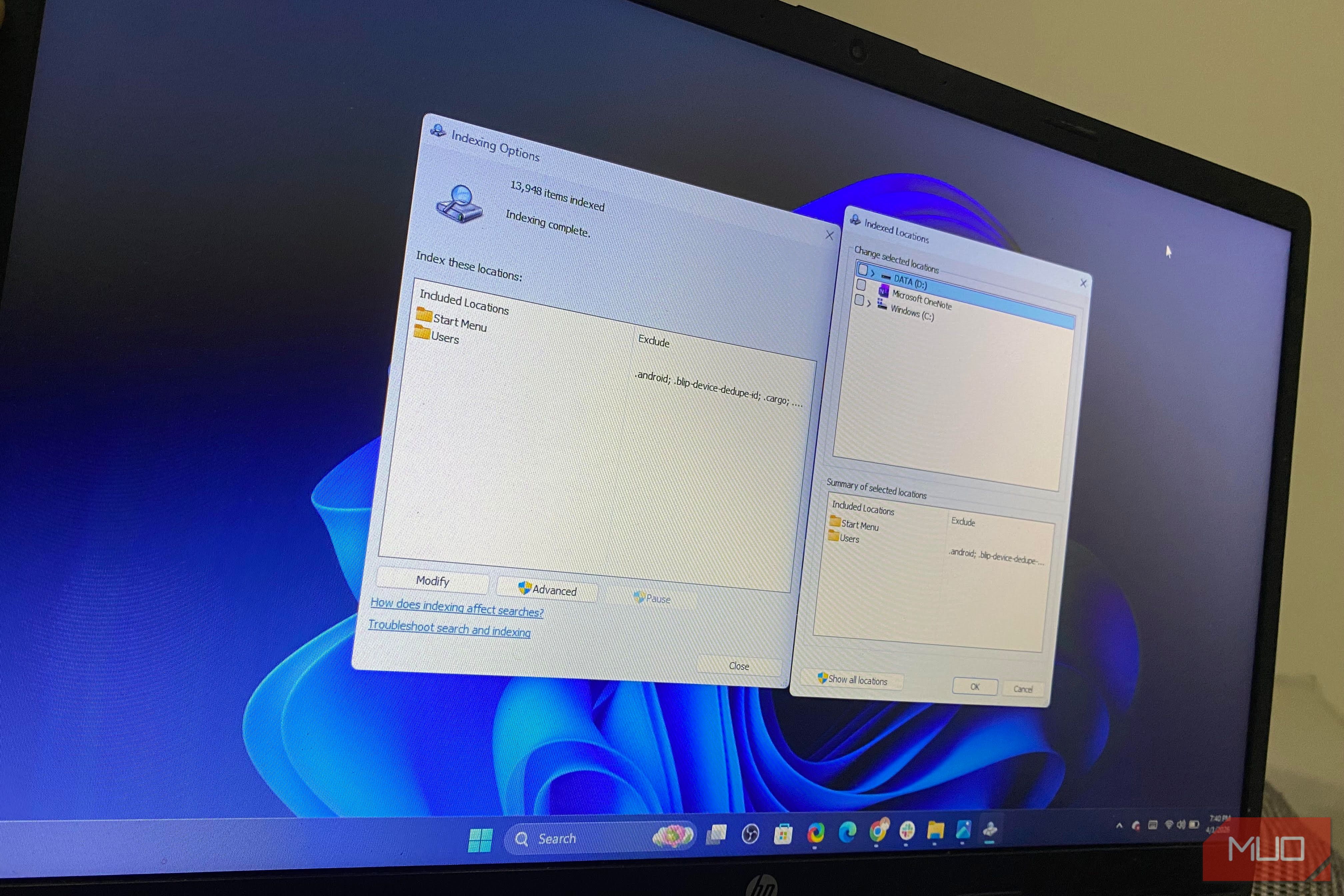
The fix was quite easy once I had figured out the problem. First, search for Indexing Options from the Start menu and open it. It became clear instantly why my storage was shrinking. It was indexing Microsoft OneNote, where I had several very large files, as well as OneDrive, the Users folder, and the Start Menu. Your list of indexed locations may even be broader than this, depending on the installations and configurations you have set up on your computer.
The first step was removing these locations from the index. But the next step was more subtle. When you navigate Advanced -> File Types, there are a lot of listed file formats and their descriptions. Uncheck formats you don’t want indexed. Also, just below, there is an option for How should this file be indexed?; select Index Properties Only. This switch makes a massive impact on how much data and space Search indexing takes.
The main changes I made to indexing were keeping it to fewer locations and ensuring that the full file contents are not indexed. This was the fix I needed to stop my SSD from shrinking. This quick configuration is a simple fix that makes Windows Search better.
Keeping the benefits of search without the storage cost
Indexing is important, so I’m not trying to eliminate it entirely. The goal of intentionally configuring Search indexing is to keep it in check while remaining useful. I configure indexing to focus on the folders and file types that matter most to me. These include core folders like the Start Menu and Documents. While I leave out large directories, I rarely search. Disabling Windows Search entirely is an option, too, but I’d rather adopt a trimmed index.
Related
I disabled one Windows 11 service I’d never heard of and freed up nearly 1GB of idle RAM
A sneaky service that can take gigabytes of memory.
